Why Can’t I Generate a Schedule?
The auto-scheduler needs certain conditions to create a valid schedule. If you’re seeing errors or empty results, this guide will help you diagnose and fix the issue.
[!INFO] Auto-Schedule is a Gold tier feature. If you don’t see the auto-schedule option, check your subscription level.
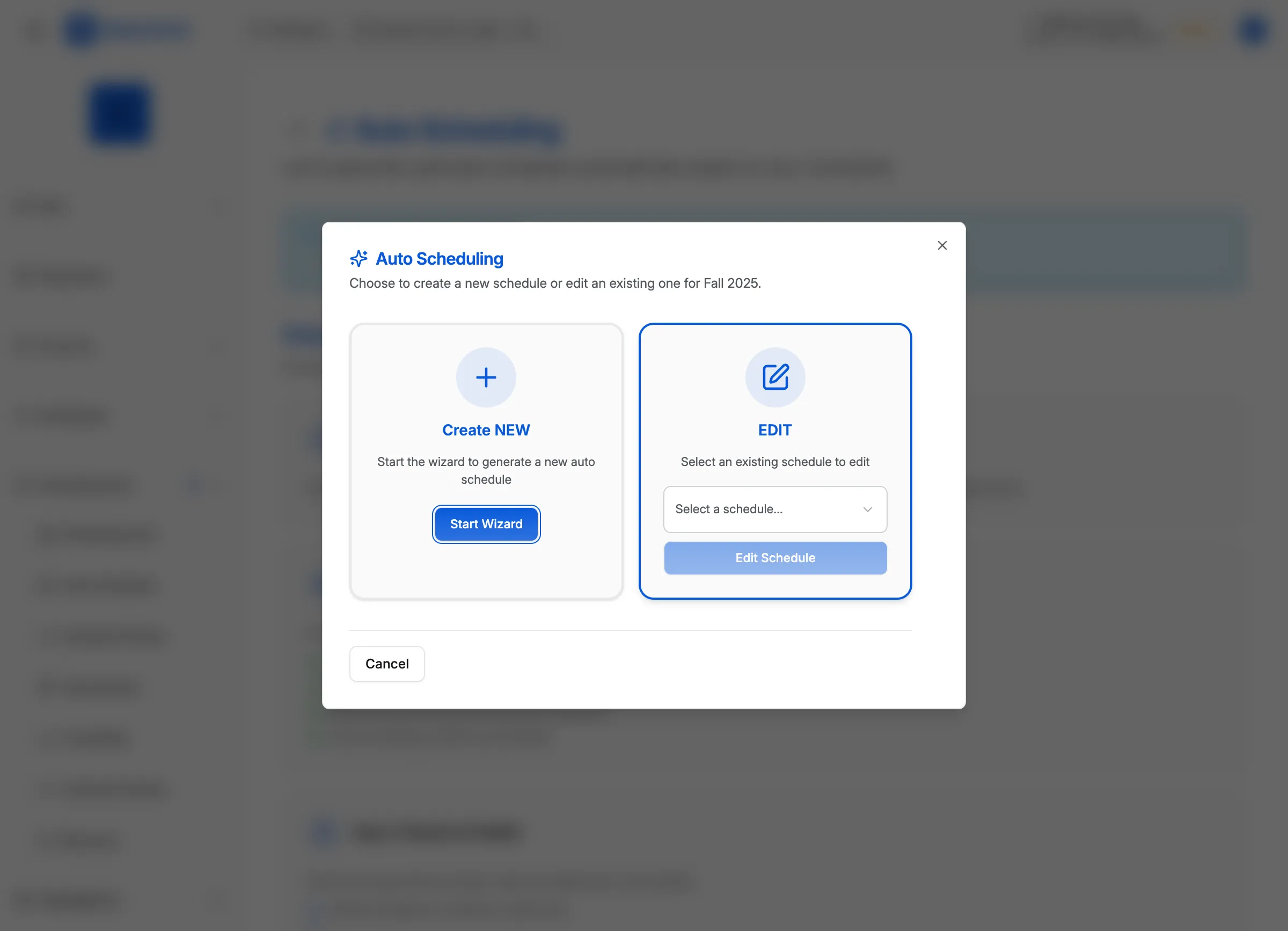
Common Error Messages
”Not enough teams”
Cause: The selected division has fewer than 4 teams.
Solution:
- Add more teams to the division
- Enroll existing teams for the season
- Select a different division
”No valid time slots”
Cause: No courts are available during schedulable hours.
Solutions:
- Add locations with courts
- Remove blackouts that block all dates
- Extend the season date range
- Expand daily scheduling hours
”All teams have conflicts”
Cause: Every team has blackouts or constraints that block all potential times.
Solutions:
- Review team blackouts—are they too restrictive?
- Check if travel limits are too small
- Reduce hard constraints in scheduler config
[!WARNING] The scheduler cannot find a solution if the constraints are mathematically impossible to satisfy.

Pre-Flight Checklist
Before running the scheduler, verify these requirements:
Required (Blockers)
- Season exists with start and end dates
- At least one location with courts
- At least 4 teams enrolled in the division
- At least some days without blackouts
Recommended
- Team travel limits configured
- Holiday blackouts entered
- Venue availability confirmed
- Scheduler config reviewed
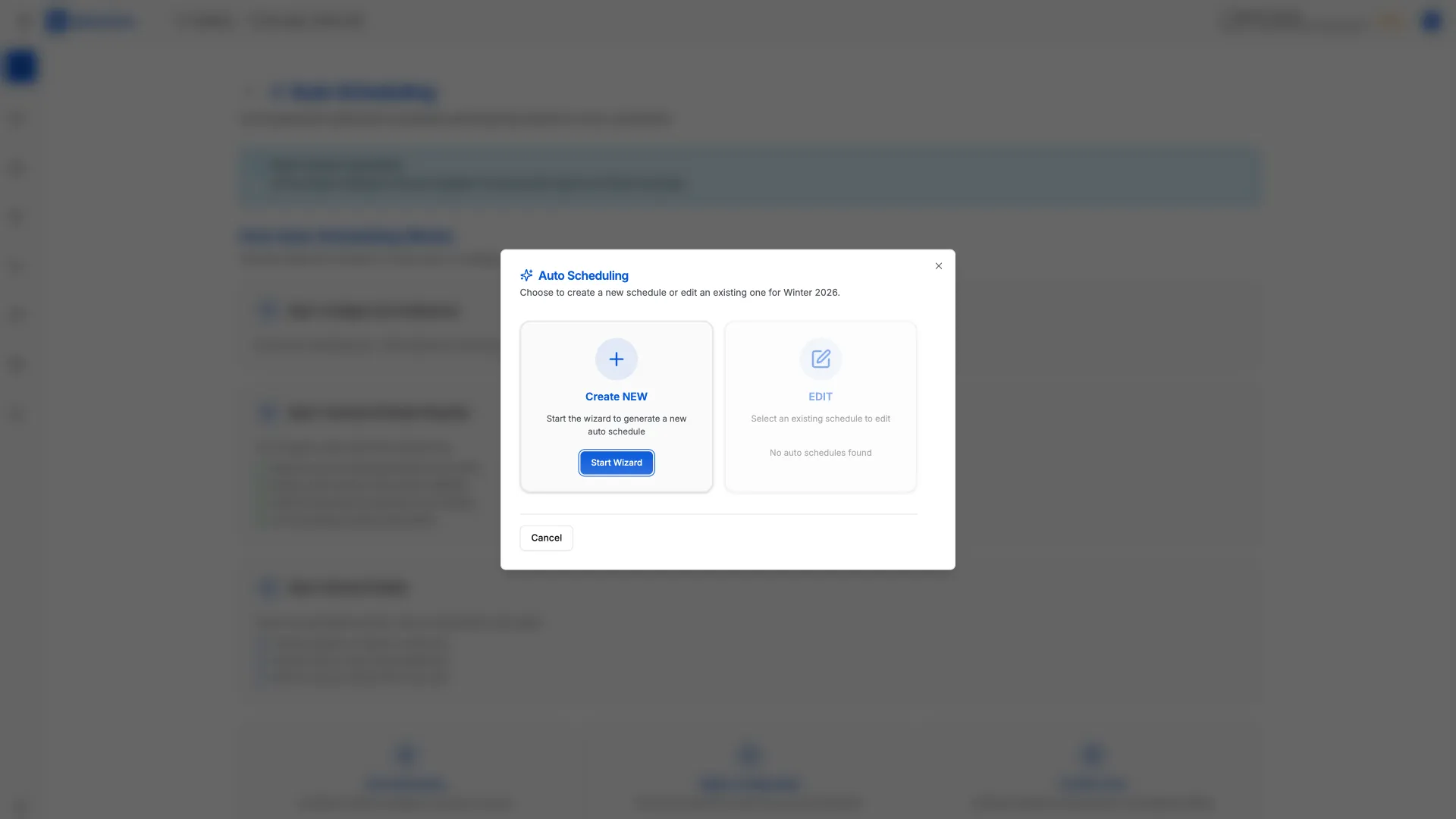
Feasibility Analysis
When the scheduler runs, it first checks feasibility:
Feasibility Score
| Score | Meaning |
|---|---|
| 95-100% | Excellent—all constraints satisfied |
| 85-94% | Good—minor soft violations |
| 70-84% | Acceptable—some compromises made |
| Below 70% | Poor—review constraints |
| 0% | Infeasible—cannot create schedule |
Reading the Feasibility Report
The report shows:
- Which constraints were violated
- How many events were affected
- Suggestions for improvement
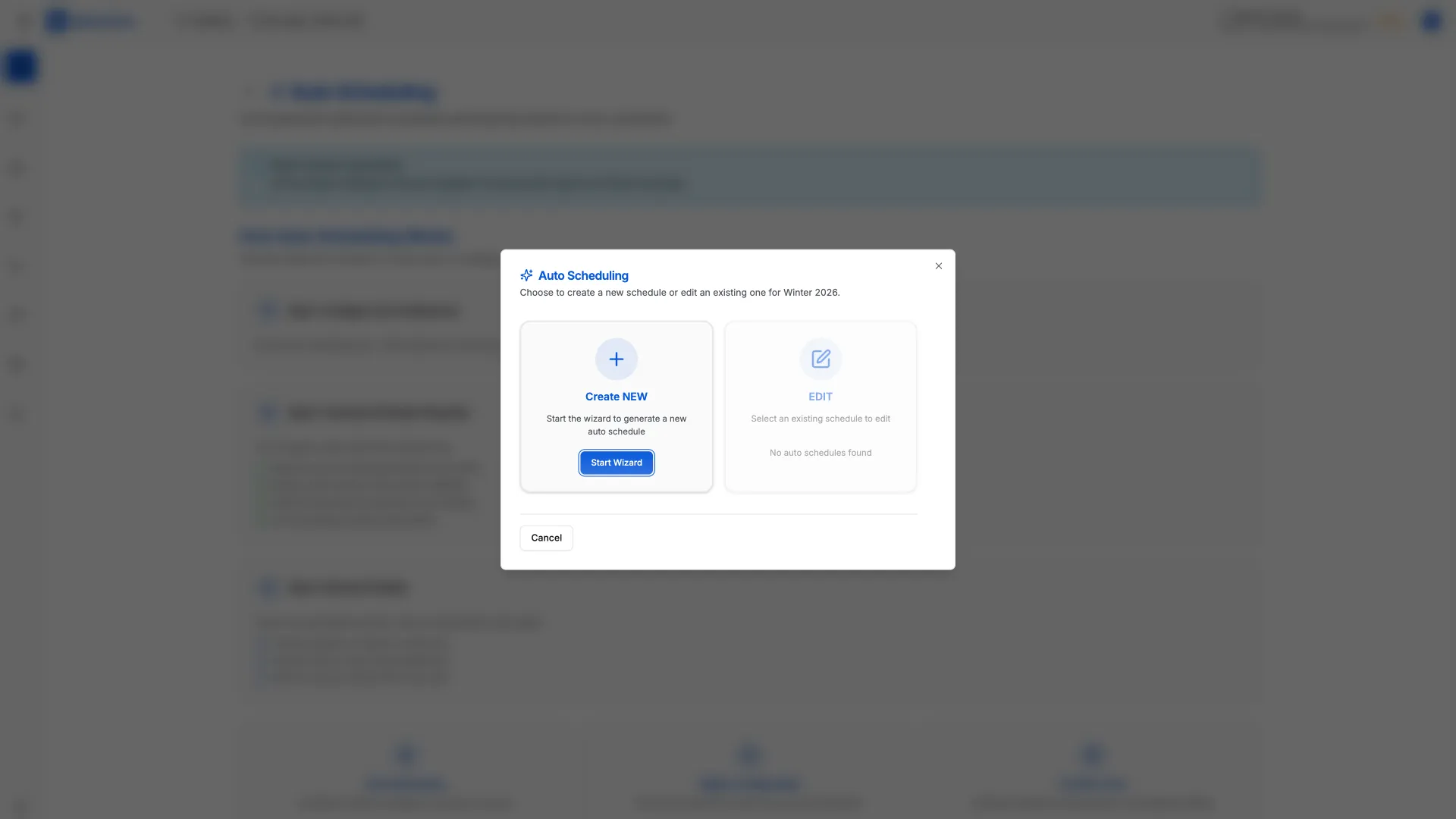
Adjusting Constraints
If the scheduler fails, try relaxing constraints:
In Order of Impact
- Reduce hard blackouts: Convert some to soft
- Increase travel limits: Allow more distance
- Expand available days: Add more scheduling days
- Lower max games limits: Allow more flexibility
- Add more venues: Increase court availability
[!TIP] Make one change at a time and re-run the scheduler. This helps identify which constraint was the blocker.
Scheduler Configuration Issues
Check Your Config
- Click Settings in the sidebar
- Click Scheduler Config in the settings menu
- Review each setting and look for overly restrictive values:
- Max matches per day = 1 (too low for large leagues)
- Min rest hours = 48 (too high for weekly leagues)
- Late slot threshold = 5:00 PM (too early)
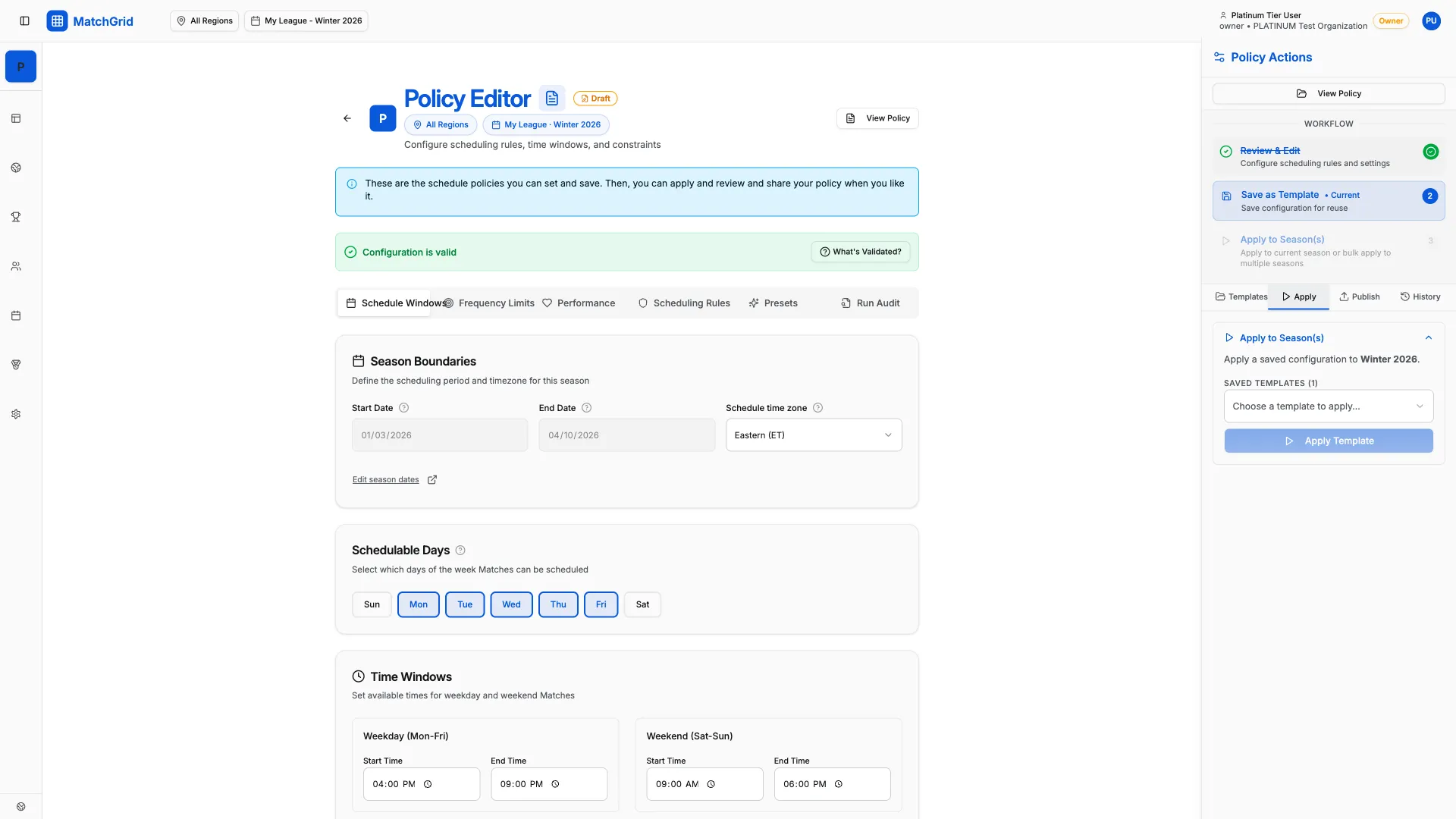
Reset to Defaults
If configuration is suspect:
- Select a preset (e.g., “Balanced”)
- Apply the preset
- Make minimal adjustments
Low Feasibility but Some Results
If you get a schedule but the score is low:
Review the Violations
- Open the generated proposal
- Check the conflicts list
- Understand which constraints were violated
- Decide if violations are acceptable
Options
- Accept with soft violations: Many soft violations are acceptable
- Adjust and re-run: Tweak constraints for better results
- Manual adjustment: Take the proposal and fix issues by hand
Getting Help
If you’ve tried everything and still can’t generate a schedule:
- Run the Pre-Flight Check and save the report
- Export your Scheduler Config
- Contact support with both documents
- Describe what you’ve tried