Resolving Schedule Conflicts
Conflicts occur when a scheduled event violates one or more constraints. This guide walks you through identifying and fixing the most common conflicts.
Finding Conflicts
In the Schedule View
Conflicts are highlighted on events:
- Red badge: Hard conflict (must resolve)
- Yellow badge: Soft conflict (warning)
In the Conflicts Panel
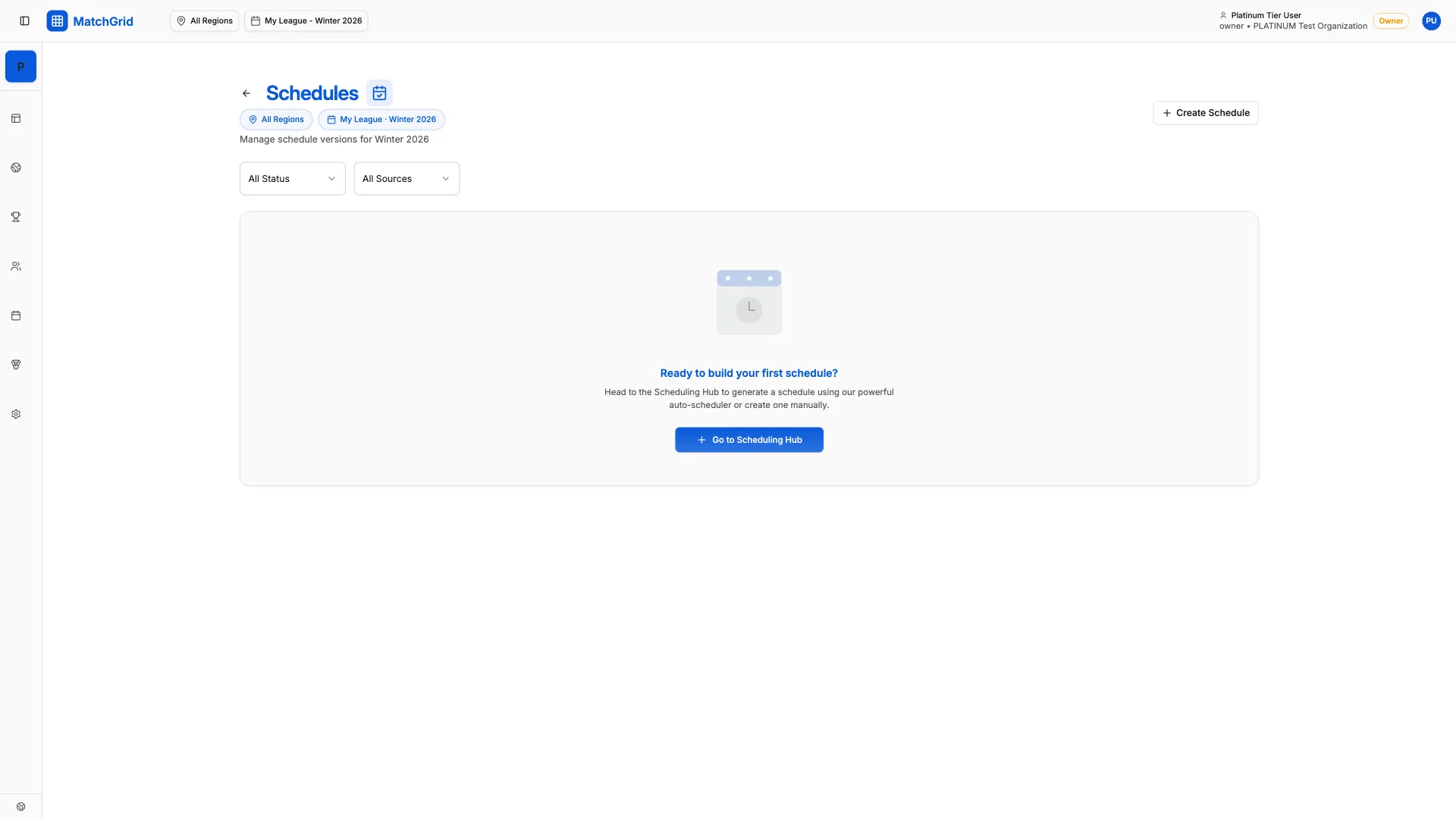
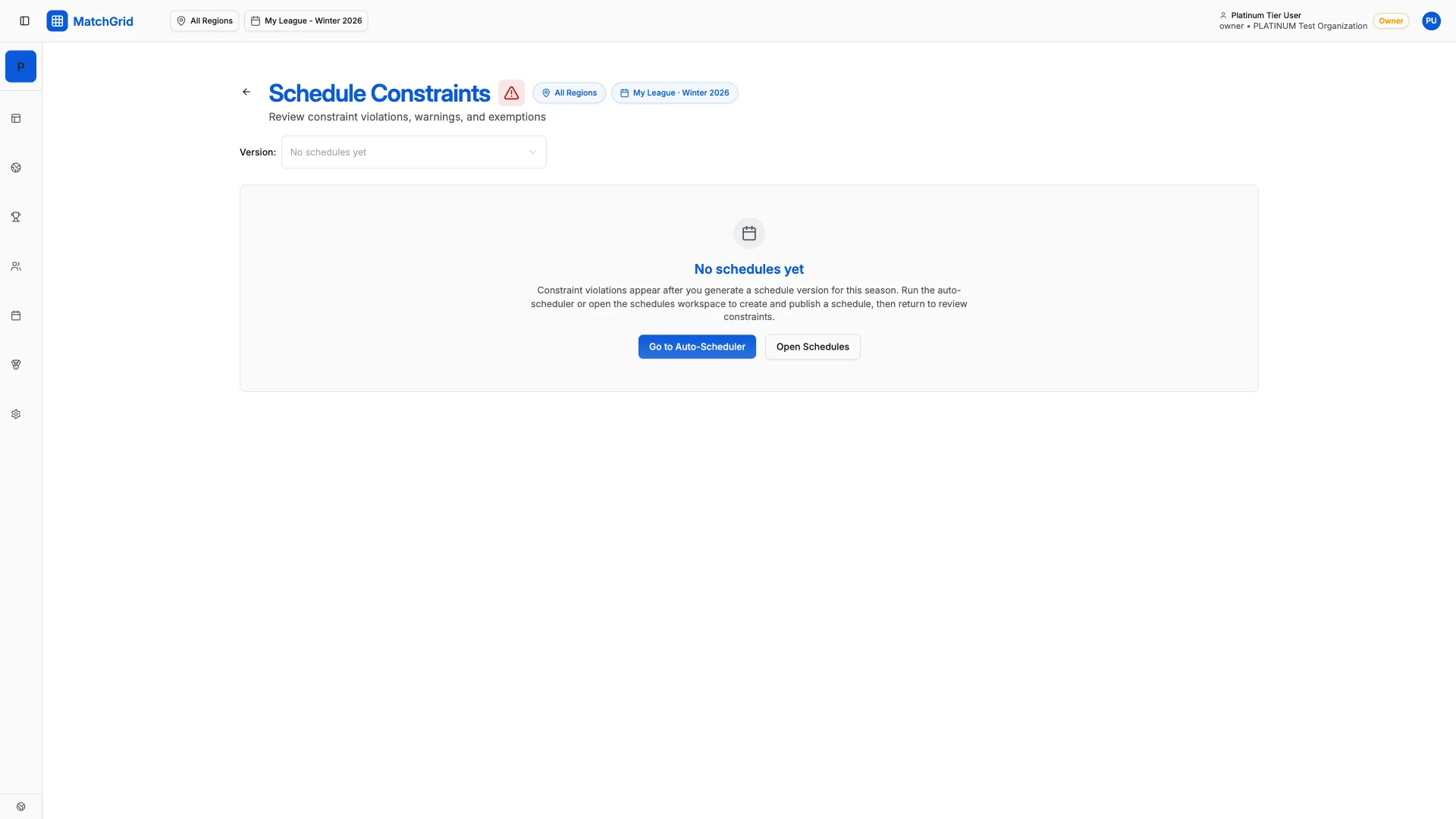
- Navigate to Constraints in the sidebar
- View all conflicts grouped by type
- Filter by team, date, or severity
[!TIP] Start with hard conflicts—they block publishing. Soft conflicts can be addressed later or acknowledged.
Resolving by Conflict Type
Team Double-Book
Problem: A team is scheduled for two events at the same time.
Solutions:
- Move one event to a different time
- Delete one of the events
- Verify the correct team is assigned
Steps:
- Click the conflict warning
- See both conflicting events
- Open the one to move
- Change date/time
- Conflict clears automatically
Court Double-Book
Problem: Same court has overlapping events.
Solutions:
- Move one event to a different court
- Change one event’s time
- Move one event to a different venue
Blackout Violation
Problem: Event is during a blackout period.
Solutions:
- Move the event to a non-blackout time
- Remove the blackout (if no longer applicable)
- Change the blackout to SOFT if override is acceptable
Travel Exceeded
Problem: Away team’s travel distance exceeds their limit.
Solutions:
- Swap home/away teams
- Find a closer neutral venue
- Increase team’s travel limit
- Override with justification
[!WARNING] Before increasing travel limits, confirm with the affected team that additional travel is acceptable.
Max Games Per Day/Week
Problem: Team exceeds maximum games allowed.
Solutions:
- Move a game to a different day
- Spread games across more weeks
- Adjust the max setting in scheduler config
The Resolution Workflow
Step 1: Identify
- Check the conflicts panel for all issues
- Note which are hard vs soft
- Prioritize by severity
Step 2: Analyze
For each conflict, understand:
- What constraint is violated?
- Which teams/locations are affected?
- What are the options for resolution?
Step 3: Fix
Apply the appropriate fix:
- Edit the event directly
- Use swap home/away
- Delete and reschedule
- Adjust constraints (last resort)
Step 4: Verify
After fixing:
- Confirm conflict cleared
- Check you didn’t create new conflicts
- Review related events
Using Override/Exemptions
Some conflicts can be overridden rather than fixed:
When to Override
- ✅ Team confirmed the exception is acceptable
- ✅ One-time situation (not ongoing)
- ✅ No better alternative exists
- ✅ Documented reason provided
When NOT to Override
- ❌ Hard constraints (double-booking)
- ❌ Safety concerns (excessive travel for youth)
- ❌ Unknown if affected parties agree
How to Override
- Open the conflicting event
- Click Override Conflict
- Enter a justification reason
- Save the override
[!INFO] Overrides are logged with the user and timestamp. Auditors can see who approved each exception.
Preventing Future Conflicts
- Set up blackouts first: Before scheduling, enter all known unavailability
- Configure limits early: Set travel and game limits before auto-scheduling
- Use pre-flight check: Run the scheduler’s readiness check
- Review as you go: Don’t wait until the end to check conflicts