Tracking External Tournaments
External tournaments are events hosted by other organizations (AES, SportsEngine, Exposure Events, etc.) that your teams participate in. Tracking them in MatchGrid helps prevent scheduling conflicts and provides a complete picture of your teams’ commitments.
[!INFO] External tournament tracking is available on Silver tier and above. It includes auto-blackout creation and conflict detection.
Supported Sources
MatchGrid can import from several tournament providers:
| Source | Description |
|---|---|
| AES (Advanced Event Systems) | USA Volleyball events |
| SportsEngine | Multi-sport tournament platform |
| Exposure Events | Basketball showcases and tournaments |
| CSV/Excel | Manual import from any spreadsheet |
| Manual Entry | Add details directly |
Adding an External Tournament
Method 1: Import from URL
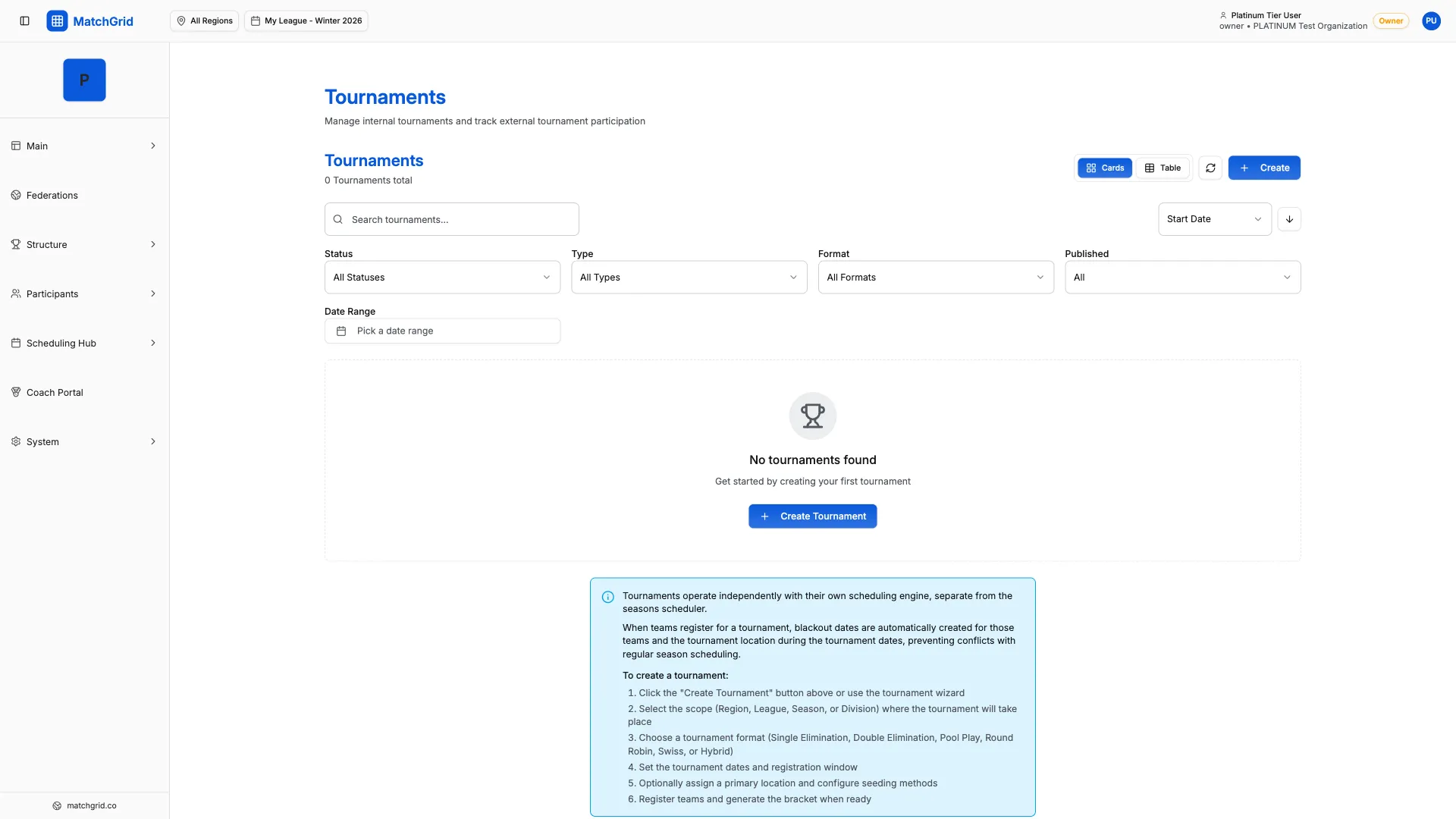
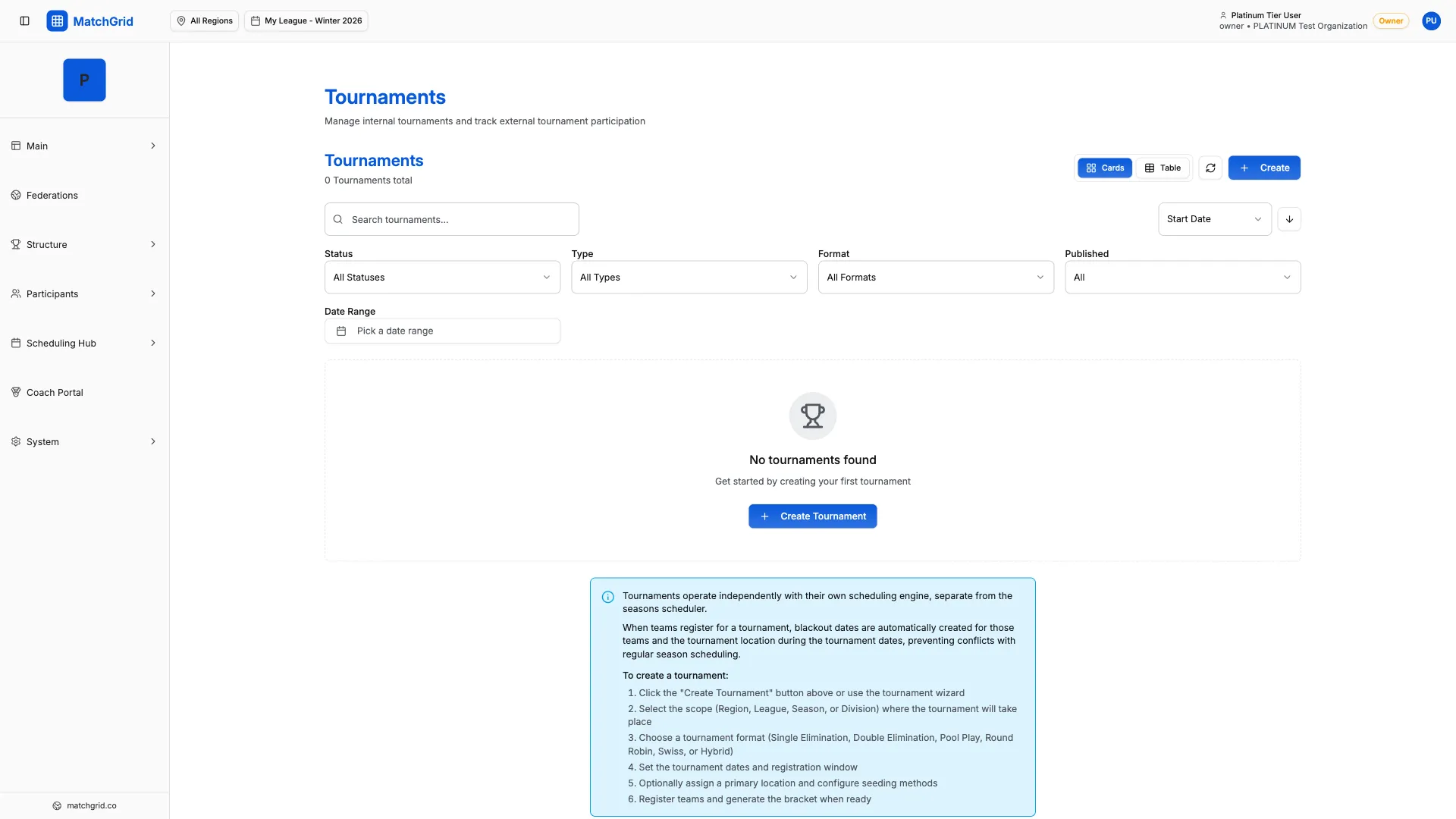
- Navigate to Tournaments
- Click Add External
- Select the source (AES, SportsEngine, etc.)
- Paste the tournament URL
- MatchGrid extracts tournament details automatically
Method 2: Manual Entry
- Navigate to Tournaments
- Click Add External
- Select Manual Entry
- Fill in tournament details:
- Name, dates, location
- Source and external ID (if any)
- Contact information
[!TIP] When importing from a URL, MatchGrid auto-detects the tournament name, dates, location, and other details. Review and adjust as needed.
Registering Teams
After adding an external tournament, register participating teams:
- Open the tournament details
- Go to the Teams tab
- Click Register Teams
- Select teams from your roster
- Set registration status (Registered, Waitlisted, etc.)
Registration Statuses
| Status | Meaning |
|---|---|
| Registered | Confirmed attendance |
| Waitlisted | Waiting for spot |
| Tentative | Not yet confirmed |
| Withdrawn | Previously registered, now cancelled |
Auto-Creating Blackouts
When teams are registered for external tournaments, MatchGrid can automatically create blackout windows:
Enabling Auto-Blackouts
- Open tournament settings
- Toggle Auto-Create Blackouts
- Choose blackout type:
- HARD: No league games during tournament
- SOFT: Prefer to avoid, but allow if necessary
What Gets Created
For each registered team:
- Blackout covering tournament dates
- Scoped to that specific team
- Reason auto-populated with tournament name
[!WARNING] Auto-blackouts are created when you register teams. If you add teams later, run “Sync Blackouts” to create missing ones.
Conflict Detection
MatchGrid checks for conflicts between external tournaments and your league schedule:
Conflict Types
- Team Unavailable: Team has a league game during the tournament
- Travel Overlap: Not enough time to travel between events
- Rest Violation: Back-to-back commitments without recovery
Viewing Conflicts
Open the tournament to see:
- List of registered teams
- Conflict status per team
- Conflicting league events
Syncing Tournament Data
For supported sources, MatchGrid can sync updates:
- Open the tournament
- Click Sync Now
- System fetches latest data from the source
- Updates are applied (dates, location, etc.)
Sync Status
| Status | Meaning |
|---|---|
| SUCCESS | Last sync completed successfully |
| PENDING | Sync in progress |
| FAILED | Sync error—check details |
| NEVER | Not yet synced |
Best Practices
- Add tournaments early: Enter known external events at season start
- Register teams promptly: So blackouts are created early
- Use auto-blackouts: Prevents accidental double-booking
- Review conflicts: Check the conflicts tab before finalizing league schedule
- Keep updated: Sync periodically to catch date/location changes