Managing Users and Roles
MatchGrid uses role-based access control to determine what each user can see and do. Invite team members and assign appropriate roles to keep your organization secure and efficient.
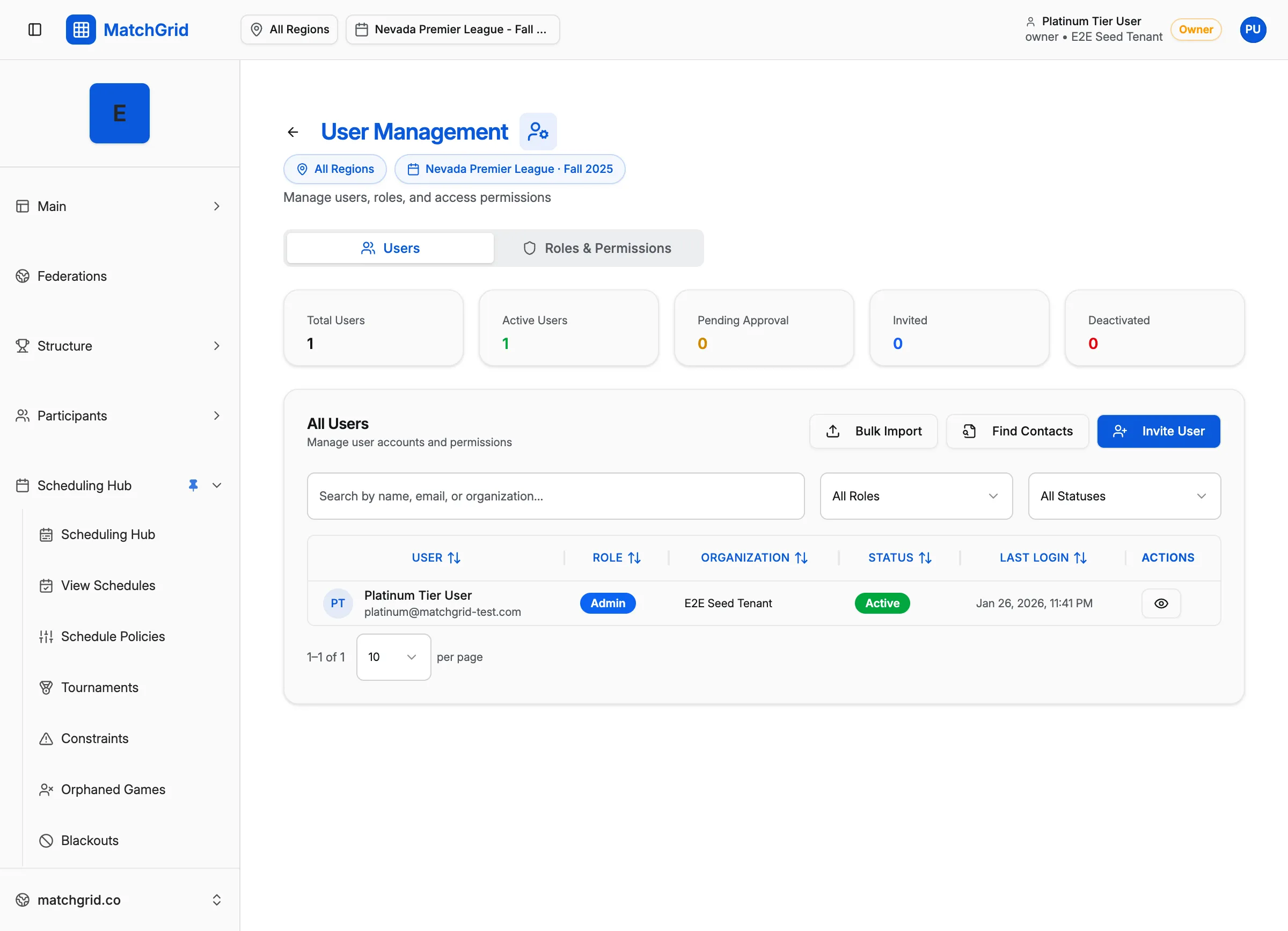
User Roles
MatchGrid has four primary roles:
| Role | Capabilities |
|---|---|
| Admin | Full access to everything |
| Scheduler | Create and edit schedules, teams, locations |
| Coach | View schedules, manage assigned teams only |
| Viewer | Read-only access to schedules |
[!INFO] The organization owner is automatically an Admin. There must always be at least one Admin in the organization.
Role Permissions Matrix
| Permission | Admin | Scheduler | Coach | Viewer |
|---|---|---|---|---|
| View schedules | ✅ | ✅ | ✅ | ✅ |
| Edit events | ✅ | ✅ | ❌ | ❌ |
| Create teams | ✅ | ✅ | ❌ | ❌ |
| Manage users | ✅ | ❌ | ❌ | ❌ |
| Billing & settings | ✅ | ❌ | ❌ | ❌ |
| Run auto-scheduler | ✅ | ✅ | ❌ | ❌ |
| Manage team blackouts | ✅ | ✅ | ✅* | ❌ |
*Coaches can only manage blackouts for their assigned teams.
Inviting Users
Send an Invitation
- Navigate to Settings → Team
- Click Invite User
- Enter their email address
- Select a role
- Click Send Invite
The user receives an email with a link to join your organization.
Invitation States
| Status | Meaning |
|---|---|
| Pending | Invitation sent, not yet accepted |
| Active | User has logged in |
| Inactive | Account deactivated |
[!TIP] You can resend invitations for pending users. The original link remains valid.
Changing User Roles
To update a user’s role:
- Go to Settings → Team
- Find the user in the list
- Click the role dropdown
- Select the new role
- Changes take effect immediately
Role Change Considerations
- Demoting to Viewer removes edit access immediately
- Promoting to Admin grants full access
- Users are notified of role changes via email
Assigning Coaches to Teams
For the Coach role, assign specific teams:
- Open the user’s profile
- Go to Team Assignments
- Select the teams they coach
- Save assignments
Coaches can only:
- View their assigned teams
- Manage blackouts for their teams
- See schedules involving their teams
Deactivating Users
When someone leaves your organization:
- Go to Settings → Team
- Find the user
- Click Deactivate
- Confirm the action
[!WARNING] Deactivated users lose access immediately but their data (created events, changes) remains in the system.
Scope-Based Permissions (Advanced)
For larger organizations, you can assign managers to specific scopes:
Scope Types
- Region Manager: Full access within one region
- League Manager: Full access within one league
- Club Manager: Manage teams in one club/school
This allows distributed administration while maintaining overall control.
Best Practices
- Least privilege: Give users only the access they need
- Use Coaches for coaches: Don’t make everyone a Scheduler
- Regular audits: Review user list periodically
- Prompt deactivation: Remove access when people leave
- Document roles: Help users understand their capabilities