Using Auto-Schedule
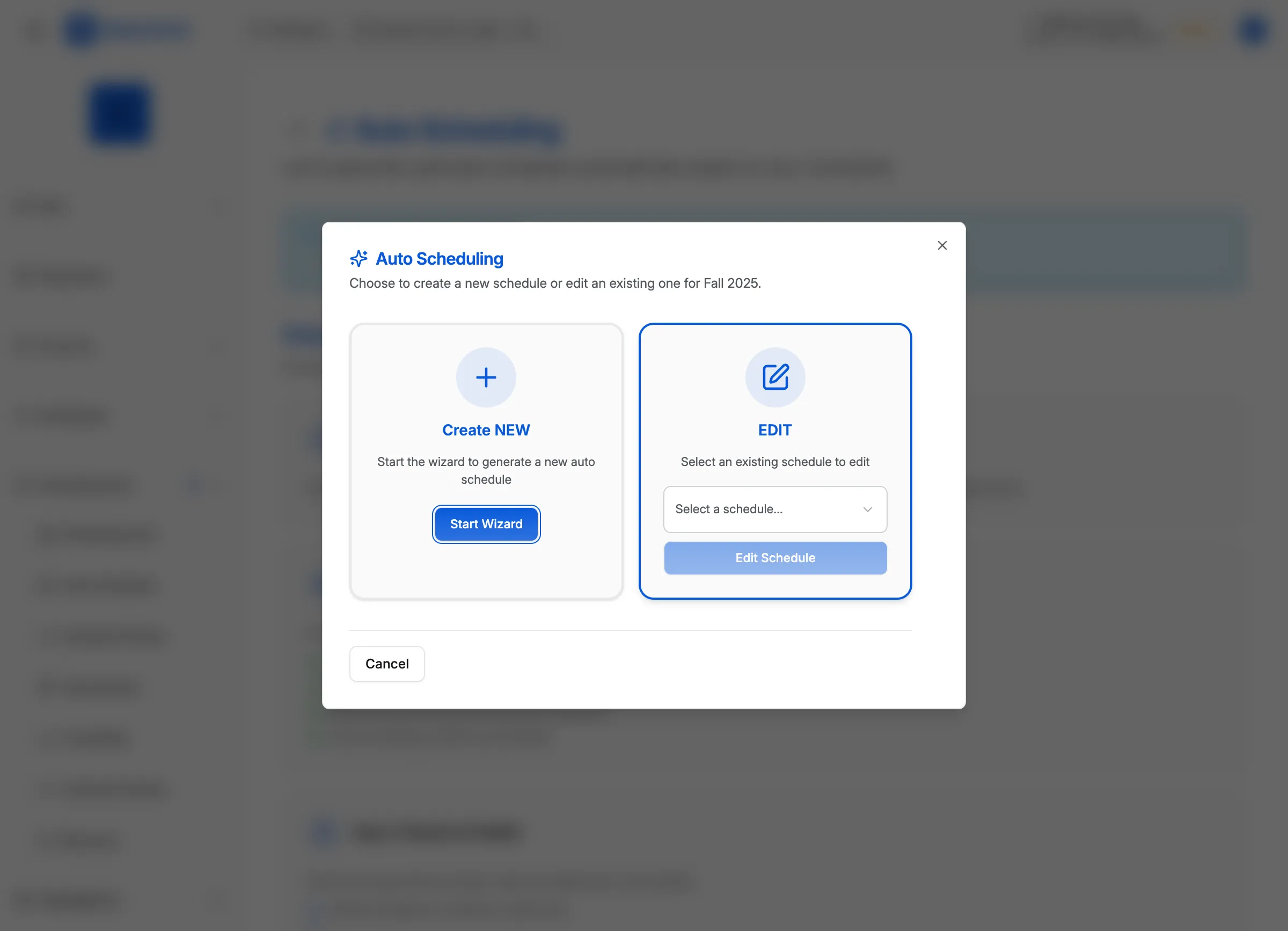
The Auto-Schedule feature uses AI to generate an optimized schedule that respects all your constraints—blackouts, travel limits, facility availability, and more.
[!INFO] Auto-Schedule is available on Gold tier and above. It analyzes your teams, locations, and constraints to produce a conflict-free schedule in minutes.
Before You Begin
Ensure you have completed setup:
- ✅ At least 4 teams in your selected division
- ✅ Locations with courts configured
- ✅ Blackout windows for holidays and closures
- ✅ Team travel preferences (optional but recommended)
Choosing a Scheduler Preset
MatchGrid offers four presets to match your league’s style:
| Preset | Best For | Key Settings |
|---|---|---|
| Quick Flexible | Simple leagues, fast results | Minimal constraints, maximizes games |
| Balanced | Most leagues | Fair home/away, respects travel |
| Competitive Strict | Competitive leagues | Enforces rest periods, strict travel |
| Youth-Friendly | Younger age groups | Early times, max 1 game/day |
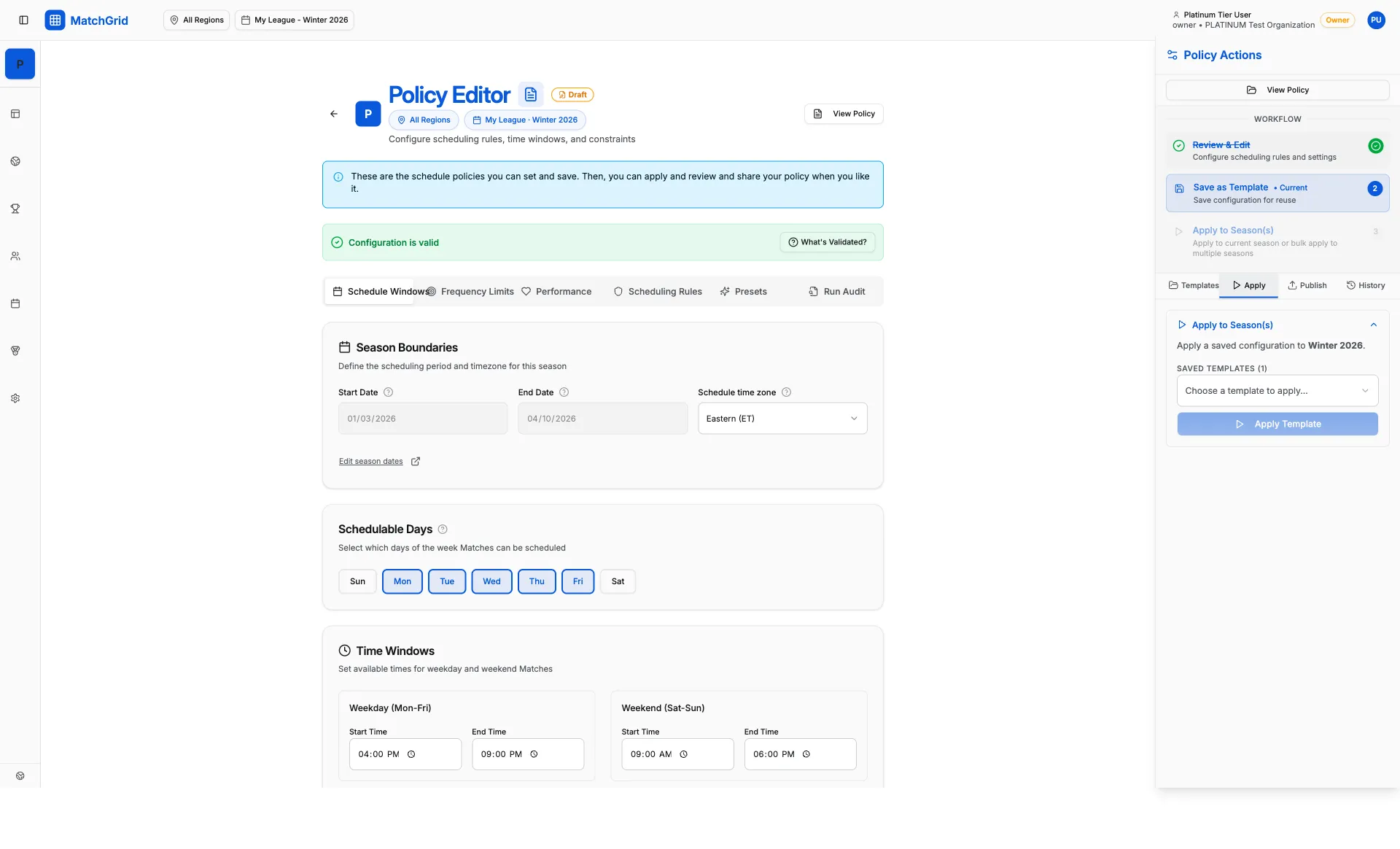
Select a preset, then customize individual settings in the Scheduler Config page.
Generating a Proposal
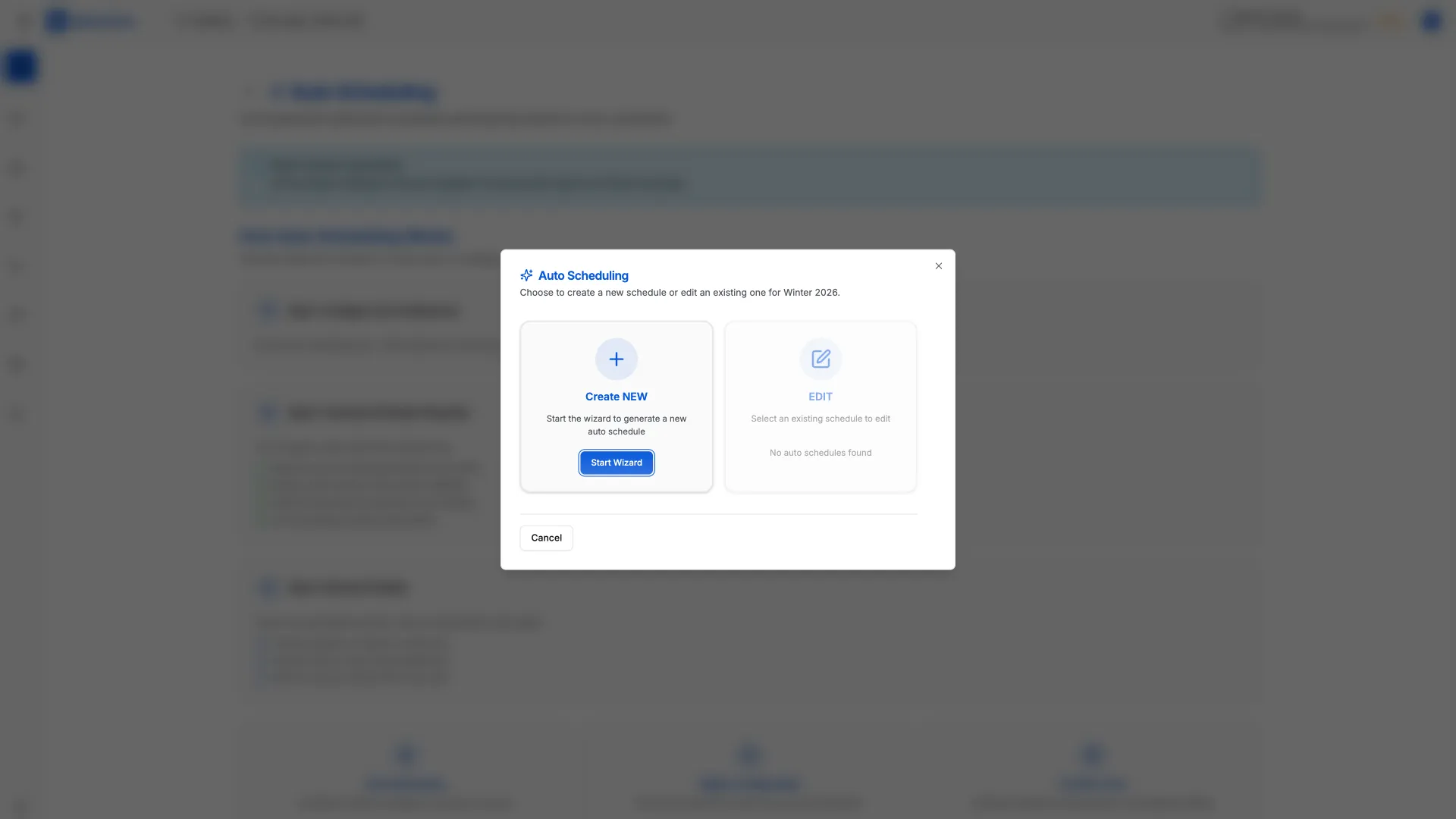
- Navigate to Auto-Schedule in the sidebar
- Select your Season and Division
- Review the scheduler configuration
- Click Generate Proposal
The scheduler runs in the background and typically completes in 30-90 seconds.
[!TIP] You can continue using MatchGrid while the scheduler runs. You’ll receive a notification when the proposal is ready.
Understanding the Results
The scheduler returns a proposed schedule with:
Feasibility Score
A percentage indicating how well constraints were satisfied:
- 95-100%: Excellent - all major constraints met
- 85-94%: Good - minor soft violations
- Below 85%: Review conflicts carefully
Conflict Summary
Lists any remaining violations:
- Hard conflicts: Must be resolved (e.g., double-bookings)
- Soft conflicts: Warnings to consider (e.g., late start times)
Travel Analysis
Shows travel statistics per team:
- Total miles for the season
- Longest single trip
- Home/away balance
Reviewing and Editing
Before applying, you can:
- Preview each event in the calendar view
- Deselect events you don’t want to include
- Adjust times by editing individual events
- Re-run with different settings if needed
[!WARNING] Review the proposal carefully before applying. Once applied, events are created in draft status and can be edited individually.
Applying the Schedule
Click Apply Selected Events to create the events in your schedule version:
- Events are created as drafts
- Conflicts are validated one more time
- You can still edit before publishing
Common Issues
”No feasible schedule found”
The constraints are too restrictive. Try:
- Adding more available time slots
- Relaxing travel limits
- Removing some blackouts
Low feasibility score
Some constraints couldn’t be satisfied. Review:
- Which teams have the most violations
- Whether blackouts are too restrictive
- If venue availability is sufficient
Advanced: Custom Configuration
For fine-grained control, configure these settings:
- Max games per day/week: Prevent overloading teams
- Rest hours between games: Minimum recovery time
- Travel enforcement: Hard limit vs preference
- Home/away balancing: Equity across teams
- Late slot threshold: Avoid late games for youth