Publishing a Scheduler Policy
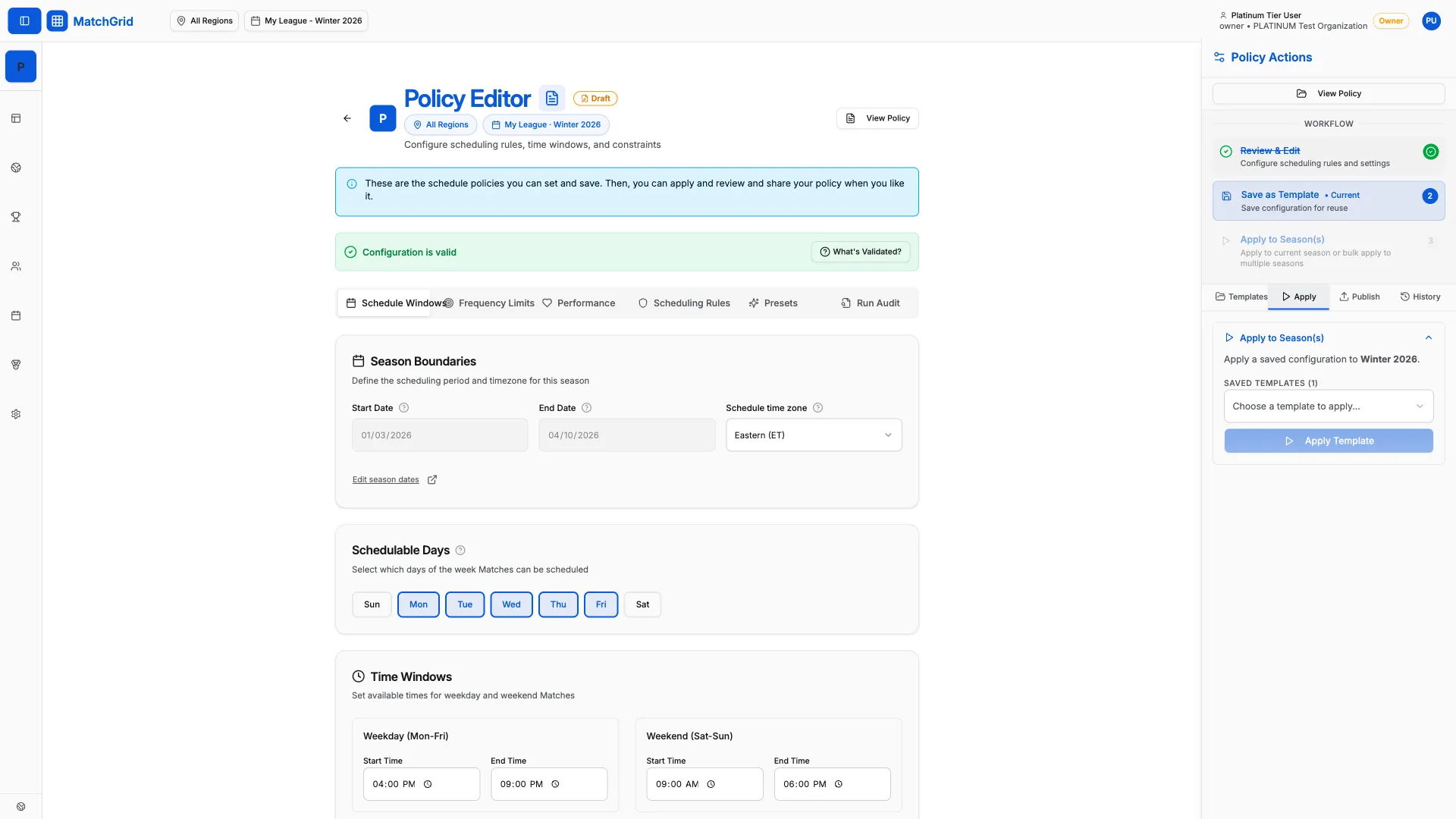
After saving your scheduler configuration, publish it to make it the active policy for your season. Published policies control how schedules are generated and validated.
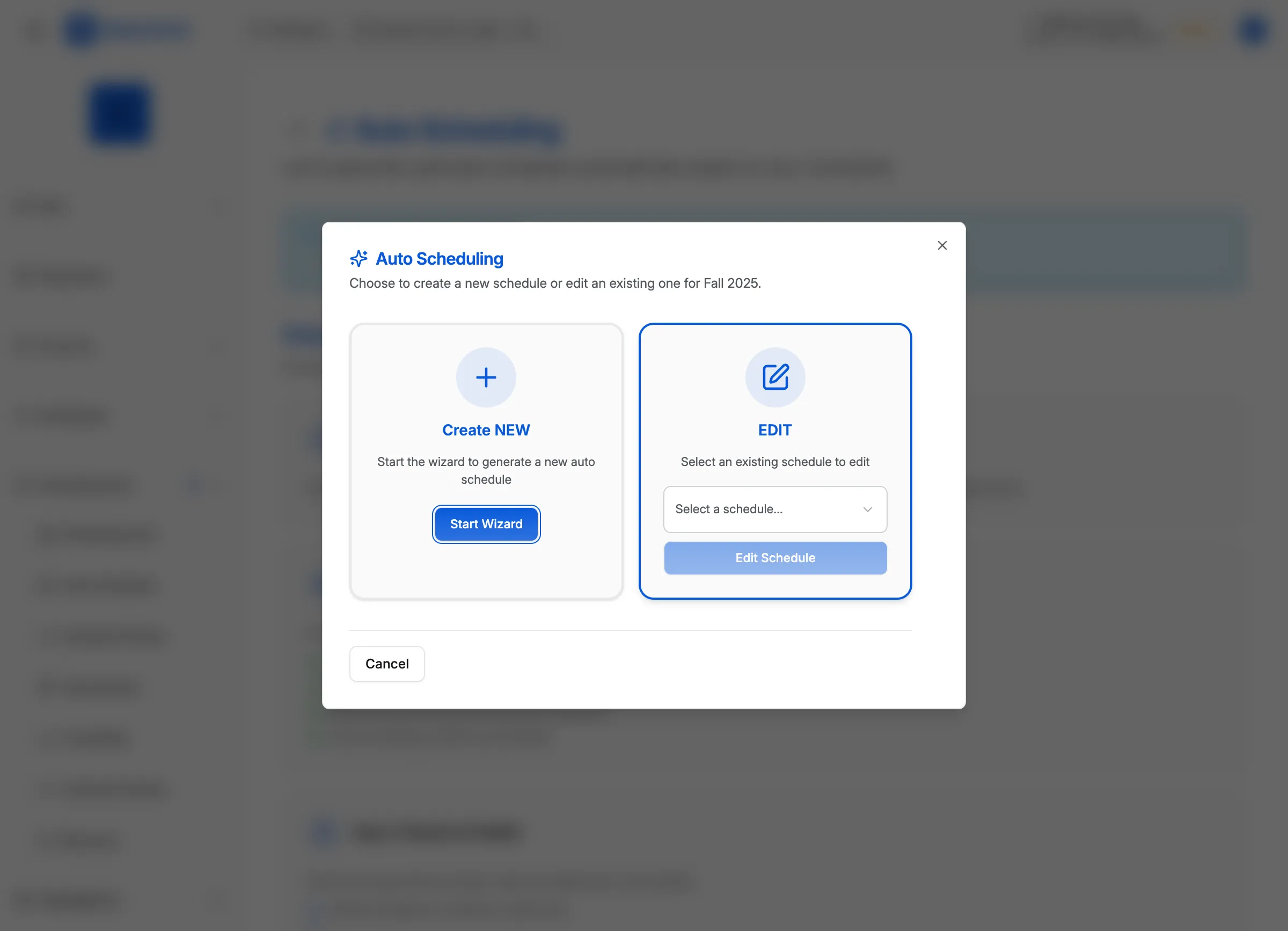
Steps to publish a policy
- Click Settings in the sidebar
- Click Scheduler in the settings menu
- Select your Season from the dropdown
- Click View Policy in the header to see the current policy state
- Click Publish to make your saved configuration active
[!INFO] You must save a configuration before you can publish it. The Publish button appears after saving.
Policy states
A scheduler policy can be in these states:
| State | Meaning |
|---|---|
| Draft | Configuration saved but not active |
| Published | Active for the season |
| Activated | Published and being enforced |
| Deactivated | Published but temporarily disabled |
Activating and deactivating
After publishing, control whether the policy is enforced:
- Click View Policy in the header
- Click Activate to start enforcing the rules
- Click Deactivate to pause enforcement temporarily
[!WARNING] Deactivating a policy doesn’t delete it. Your configuration is preserved and can be reactivated.
Applying a policy to schedules
To apply your policy rules to existing schedules in the season:
- Click Apply Policy in the header
- Select which schedules to apply the policy to
- Click Apply to update those schedules
This re-validates the schedules against your policy rules and flags any new conflicts.
What’s next
To understand what each rule does, see Understanding Scheduler Rules for a complete reference.