Managing Blackout Windows
Blackout windows tell MatchGrid when scheduling should be avoided. Use them for holidays, facility closures, team conflicts, and other unavailable periods.
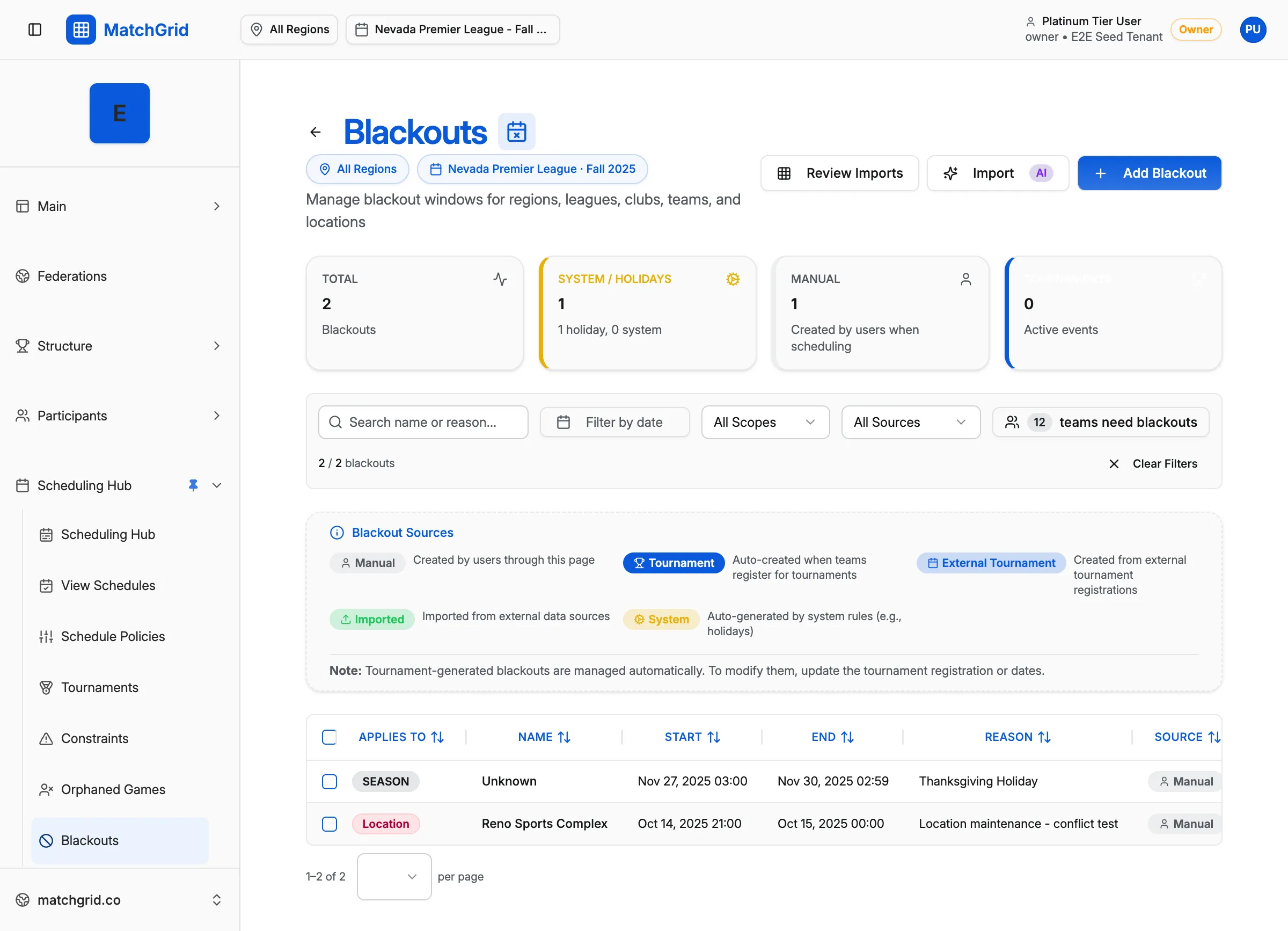
Blackout Types
Hard Blackouts
Cannot be scheduled during this time.
Use for:
- Facility closures (maintenance, other events)
- Major holidays (Thanksgiving, Christmas)
- School testing periods
- Mandatory team events
Soft Blackouts
Prefer to avoid, but can schedule if necessary.
Use for:
- Minor holidays or observances
- Low-preference days
- Weather-sensitive periods
- Team preferences (not requirements)
[!INFO] The auto-scheduler respects hard blackouts completely. Soft blackouts are weighted and may be violated if no better option exists.
Scope Types
Blackouts can apply at different levels:
| Scope | Affects | Example |
|---|---|---|
| Region | All teams in the region | State championship weekend |
| League | All teams in a league | League meeting day |
| Club | All teams at a club/school | School holiday |
| Team | Single team only | Team travel conflict |
| Location | Single venue | Gym floor refinishing |
[!TIP] Start with region-wide blackouts for major holidays, then add specific team or location blackouts as needed. This prevents duplicate entries.
Creating a Blackout
- Navigate to Blackouts in the sidebar
- Click Add Blackout
- Select the Scope Type and entity
- Choose Duration Type:
- Full Day: Entire day blocked
- Half Day: Morning or afternoon only
- Custom Hours: Specific time range
- Select the Date (or date range)
- Choose Hard or Soft
- Add an optional Reason for reference
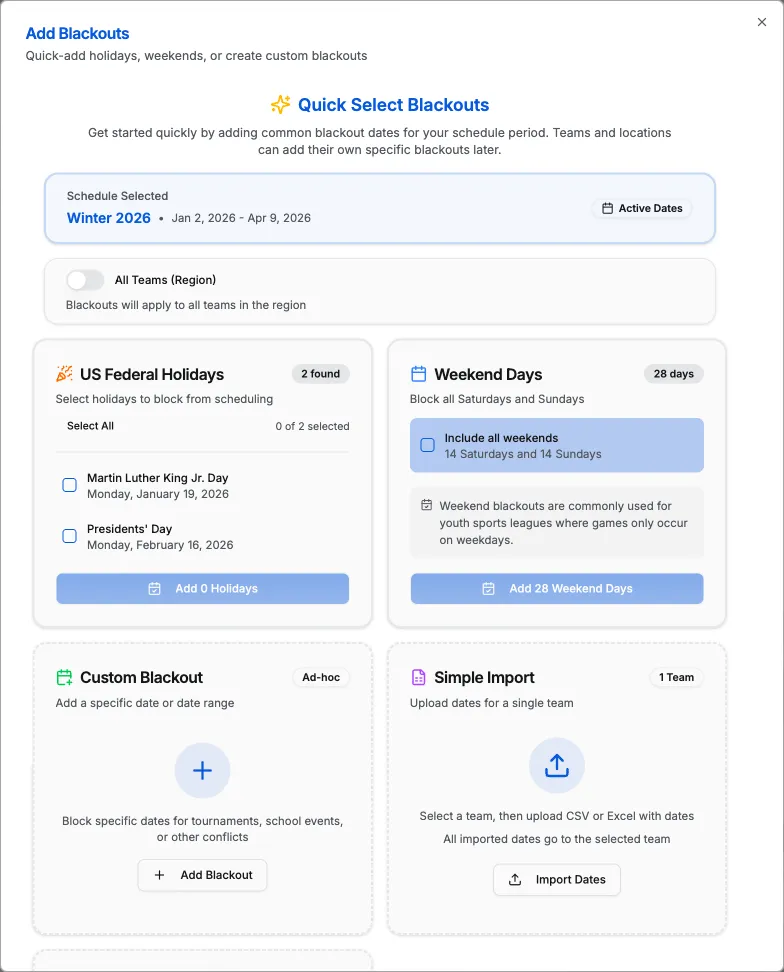
Duration Options
Full Day
Blocks from 12:00 AM to 11:59 PM. Best for: Holidays, closures.
Half Day
- Morning: 12:00 AM to 12:00 PM
- Afternoon: 12:00 PM to 11:59 PM
Best for: Partial closures, early release days.
Custom Hours
Specify exact start and end times. Best for: Other events using the facility, specific conflicts.

Bulk Blackout Creation
For recurring patterns (e.g., every Sunday):
- Click Add Recurring Blackout
- Select the day(s) of week
- Set the date range (season dates)
- Choose full day or time window
Common patterns:
- Sundays for religious observance
- Friday nights for football season
- Testing weeks at schools
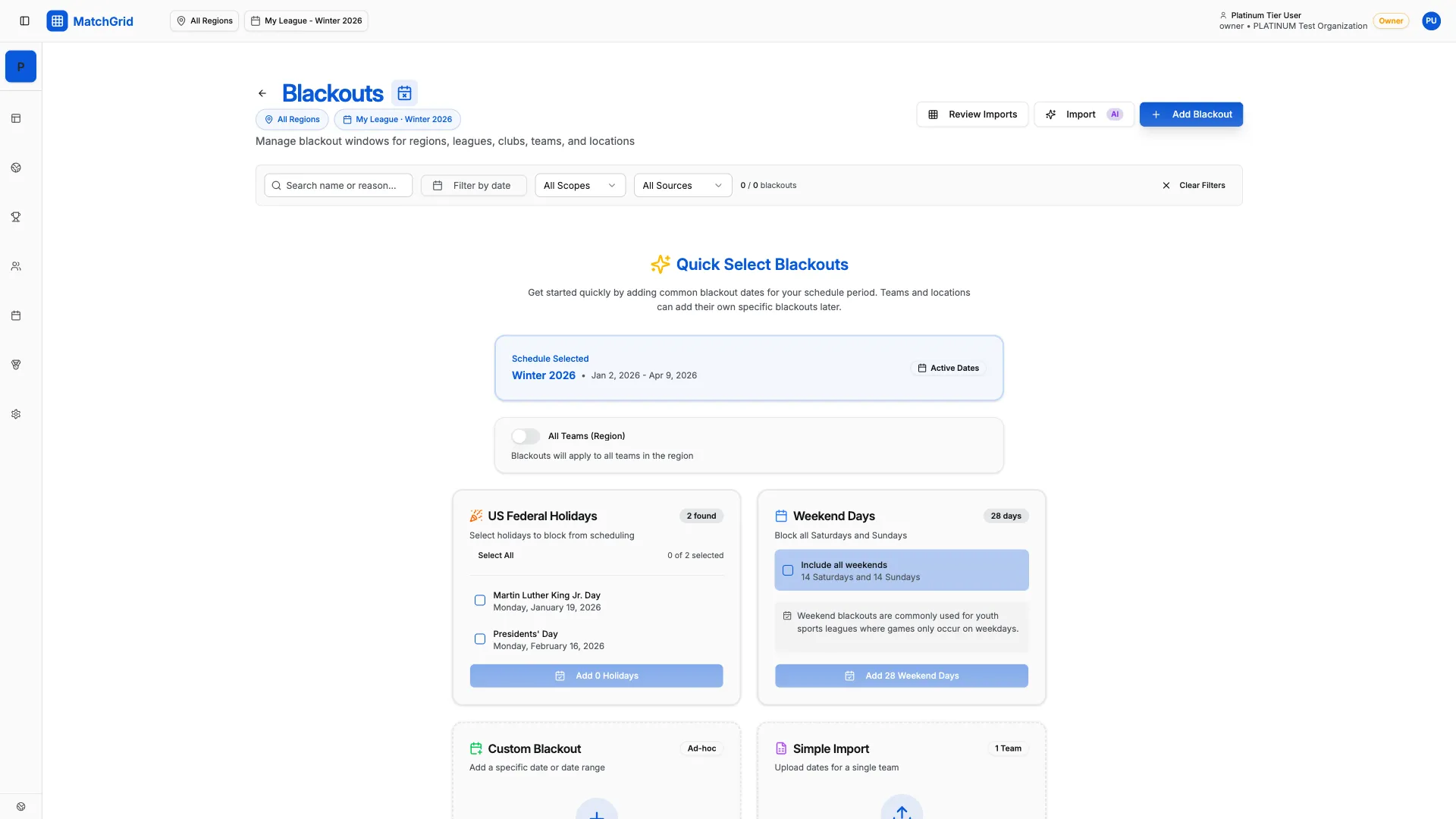
Managing Existing Blackouts
Filtering
Use the filters to find blackouts:
- By scope type (Region, Team, Location)
- By date range
- By hard/soft type
Editing
Click any blackout to open the details panel:
- Modify dates or times
- Change scope (admin only)
- Update the reason
Deleting
Remove blackouts that no longer apply:
- Open the blackout details
- Click Delete
- Confirm the deletion
[!WARNING] Deleting a blackout doesn’t automatically reschedule events. Check the affected dates for scheduling opportunities.
Holiday Templates
MatchGrid includes templates for common holidays:
- Federal holidays (US)
- School breaks (typical)
- Major observances
To apply a template:
- Click Import Holidays
- Select the template
- Choose which holidays to import
- Set hard or soft for each
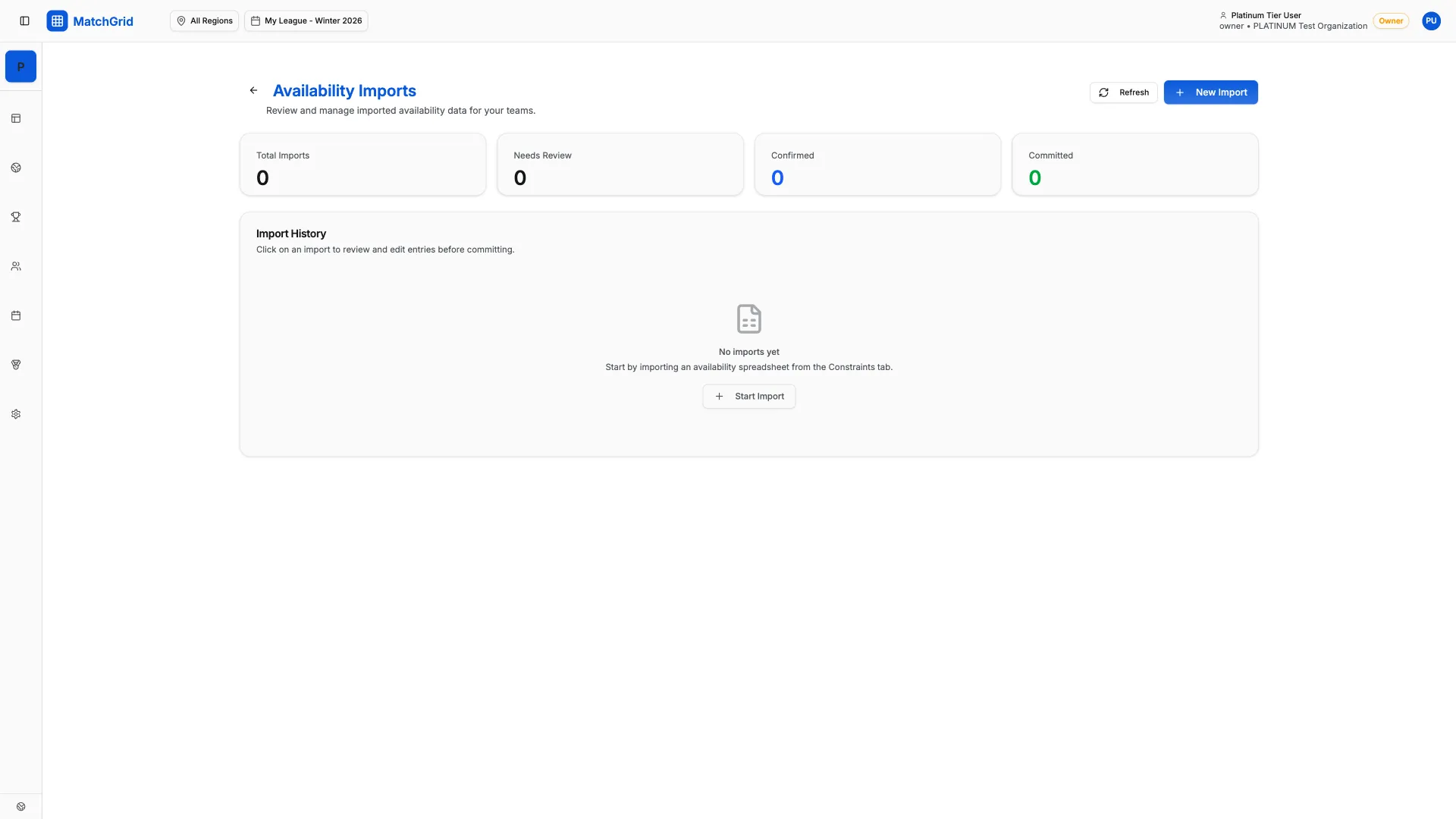
Best Practices
- Set region blackouts first: Major holidays affect everyone
- Add location blackouts: Facility-specific closures
- Let teams add their own: Team-specific conflicts
- Review before scheduling: Check the blackout calendar
- Use reasons: Document why each blackout exists