Creating Events Manually
The manual scheduling interface gives you complete control over your schedule. Use the calendar view to create, edit, and move events with drag-and-drop simplicity.
Getting Started
To begin manual scheduling:
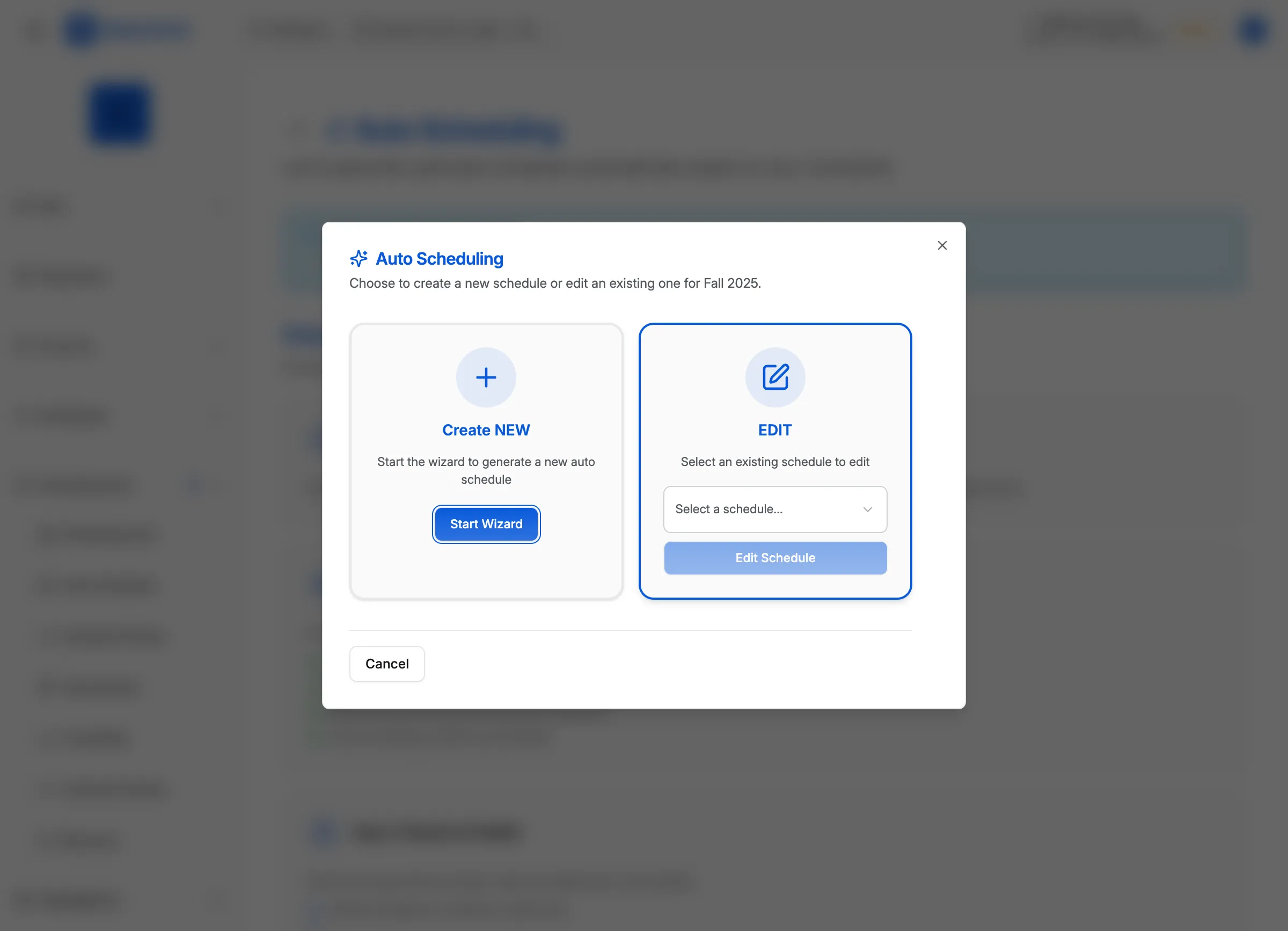
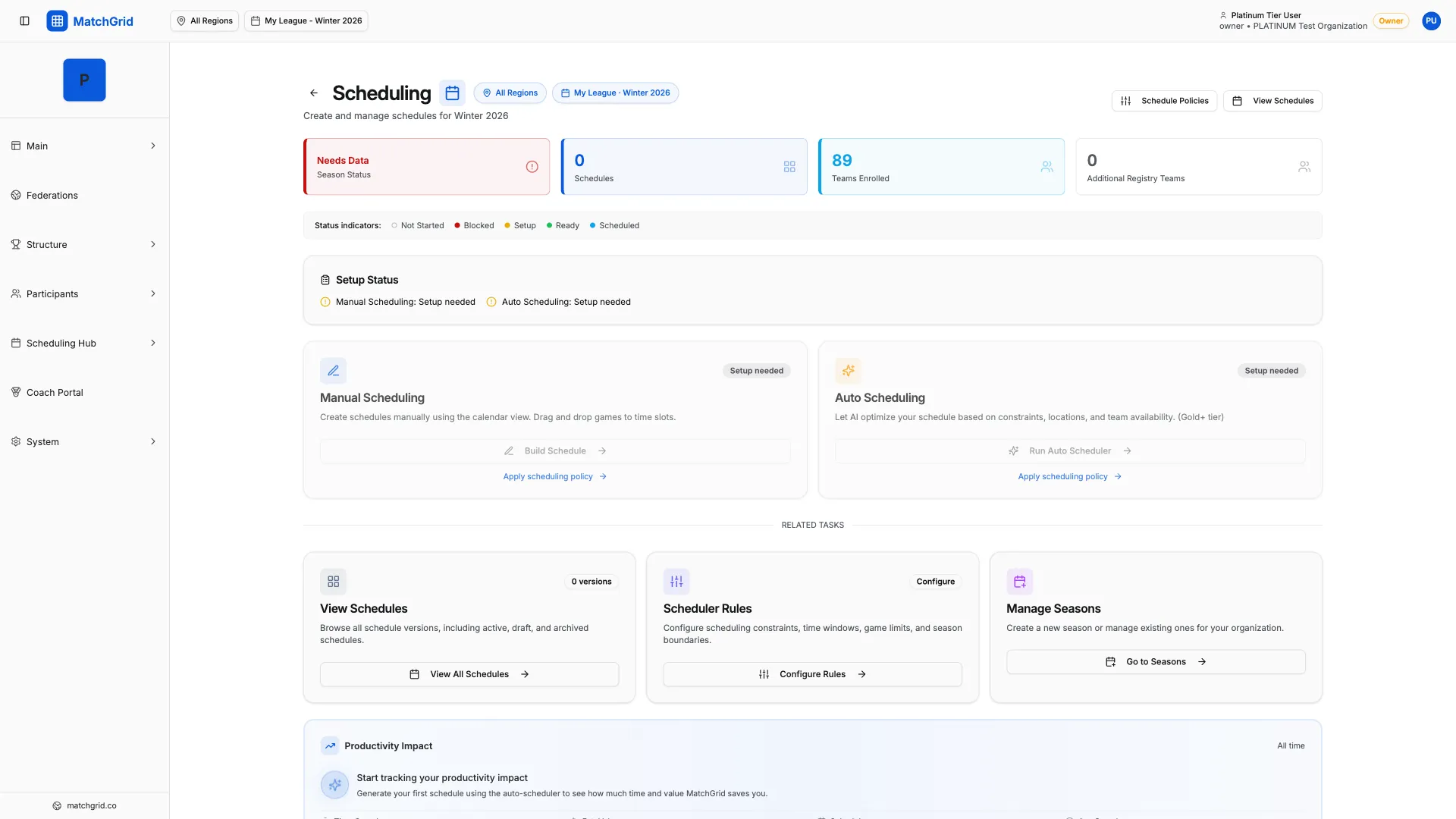
- Click Scheduling in the sidebar (or go to
/scheduling) - Click the Manual Scheduling button (or “Build Schedule”)
- Click Select Version and choose an existing version, or click Create New to start fresh
- The calendar workspace opens with your season’s date range
[!INFO] Schedule versions let you create multiple draft schedules before publishing. You can compare different approaches and publish the one that works best.
Creating a New Event
Click any empty time slot on the calendar to open the event form:
Required Fields
- Event Type: Match, Practice, Tournament Block, or Blackout
- Date & Time: When the event starts
- Duration: How long the event lasts
- Location: Which venue hosts the event
For Matches
- Home Team: The team hosting the match
- Away Team: The visiting team
- Court: Specific court at the venue (if multiple)
For Practices
- Team: Which team is practicing
- Recurring: Option to repeat weekly
Using Drag and Drop
The calendar supports intuitive drag-and-drop:
- Move events: Drag an event to a new time slot
- Change duration: Drag the bottom edge to extend or shorten
- Copy events: Hold Ctrl/Cmd while dragging to duplicate
[!TIP] When you drag an event, MatchGrid automatically checks for conflicts. A red outline indicates the new position would create a conflict.
Calendar Views
Switch between views using the toolbar:
| View | Best For |
|---|---|
| Week | Detailed scheduling, seeing all time slots |
| Month | Overview of the season, spotting gaps |
| Day | Focusing on a single busy day |
| Table | List view sorted by date/time |
Editing Existing Events
Click any event to open the details panel:
- Edit: Modify any field
- Delete: Remove the event
- Duplicate: Create a copy on another date
- View Conflicts: See any issues with this event

Event Types Explained
Match
A competitive game between two teams. Requires home and away teams, scored and tracked for standings.
Practice
A team practice session. Only requires one team. Useful for blocking facility time.
Tournament Block
A multi-hour block for tournament play. Contains multiple matches but is scheduled as a single unit.
Blackout
Marks time when scheduling should be avoided. Can be for a team, location, or organization-wide.
Quick Tips
- Bulk operations: Select multiple events with Shift+Click
- Conflict warnings: Yellow = soft conflict, Red = hard conflict
- Undo: Press Ctrl+Z to undo recent changes
- Keyboard shortcuts: Press
?to see all shortcuts