Configuring Scheduler Settings
Scheduler settings control how MatchGrid generates and validates your schedules. These settings apply to the active season you have selected.
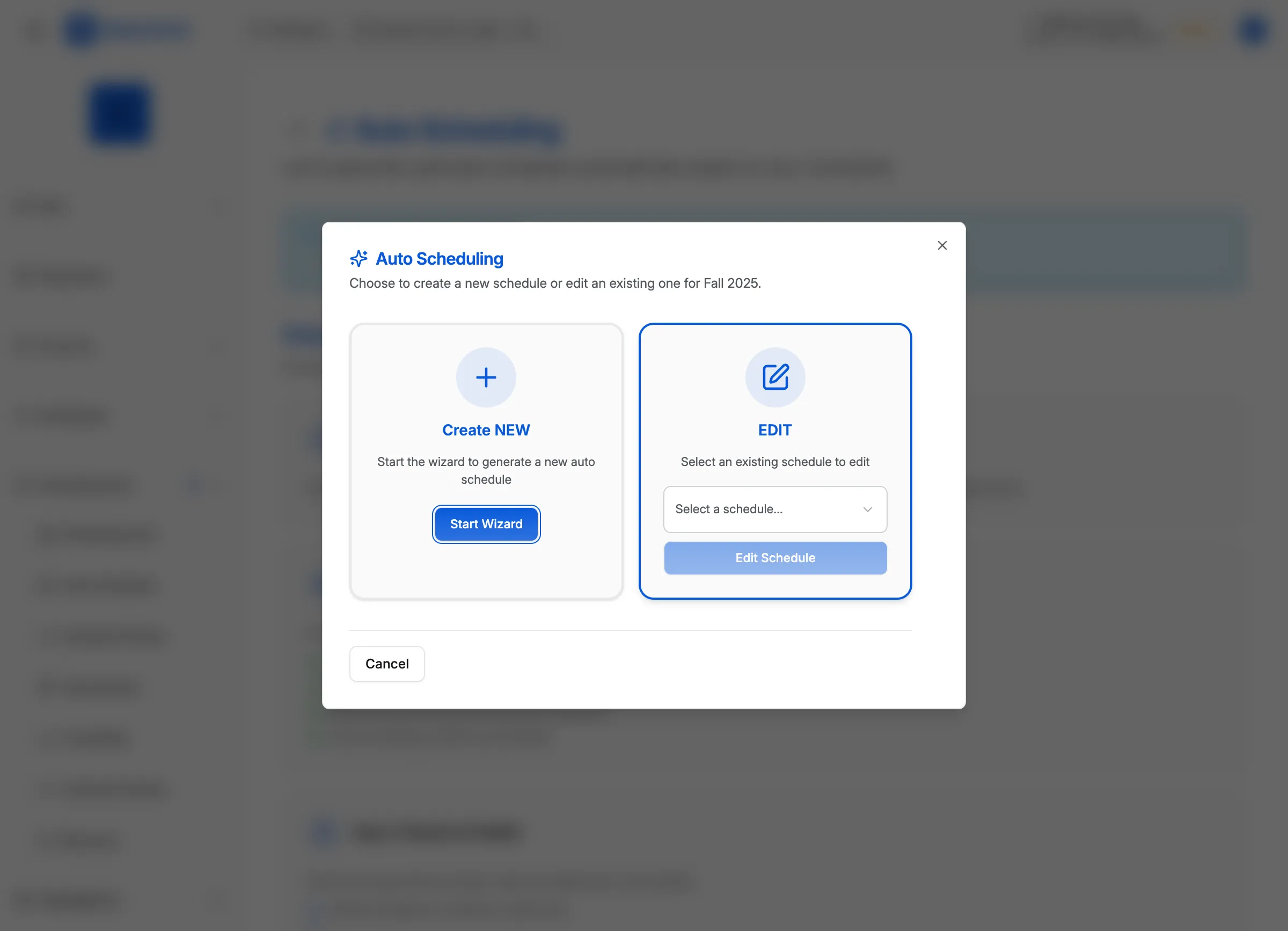
Steps to access scheduler settings
- Click Settings in the sidebar
- Click Scheduler in the settings menu (or go to
/settings/scheduler) - Click the Season dropdown at the top and select your active season
[!INFO] Changes you make here apply only to the selected season. Each season can have its own scheduler configuration.
Settings tabs
The scheduler settings are organized into tabs:
Windows tab
Controls when games can be scheduled:
- Click the Windows tab
- Configure:
- Weekday start/end times — earliest and latest game times on weekdays
- Weekend start/end times — earliest and latest game times on weekends
- Allowed days — which days of the week to schedule games

Limits tab
Controls game frequency:
- Click the Limits tab
- Configure:
- Max matches per day — limit games per team each day
- Max matches per week — limit games per team each week
- Min rest hours — required recovery time between games
Performance tab
Controls optimization behavior:
- Click the Performance tab
- Configure weights that influence how the scheduler prioritizes:
- Travel distance
- Home/away balance
- Soft blackout avoidance
Rules tab
Access detailed rule toggles:
- Click the Rules tab
- Toggle individual rules on/off
- See Understanding Scheduler Rules for details on each rule
Presets tab
Apply pre-configured rule sets:
- Click the Presets tab
- Choose from presets like:
- Quick Flexible — minimal constraints
- Balanced — fair distribution
- Competitive Strict — strict enforcement
- Youth-Friendly — early times, limited games
- Click Apply to load the preset
[!TIP] Start with a preset that matches your league style, then customize individual settings as needed.
What’s next
After configuring your settings, save them as a named version — see Saving Scheduler Policies.