Adding a Blackout Window
A blackout window tells MatchGrid when scheduling should be avoided — such as holidays, facility closures, or team conflicts.
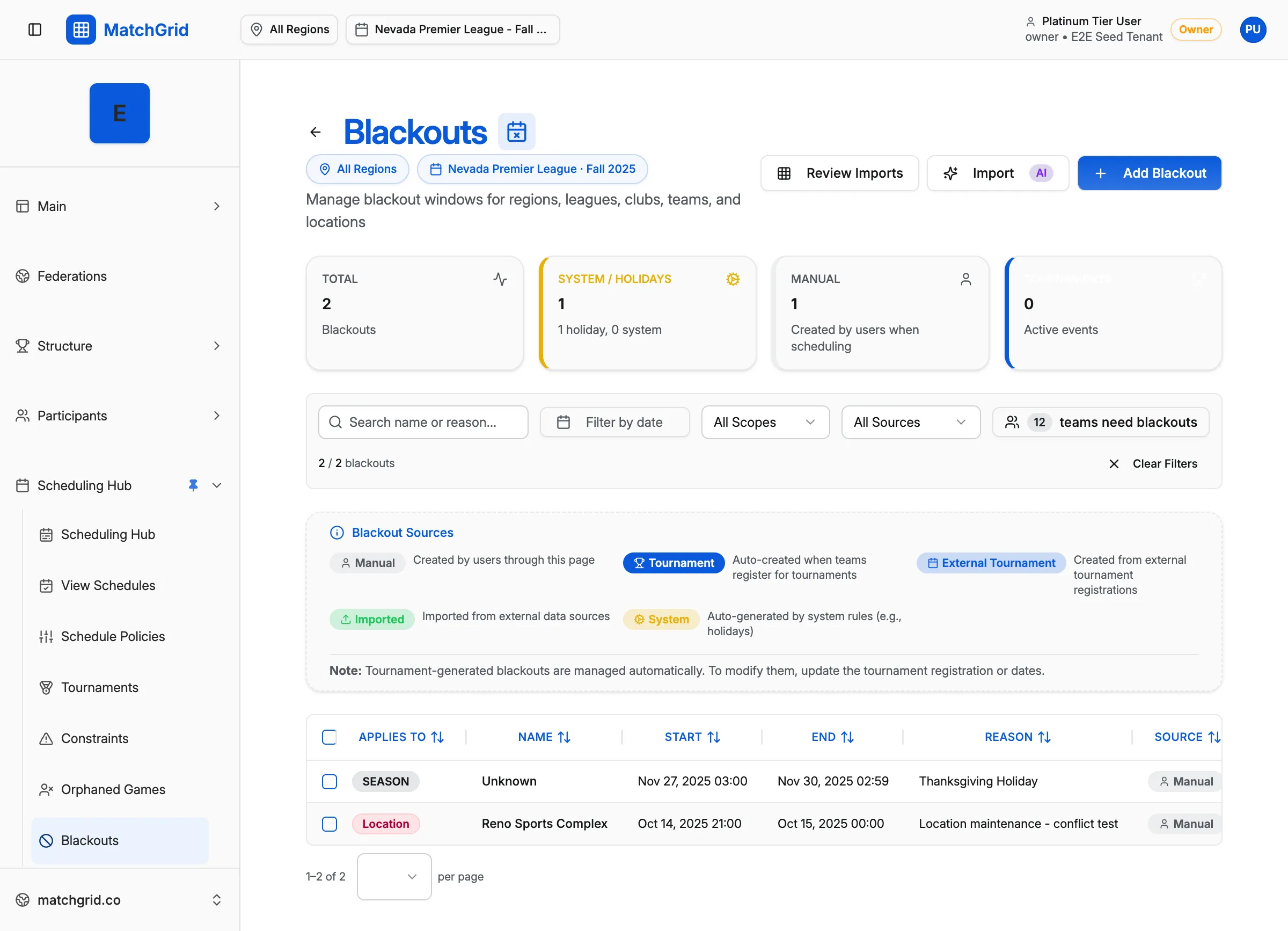
Steps to add a blackout
- Click Blackouts in the sidebar (or go to
/blackouts) - Click Add Blackout in the top-right corner
- In the dialog, fill in:
- Scope Type — select who this blackout affects:
- Region — all teams in the region
- Club — all teams at a specific club
- Team — a single team only
- Location — a specific venue
- Entity — select the specific region, club, team, or location
- Scope Type — select who this blackout affects:
- Choose the Duration Type:
- Full Day — blocks the entire day
- Half Day — morning or afternoon only
- Custom Hours — specific time range
- Select the Date (or date range for multi-day blackouts)
- Choose Hard or Soft:
- Hard — scheduling is blocked completely
- Soft — prefer to avoid, but can schedule if needed
- Add an optional Reason (e.g., “Thanksgiving Break”)
- Click Create Blackout to save
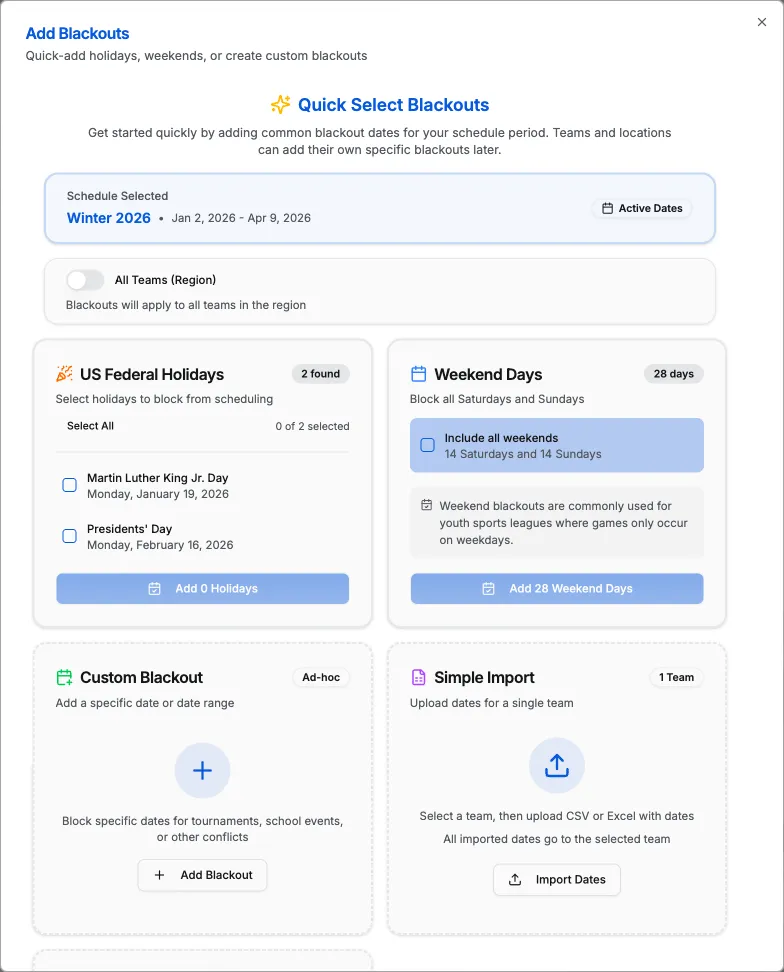
[!TIP] Use Hard blackouts for mandatory closures like holidays. Use Soft blackouts for preferences that can be overridden if necessary.
Quick add: holidays
To quickly add common holidays:
- Click Blackouts in the sidebar
- Look for the Holidays or Import Holidays option
- Select the holidays you want to add
- Choose hard or soft for each
[!INFO] MatchGrid includes templates for US federal holidays and common school breaks. You can customize which ones to import.
What’s next
After adding blackouts, run the auto-scheduler to generate a schedule that respects them — see Running the Auto-Scheduler.