Updating Your Profile
Your profile contains your personal information displayed throughout MatchGrid. This article shows how to update your name, email, and profile picture.
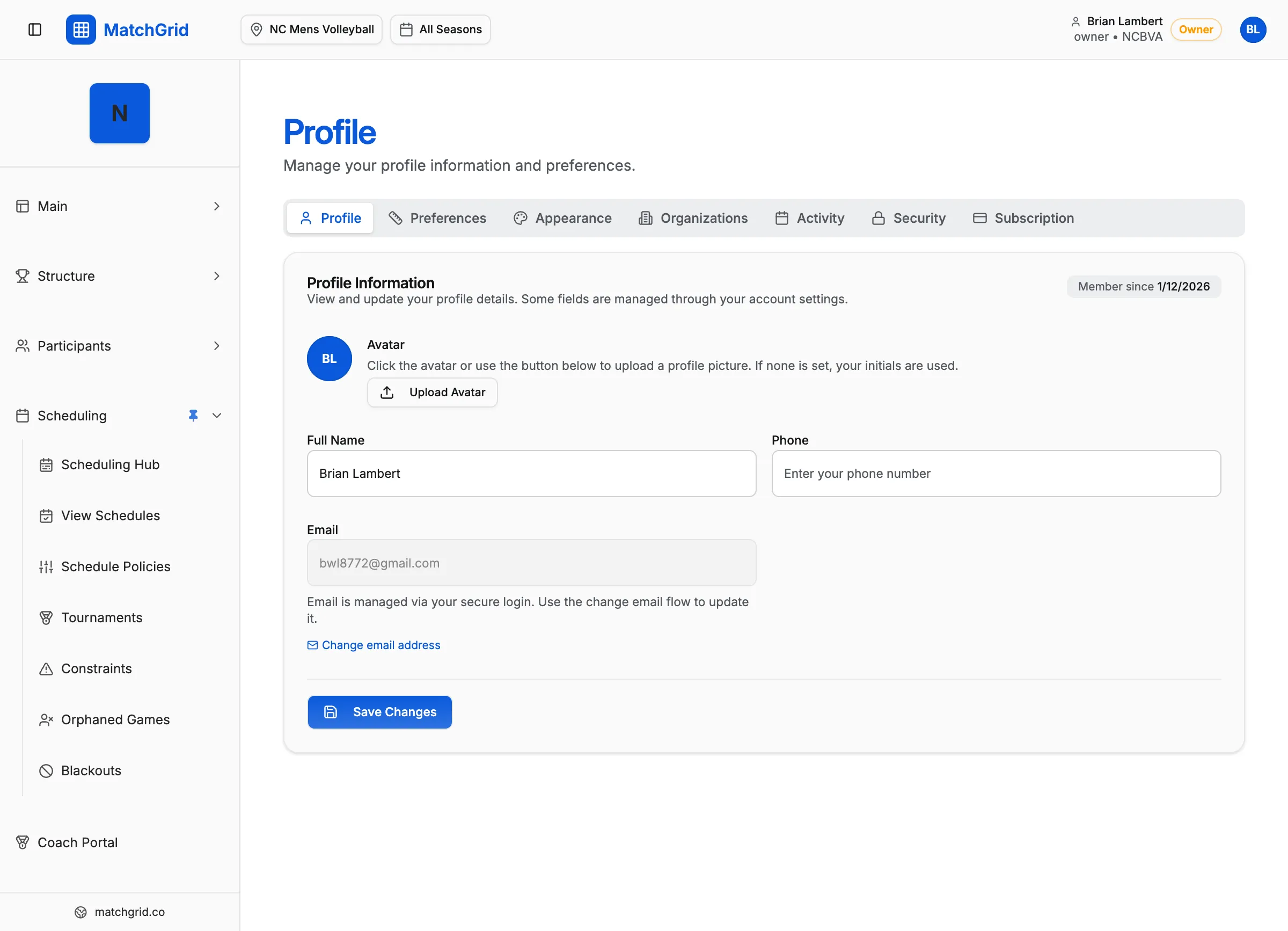
Steps to access your profile
- Click your avatar in the top-right corner of the screen
- Click Profile from the dropdown menu
- You’ll land on the Profile tab (or go directly to
/profile)
Updating your name
- On the Profile tab, find the Name field
- Click in the field and edit your name
- Click Save Changes
Changing your email
- On the Profile tab, find the Email section
- Click Change Email
- Enter your new email address
- Click Send Verification
- Check your inbox and click the verification link
[!INFO] Email changes require verification. You’ll receive an email at your new address to confirm the change.
Uploading a profile picture
- On the Profile tab, find your avatar at the top
- Click the Upload button (or click directly on the avatar)
- Select an image from your computer
- Crop the image if needed
- Click Save
[!TIP] Use a square image for best results. MatchGrid will crop non-square images to fit.
Other profile tabs
The Profile page has additional tabs you can explore:
- Preferences — display settings like timezone and units
- Appearance — theme and accent color
- Organizations — manage your workspaces
- Activity — view your recent actions
- Security — change password and manage sessions
- Subscription — view and manage your plan
What’s next
Customize your display preferences in the Preferences tab, or return to the dashboard to continue setup.