Managing Your Organization
If you are the owner of an organization (workspace), you can update its name, logo, and other settings from your profile.
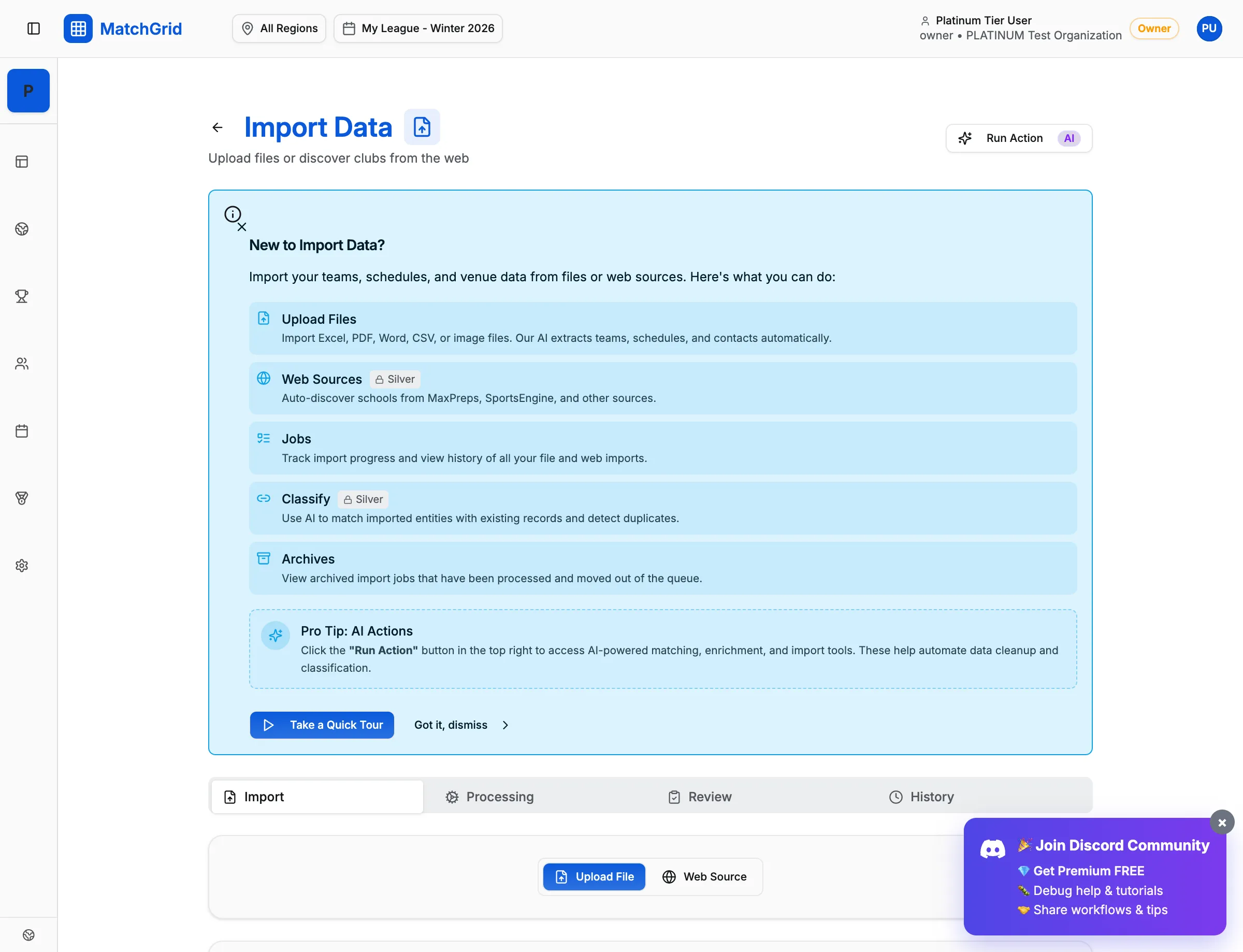
Steps to access organization settings
- Click your avatar in the top-right corner of the screen
- Click Profile from the dropdown menu
- Click the Organizations tab
Viewing your organizations
The Organizations tab shows all workspaces you belong to:
- Organization Name — the workspace name
- Your Role — Owner, Admin, or Member
- Status — Active or Trial
[!INFO] You can only edit organization settings if you are the Owner. Members and Admins can view but not modify.
Updating organization details
If you are the owner:
- Click the Edit button next to your organization
- In the edit dialog, you can change:
- Organization Name — your workspace display name
- Organization Logo — upload an image to brand your workspace
- Slug — the URL-friendly identifier (e.g.,
my-league)
- Click Save Changes
Uploading an organization logo
- In the edit dialog, click the Upload Logo button
- Select an image from your computer
- The logo appears in the sidebar and reports
[!TIP] Use a square image (at least 200x200 pixels) for best results. PNG or JPG formats work well.
Switching between organizations
If you belong to multiple organizations:
- Click the organization name in the sidebar (near the top)
- Select the organization you want to switch to
- The dashboard refreshes to show that organization’s data
What’s next
After updating your organization, explore other profile tabs like Security to change your password or Subscription to manage your plan.