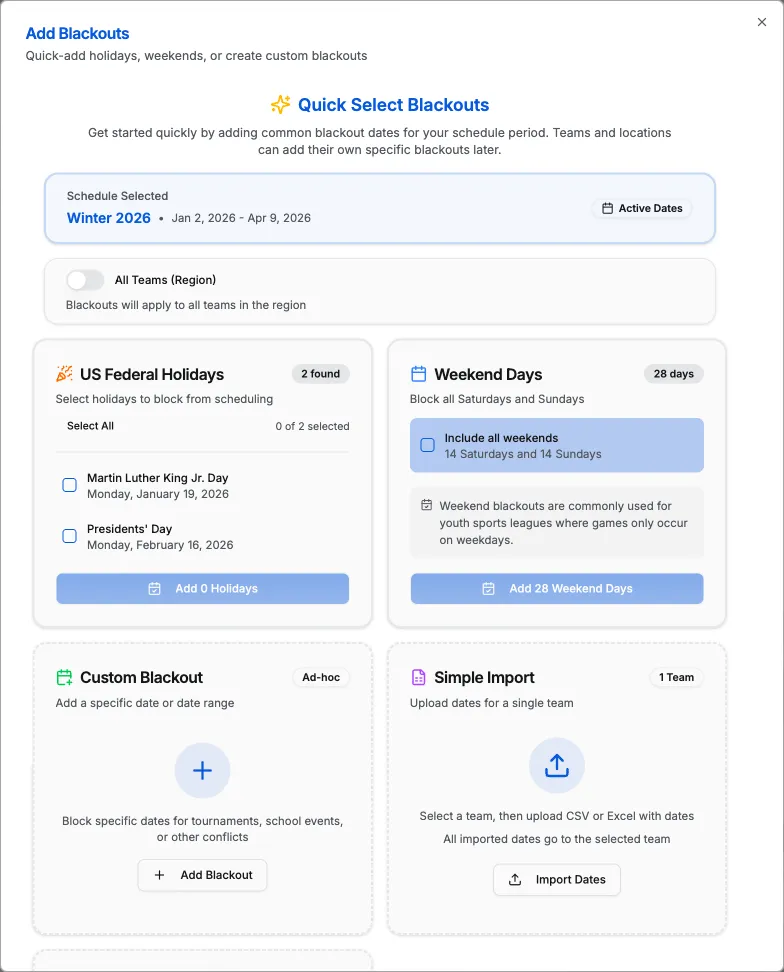
Location Blackouts (Closed / Unavailable)
Use location blackouts when a venue is closed (maintenance, graduation, holidays, etc.). A closed location means all courts are unavailable for that time range.
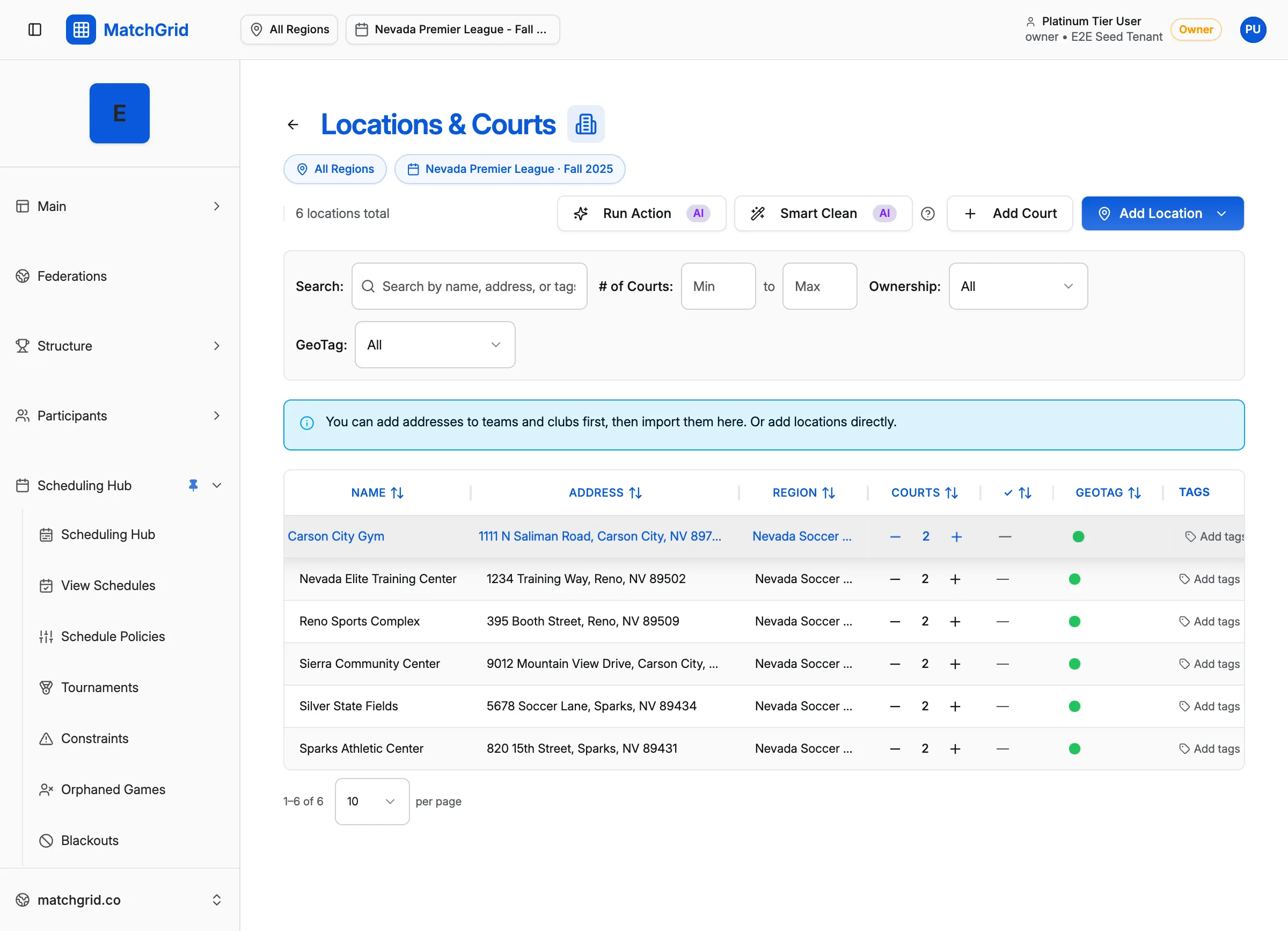
Option 1: From Locations (Closed / Unavailable)
- Go to Locations & Courts
- Click a location row, then click Edit Location
- Find the section labeled Closed / Unavailable
- Click Add Closed Range
- Choose start/end date and time, and enter a reason (default is “Location closed”)
You’ll see toast confirmations like Closed range added and Closed range deleted.
Option 2: From Blackouts (Add Blackout)
- Go to Blackouts
- Click Add Blackout
- Under What do you want to block?, choose Specific Location
- Select the location, set the time range, choose a type, and save