Importing Data
MatchGrid includes an Import Data hub that lets you upload files and track import jobs.
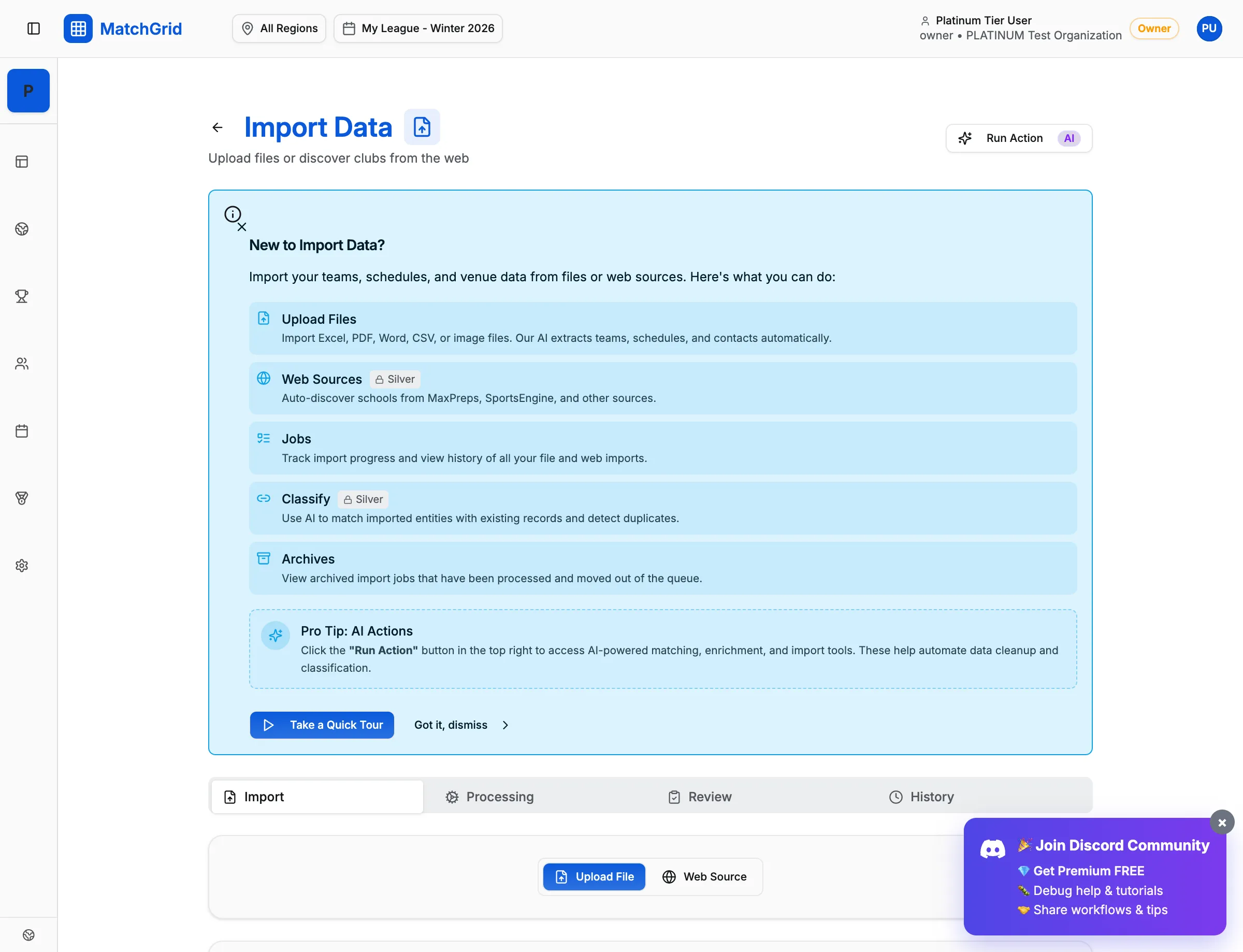
Open Import Data
- Click Settings in the sidebar
- Click Import Data in the settings menu (or go to
/settings/import-data)
At the top, you’ll see:
- Page title: Import Data
- Action button: Run Action
- Tabs:
- Upload Files
- Web Sources
- Jobs
- Classify
- Archives
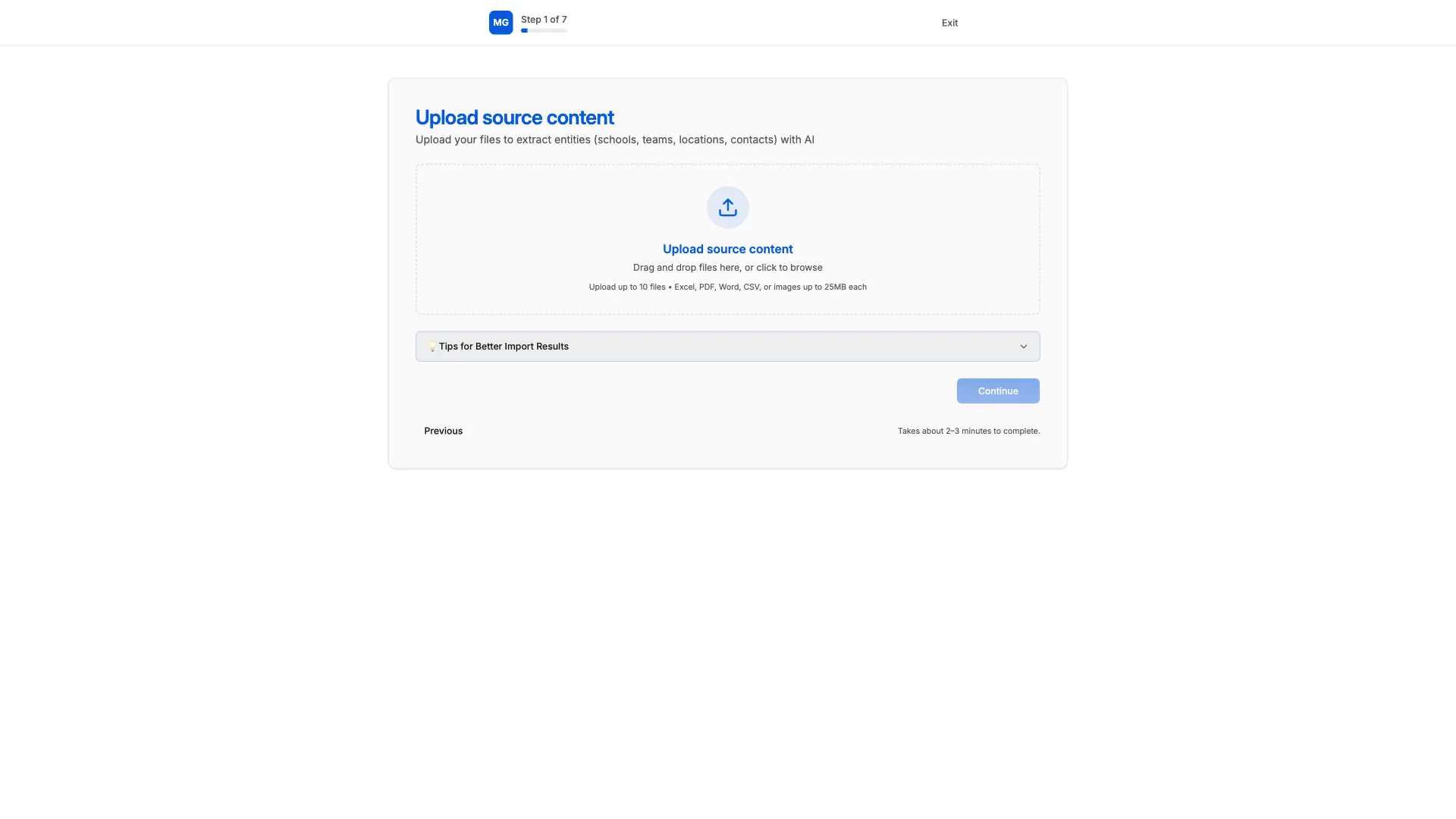
Upload files (most common)
- Click the Upload Files tab
- Click the Start Uploading button
- In the upload screen, either:
- Drag and drop files into the dropzone, or
- Click the dropzone to browse and select files
- Click Continue (single file) or Process N Files (multiple files)
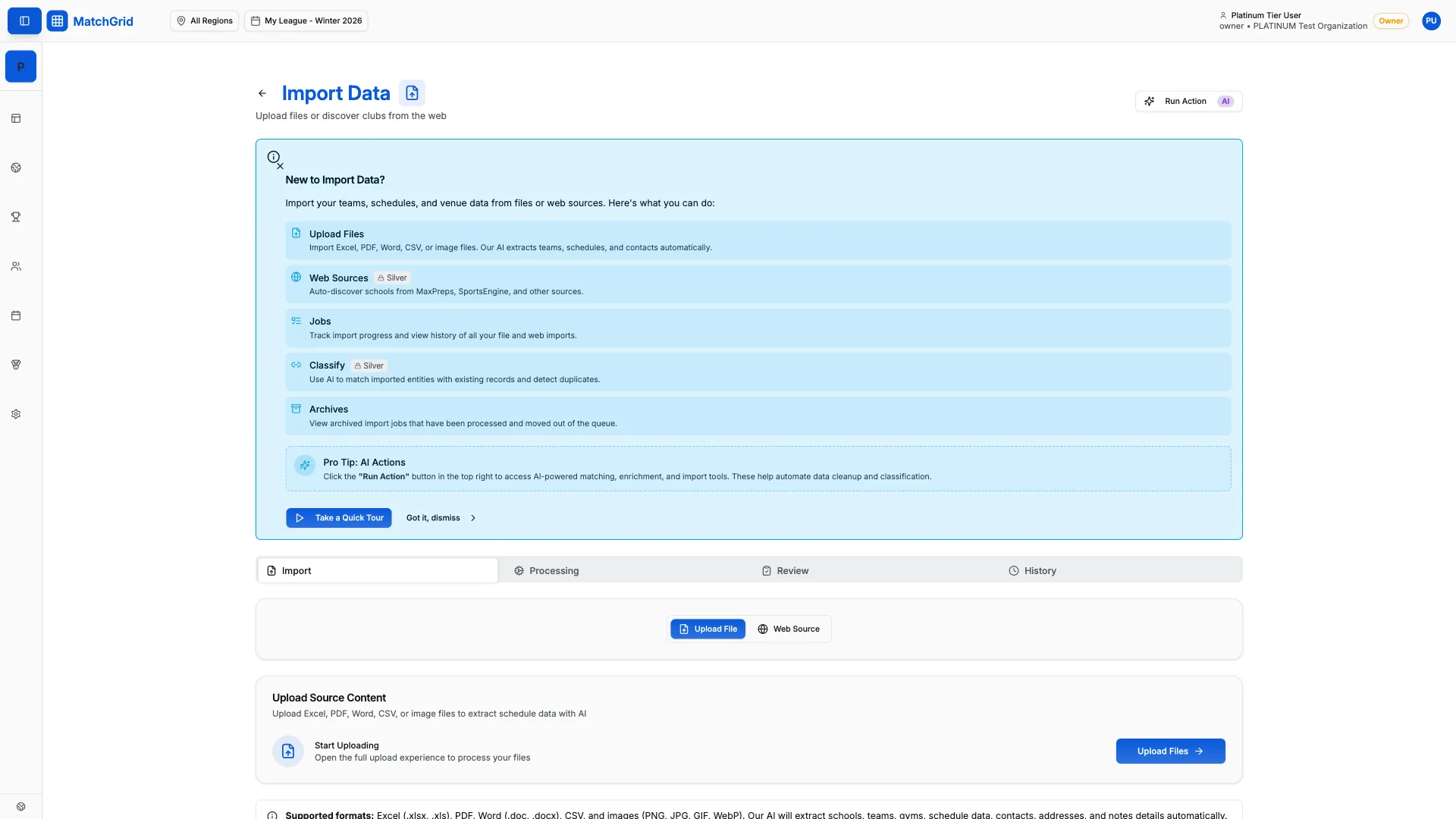
Supported formats (as shown in the app)
- Excel (
.xlsx,.xls) - Word (
.doc,.docx) - CSV
- Images (PNG/JPG/GIF/WebP)
Track progress
- Click the Jobs tab to see imports that are processing or completed
- Click any job row to view its details and status