Adding Teams and Clubs
In MatchGrid, Clubs represent organizations (often schools or club programs), and Teams are the individual squads inside a club.
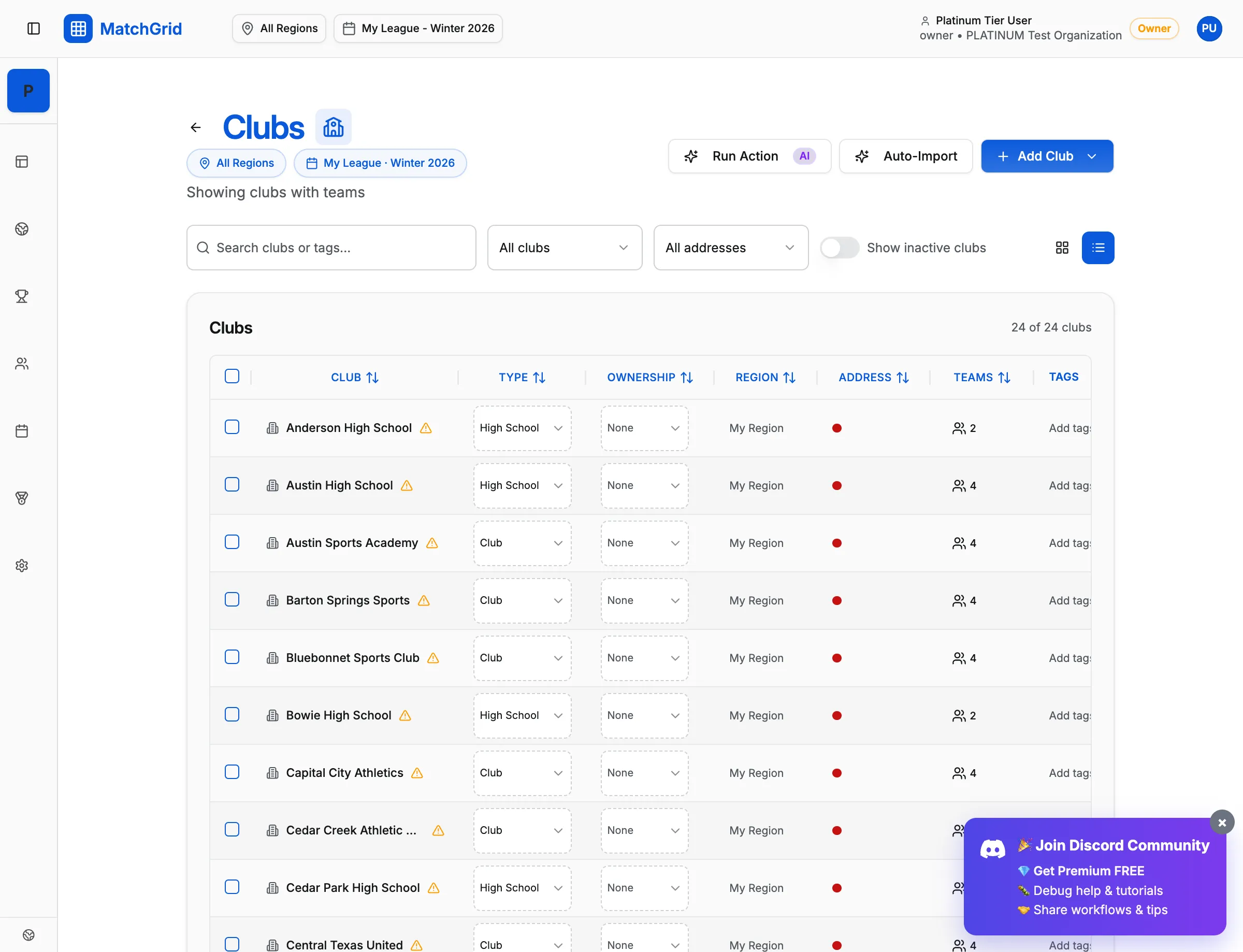
Create a club (school/organization)
- Go to Clubs
- Click Add Club (top-right). It opens a dropdown with:
- Add Single Clubs
- Bulk Create (Multiple)
- Fill out the club form and save.
If your subscription includes it, you may also see Auto-Import on the Clubs page.
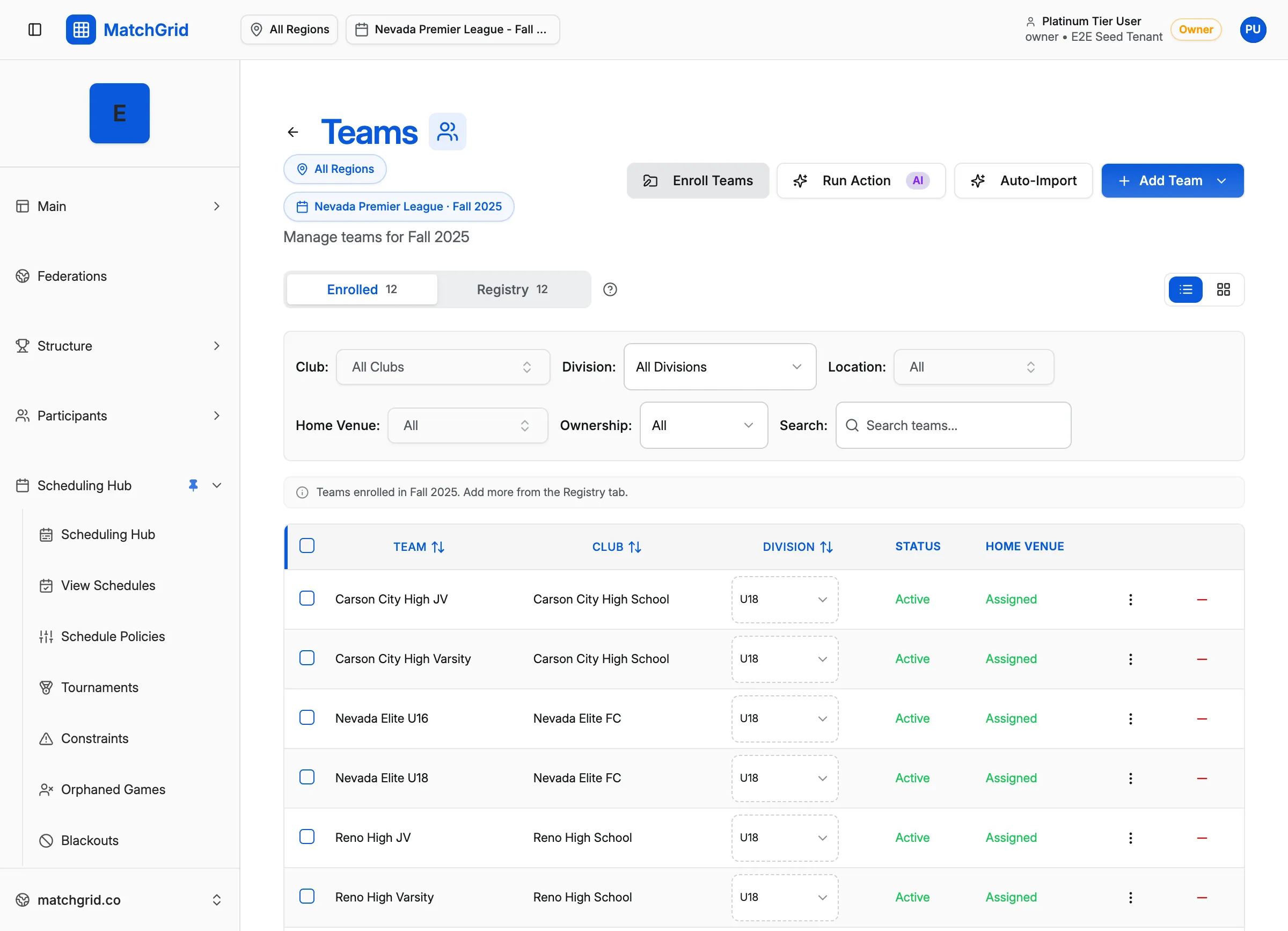
Create a team
- Go to Teams
- At the top, you’ll see tabs:
- Enrolled
- Registry
- Click Add Team (top-right). It opens a dropdown with:
- Add Single Teams
- Bulk Create (Multiple)
- In the team dialog, use the Details tab and fill in the required fields:
- Team Name * (example placeholder: “West Forsyth JV Boys”)
- Club * (select an existing club)
If the club doesn’t exist yet
In the Club picker, search for the club name. If nothing matches, you’ll see a button:
- Create
"<your search>"
That creates the club inline and lets you continue creating the team.
Set home location and travel limits (in the team dialog)
In the team dialog:
- Travel Limits: set Weekday Max Miles and Weekend Max Miles
- To remove an override and go back to inherited values, use the Clear override icon.
- When done, click Create Team (or Update Team when editing).
[!TIP] If you’re not sure where to put availability constraints, use the Availability & Preferences tab in the team dialog.