Adding Locations and Courts
In MatchGrid, a Location is a venue (gym, school, facility). Courts represent how many games you can run in parallel at that location.
Add a location
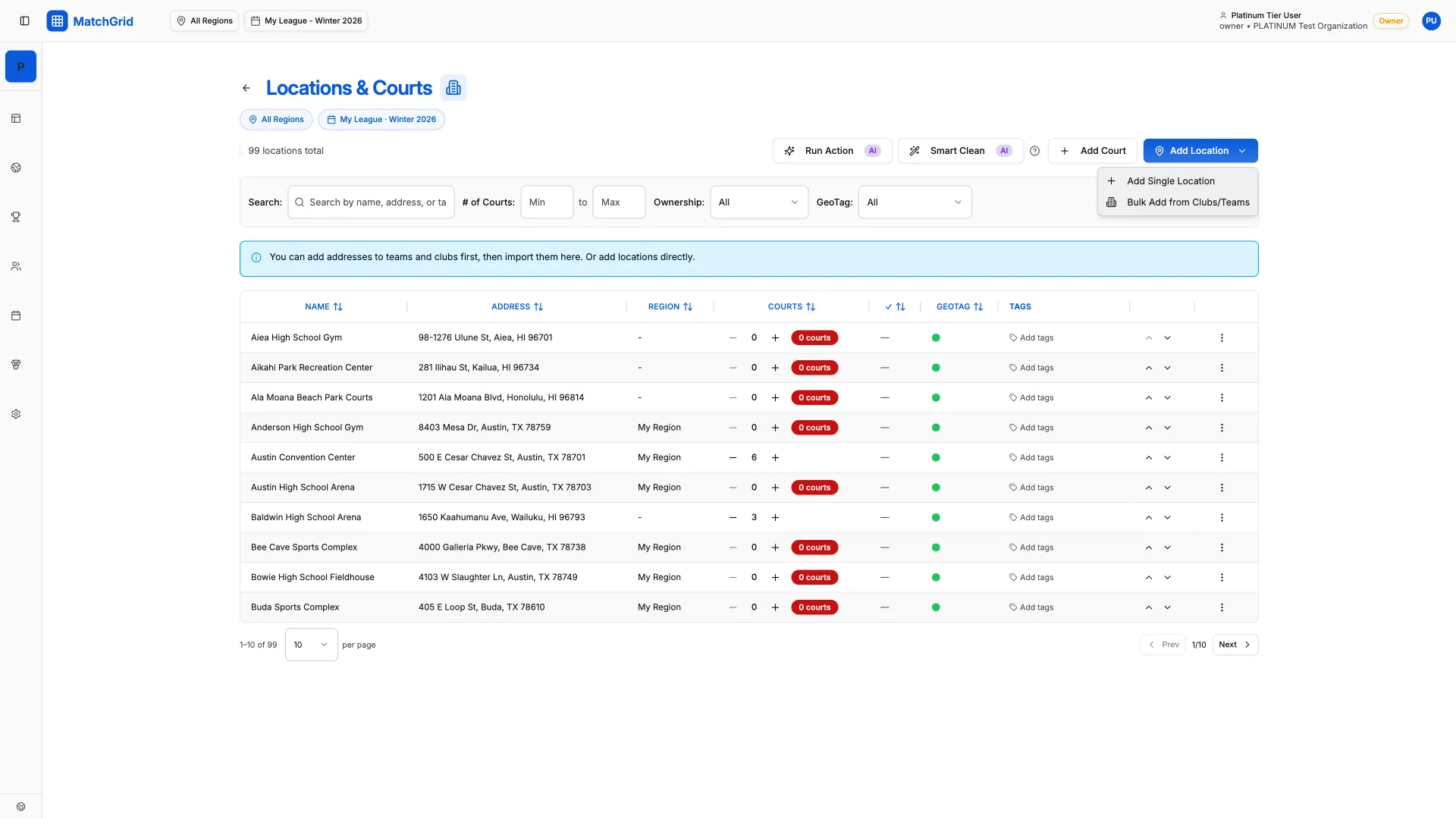
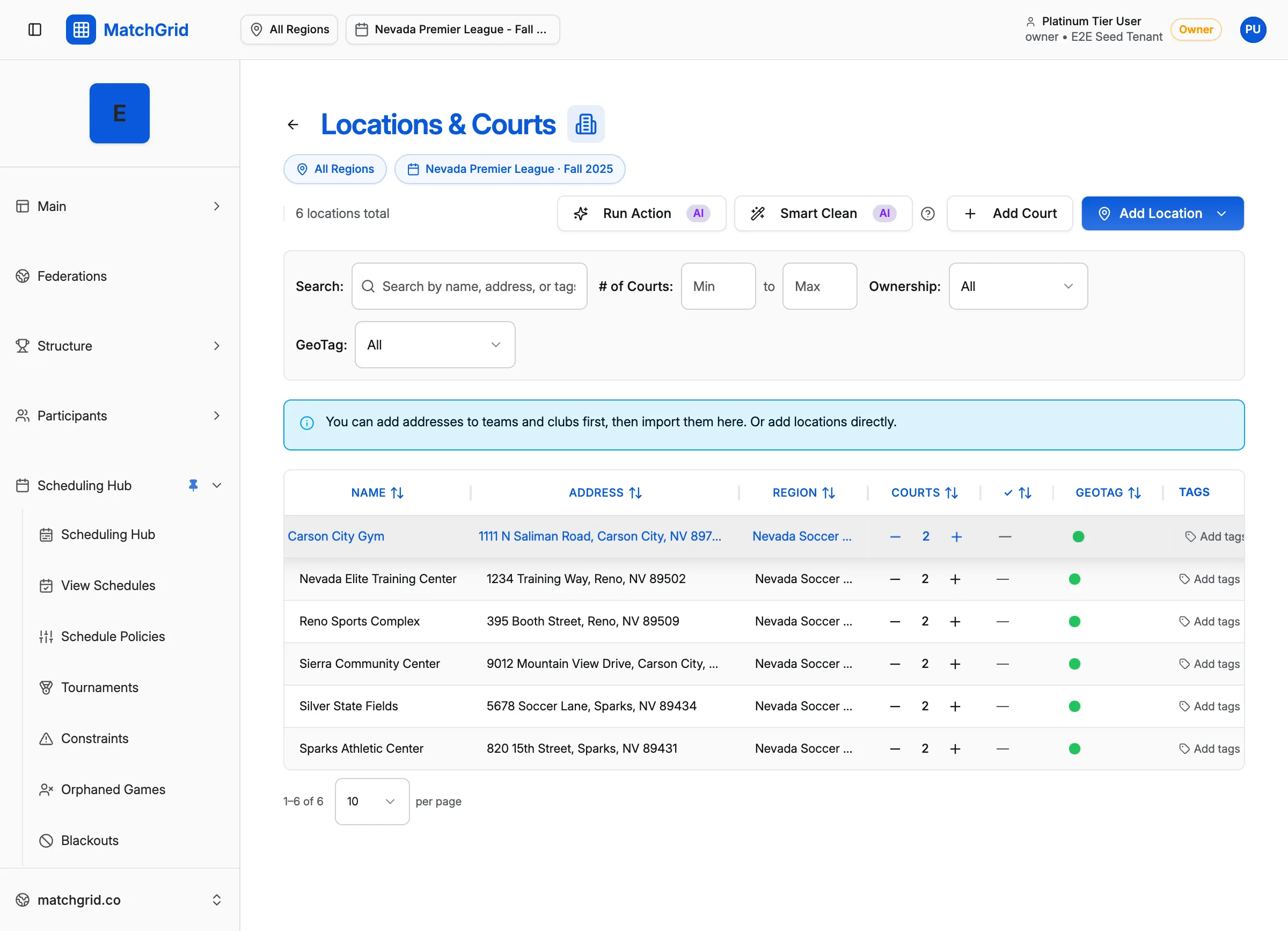
- Go to Locations & Courts
- Click Add Location (top-right). It opens a dropdown with:
- Add Single Location
- Bulk Add from Clubs/Teams
When you add a location, include a real address so geocoding and map previews work.

Add courts (quick path)
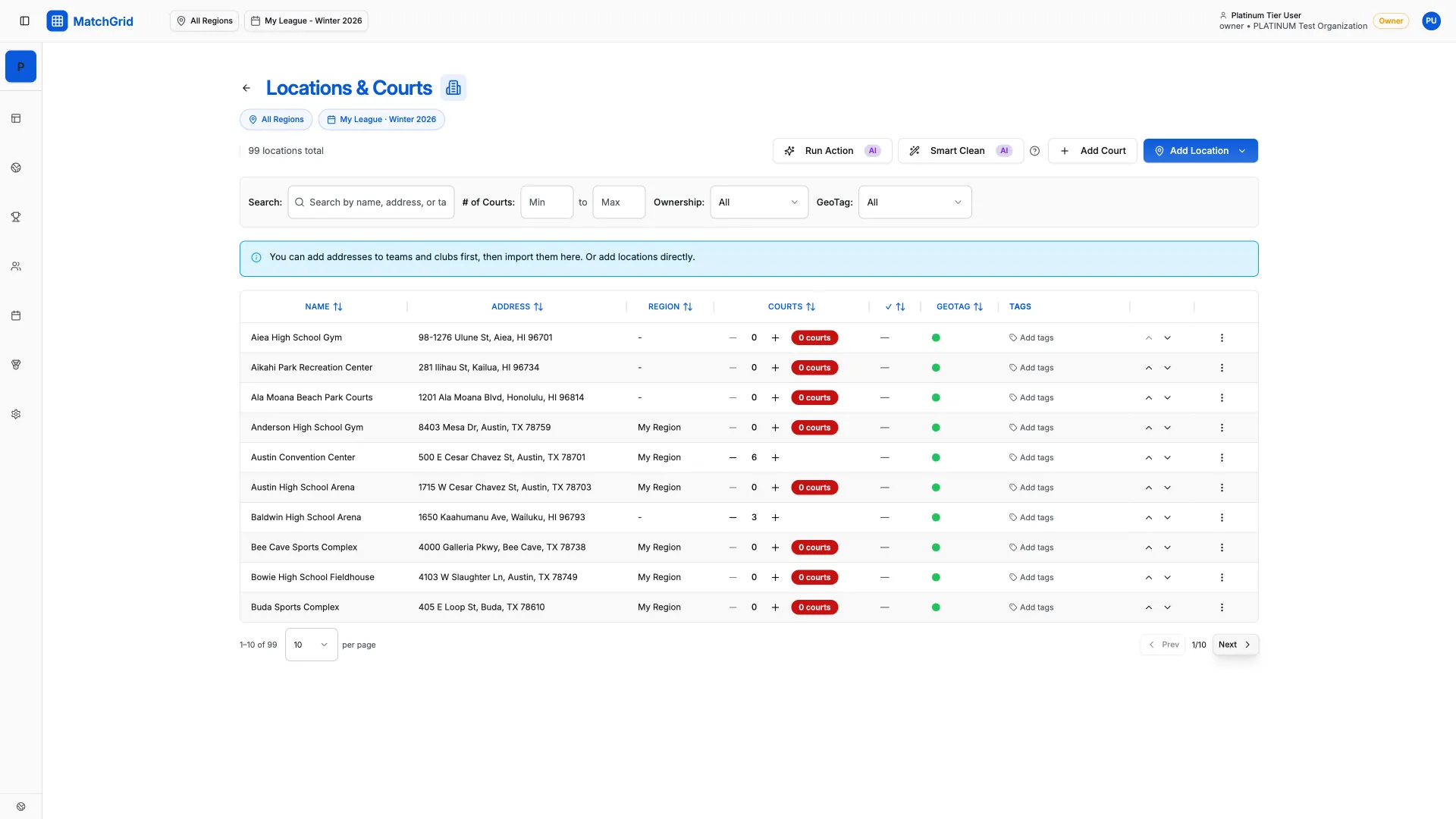
From the Locations page header, click Add Court.
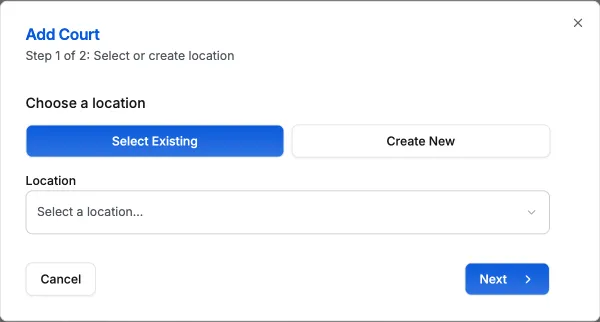
This opens a 2-step modal:
- Step 1 of 2: Select or create location
- Choose Select Existing or Create New
- Step 2 of 2: Add courts and notes
- Enter Number of Courts *
- Optionally add Notes
Finish by clicking Add Courts.
Edit a location (courts, closed ranges, notes)
- Click a location row to open the side panel
- Click Edit Location
- In the edit dialog, you can:
- Adjust Edit Courts (court count)
- Manage Closed / Unavailable times (see
location-blackouts) - Add Notes
[!INFO] The side panel includes a hint: “Click Edit for contact info, availability, and more fields.”