Adding Courts to a Location
Courts represent the number of games that can run simultaneously at a location. A gym with 2 courts can host 2 games at the same time slot. You need at least one court before scheduling.
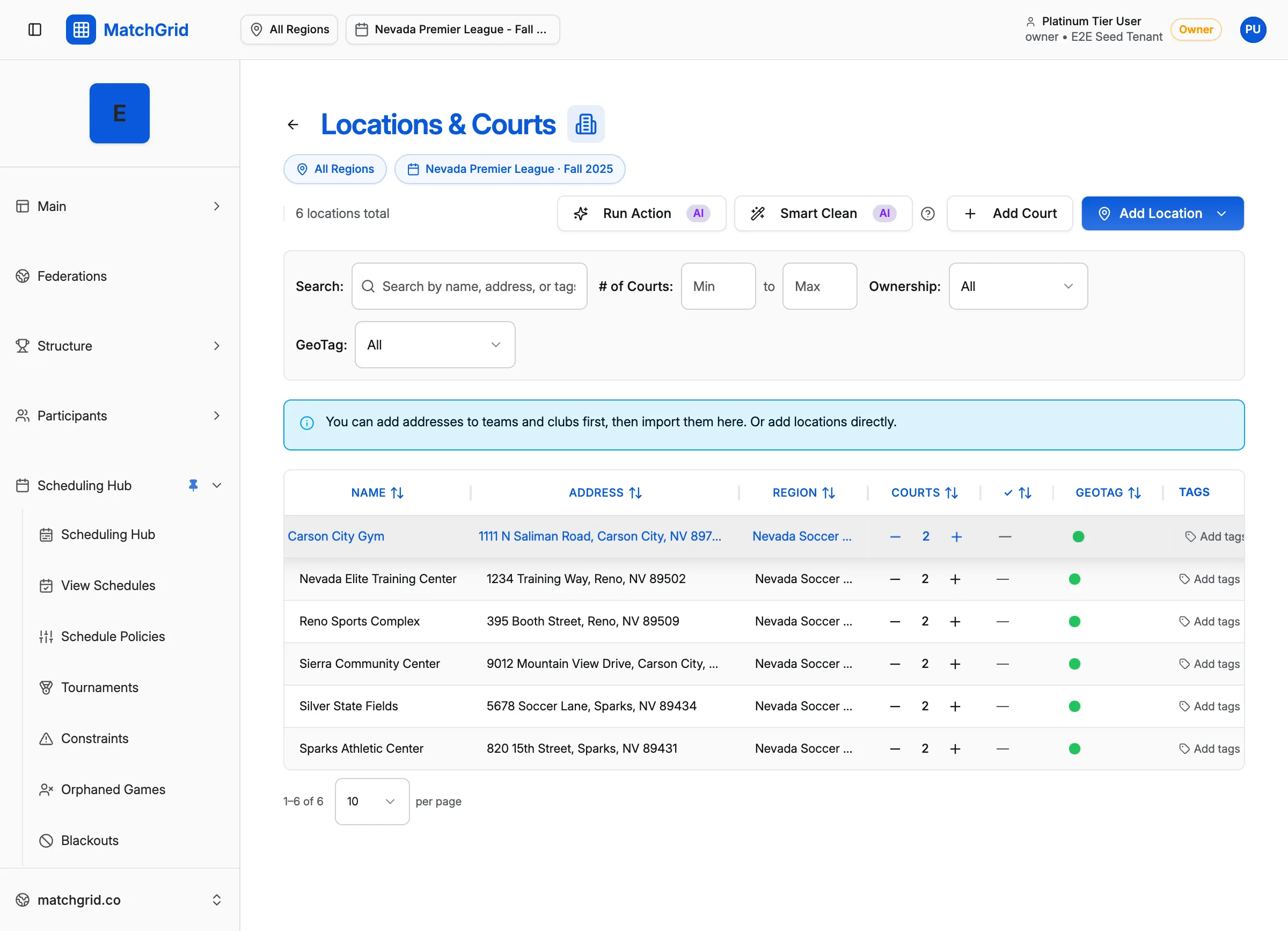
Steps to add courts
- Click Locations & Courts in the sidebar (or go to
/locations) - Click Add Court in the page header
- Step 1 of 2: Select or create location
- Choose Select Existing and pick a location from the list
- Or choose Create New to add a location at the same time
- Click Next
- Step 2 of 2: Add courts and notes
- Enter Number of Courts — how many games can run in parallel
- Optionally add Notes about the venue
- Click Add Courts to save
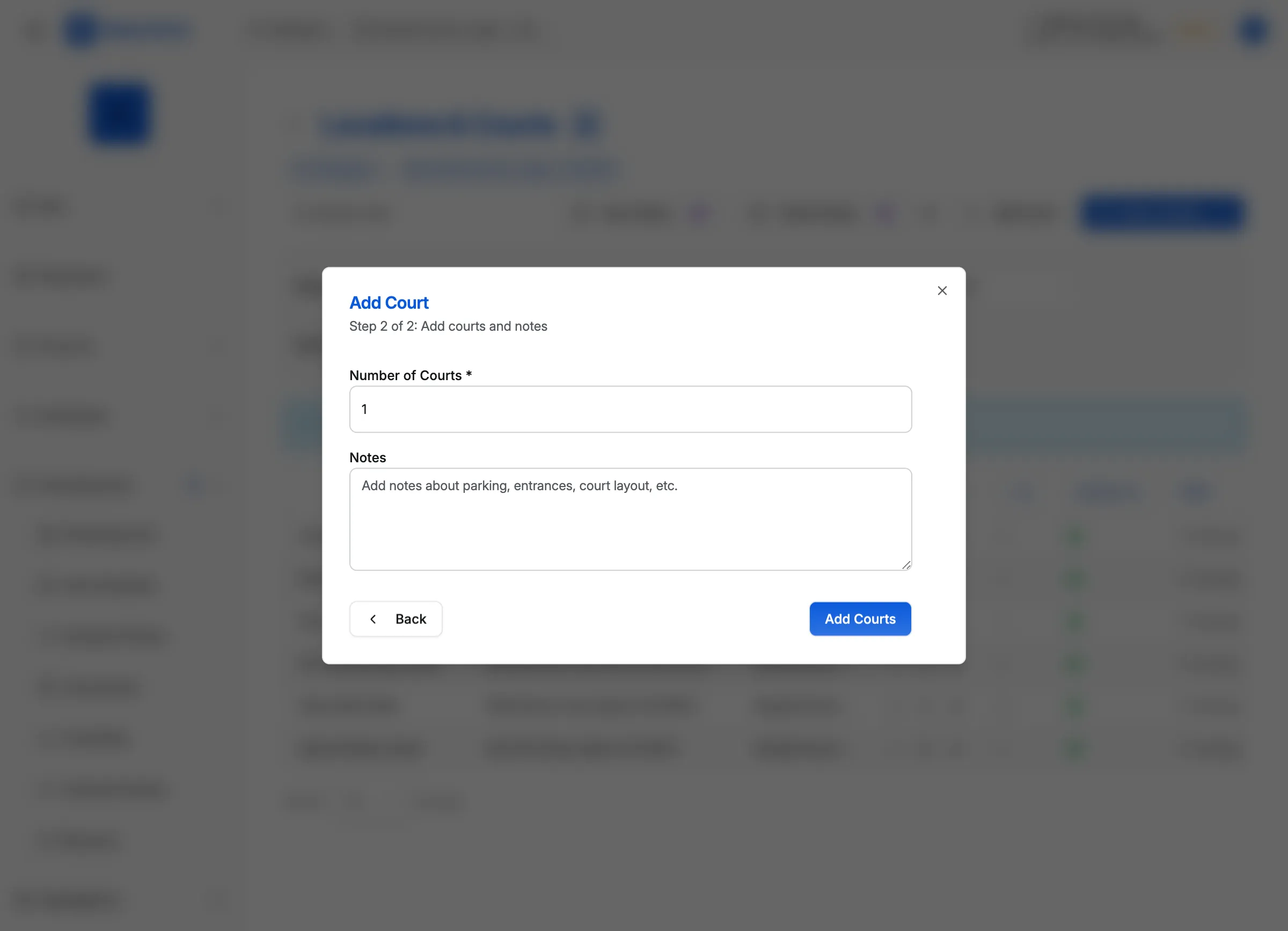
[!INFO] If you enter “2” for Number of Courts, MatchGrid knows this venue can host 2 simultaneous games and will schedule accordingly.
Alternative: edit an existing location
You can also add or change court count by editing a location:
- Click on a location row to open the side panel
- Click Edit Location
- Find the Edit Courts section
- Update the court count and save
Minimum requirement for scheduling
MatchGrid requires at least 1 court before you can generate a schedule. If you have locations but no courts, the setup checklist will prompt you to add courts.
[!TIP] If the dashboard says “Add Courts” but you’ve already added locations, go back to Locations & Courts and make sure each venue has a court count specified.
What’s next
Your core setup is complete once you have:
- A season with dates
- At least 2 enrolled teams
- At least 1 location with courts
You’re now ready to generate your first schedule.