Adding a Team
Teams are the core units in MatchGrid. Each team belongs to a club and can be enrolled in seasons to participate in scheduling.
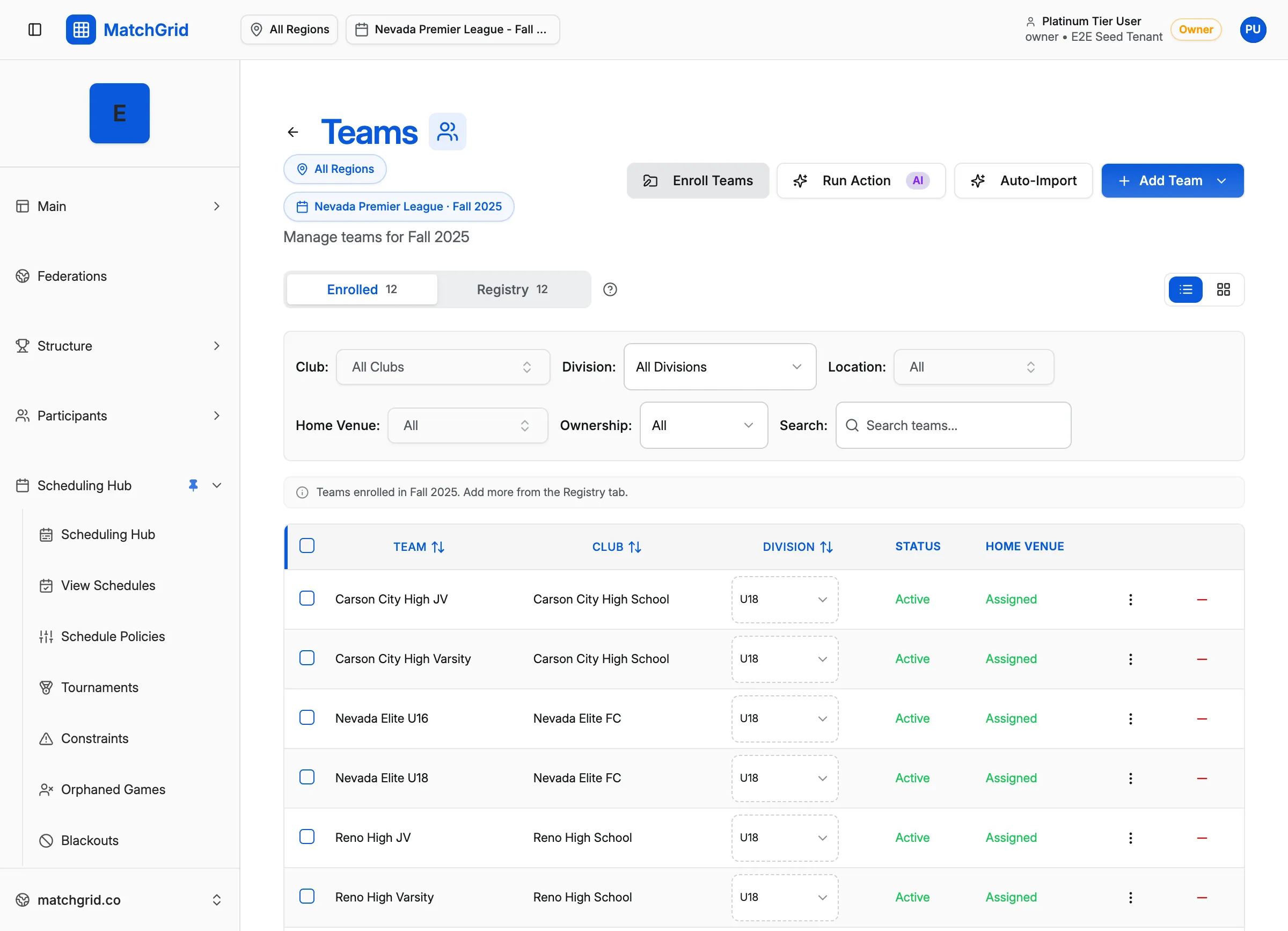
Steps to add a team
- Click Teams in the sidebar (or go to
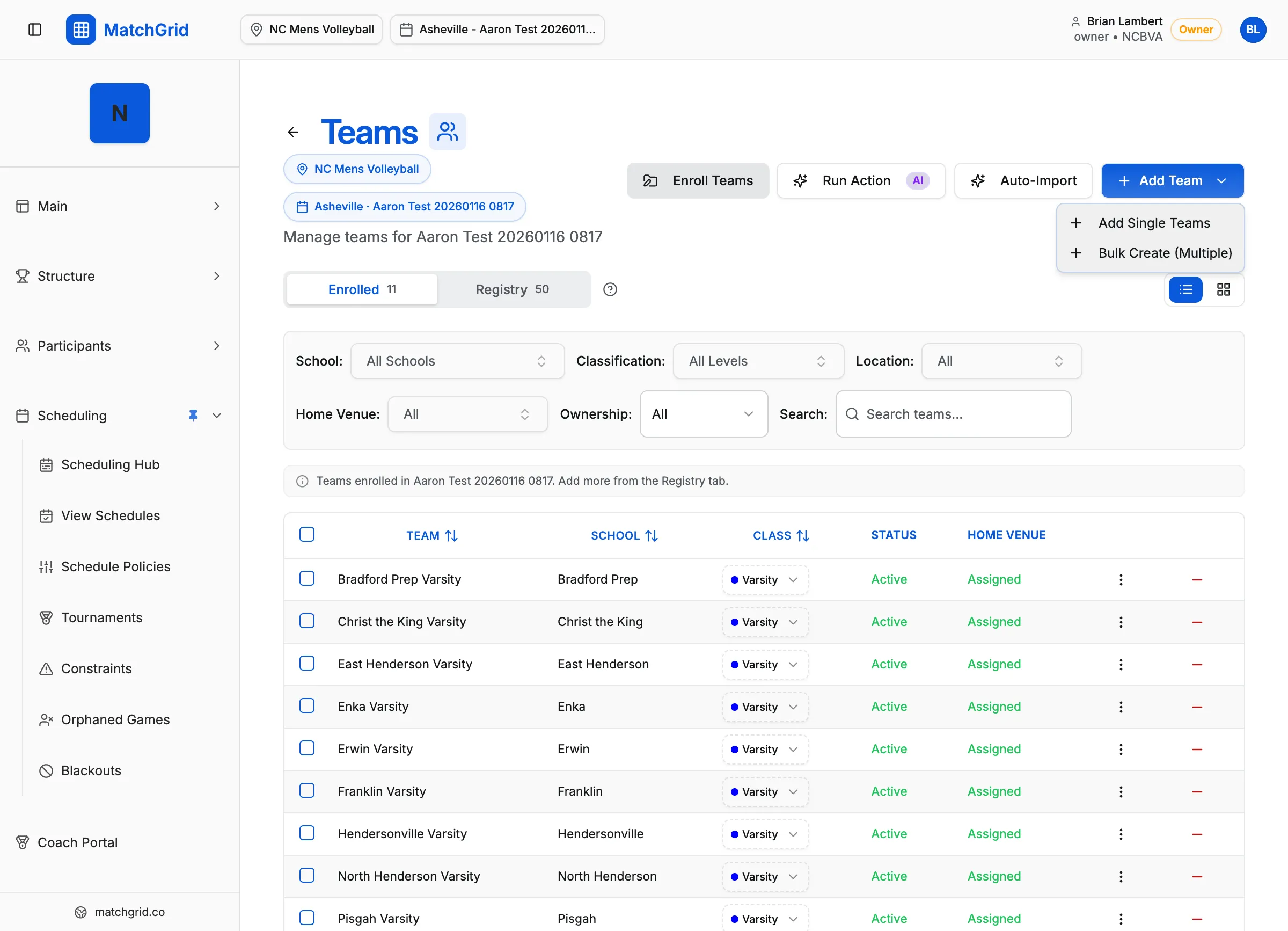
/teams) - Click Add Team in the top-right corner
- From the dropdown, select Add Single Teams
- In the team dialog, use the Details tab and fill in:
- Team Name — for example, “West Forsyth JV Boys”
- Club — select the club this team belongs to
- Click Create Team to save
If the club doesn’t exist yet
When selecting a club, type the club name in the search box. If no match is found, you’ll see:
- Create “Your Club Name”
Click this option to create the club inline and continue adding the team.
[!TIP] Creating clubs inline is the fastest way to set up your organization when you’re adding teams for the first time.
Adding multiple teams at once
If you have many teams to add:
- Click Add Team in the top-right corner
- Select Bulk Create (Multiple) from the dropdown
- Follow the bulk creation flow
What’s next
After adding teams to your registry, you must enroll them in a season before they can be scheduled — see Enrolling Teams in a Season.