Adding a Location
A Location is a venue where games or practices take place — such as a gym, field, or sports facility. You need at least one location before you can generate schedules.
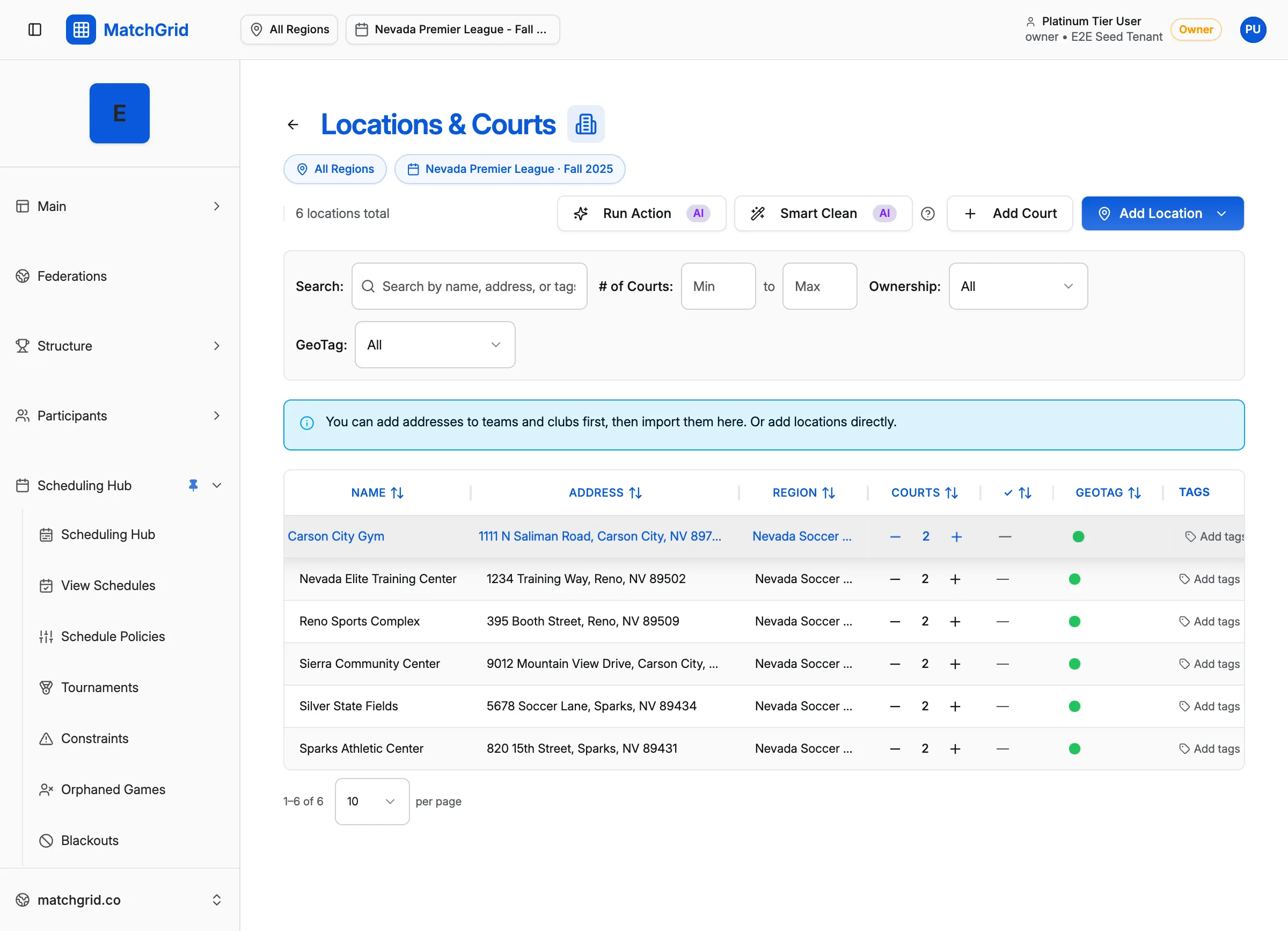
Steps to add a location
- Click Locations & Courts in the sidebar (or go to
/locations) - Click Add Location in the top-right corner
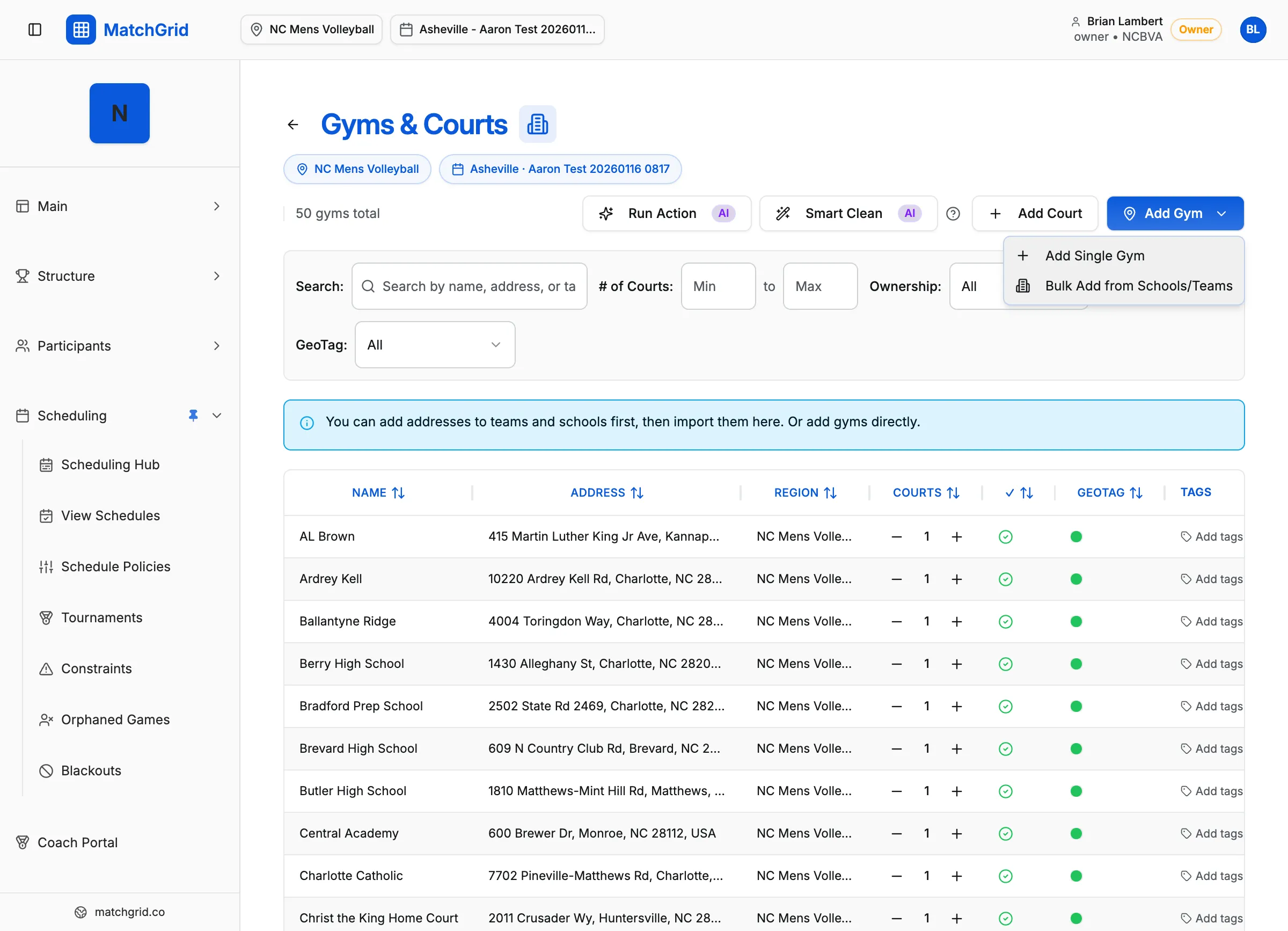
- From the dropdown, select Add Single Location
- In the dialog, fill in:
- Location Name — for example, “Main Gymnasium” or “North Campus Field”
- Address — enter a real address for geocoding and travel calculations
- Click Create Location to save
[!TIP] Always enter a complete street address. MatchGrid uses this for map previews and to calculate travel distances between teams and venues.
Bulk add locations from clubs
If your clubs already have addresses, you can quickly create locations for each:
- Click Add Location in the top-right corner
- Select Bulk Add from Clubs/Teams
- MatchGrid will create locations based on your existing club data
What’s next
After adding a location, you need to specify how many courts or fields it has — see Adding Courts to a Location.