Adding a Club
In MatchGrid, a Club represents an organization — typically a school or club program. Teams belong to clubs.
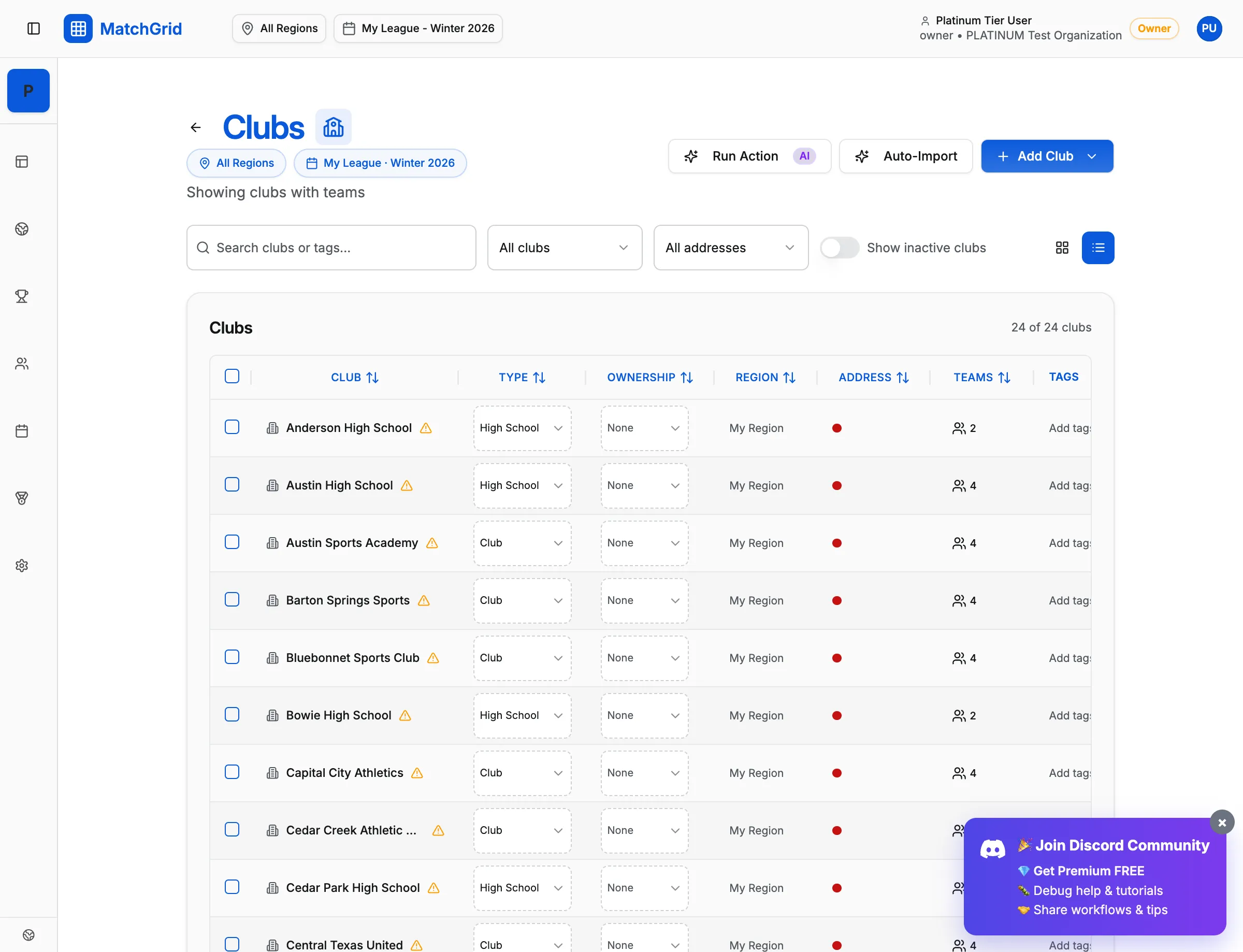
Steps to add a club
- Click Clubs in the sidebar (or go to
/clubs) - Click Add Club in the top-right corner
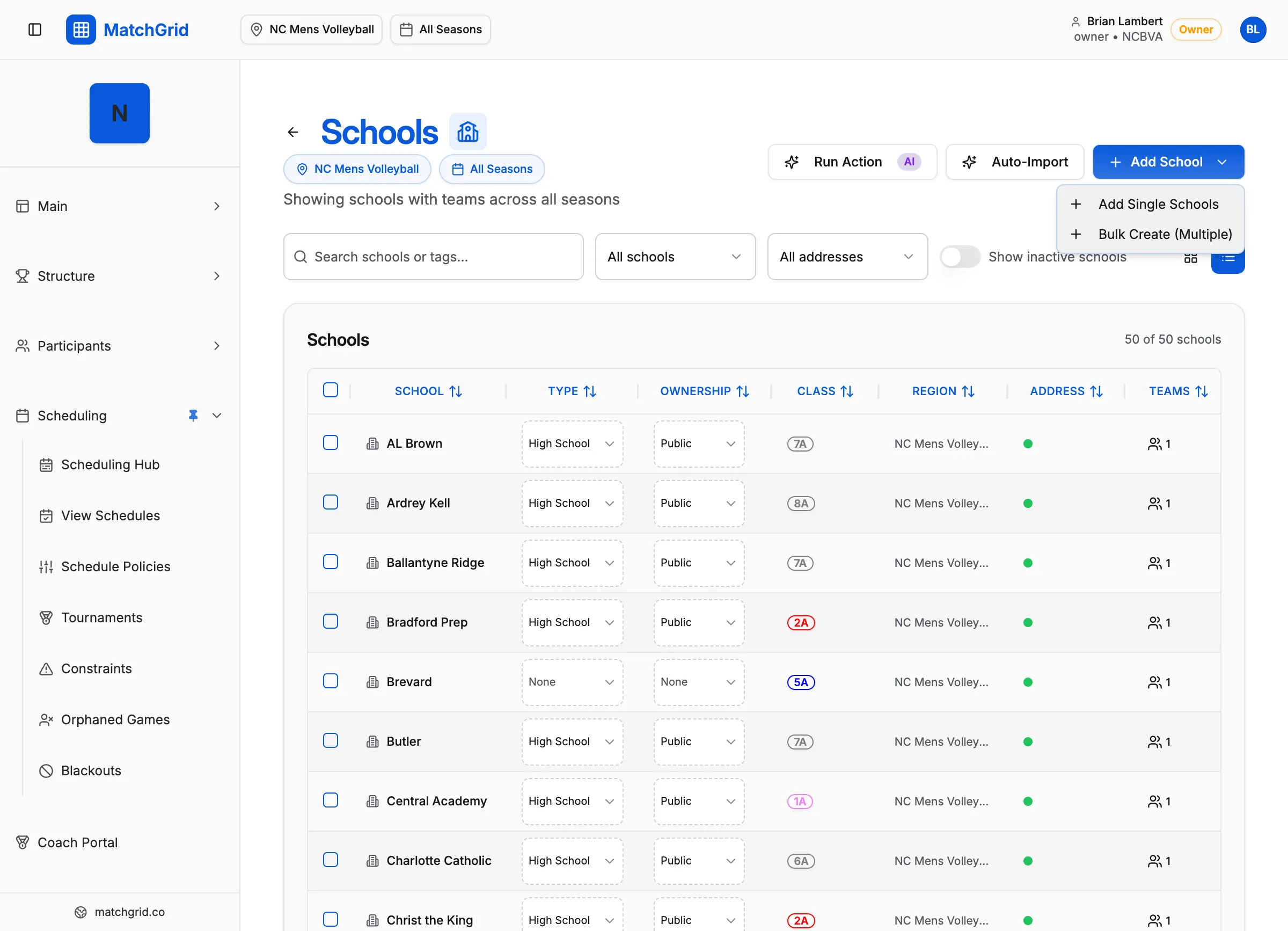
- From the dropdown, select Add Single Clubs
- In the dialog, fill in:
- Club Name — the name of the school or organization
- Click Create Club to save
[!TIP] You can also create clubs inline when adding a team. If you type a club name that doesn’t exist in the club picker, you’ll see a Create option to add it on the fly.
Adding multiple clubs at once
If you have many clubs to add:
- Click Add Club in the top-right corner
- Select Bulk Create (Multiple) from the dropdown
- Follow the bulk creation flow to add several clubs at once
What’s next
After adding clubs, create teams within them — see Adding a Team.