Managing Your Subscription
MatchGrid offers several subscription tiers to match your organization’s needs. This guide covers how to view, upgrade, and manage your subscription.
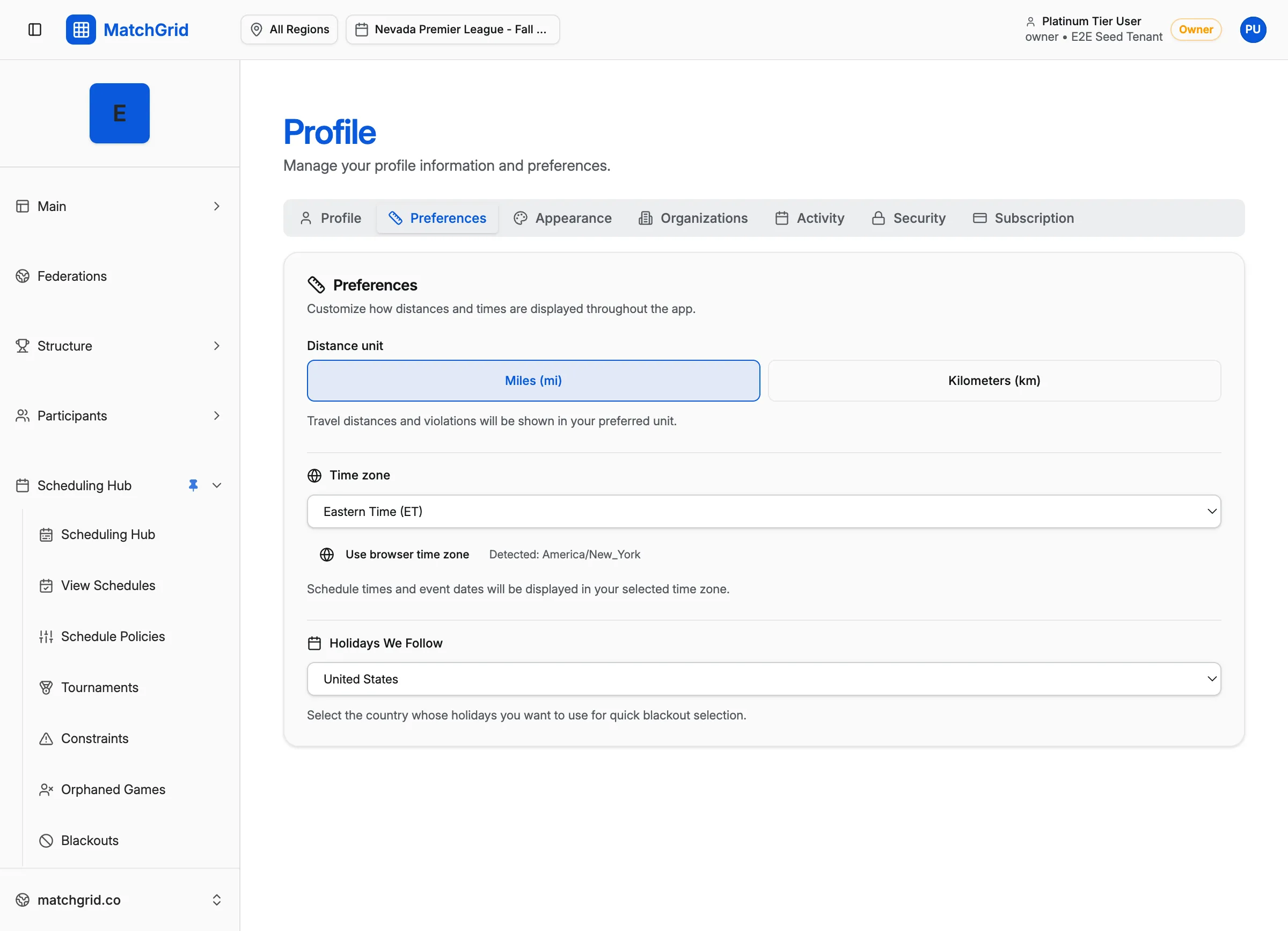
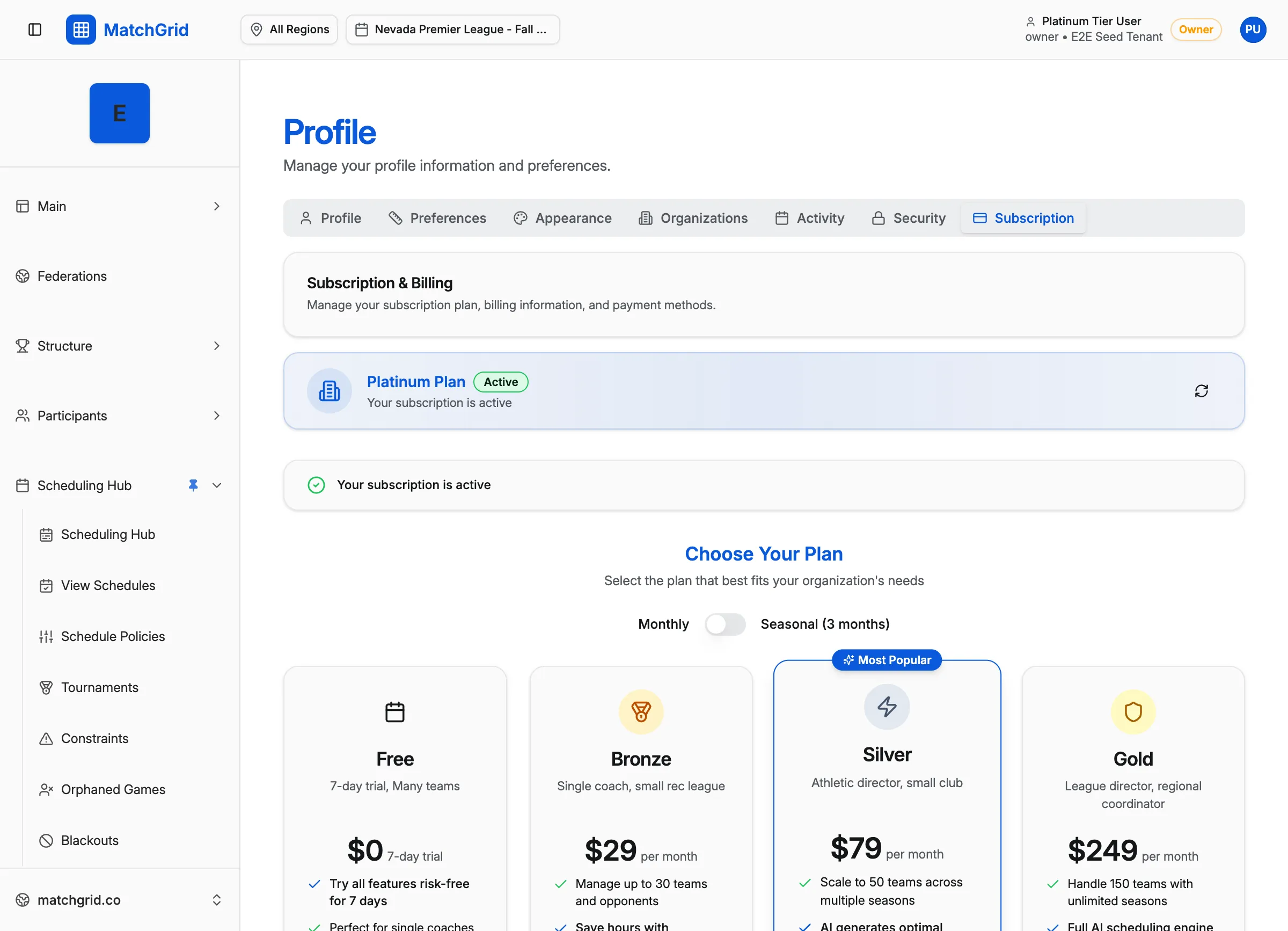
Subscription Tiers
| Tier | Best For | Key Features |
|---|---|---|
| Free | Trying MatchGrid | Basic scheduling, limited teams |
| Bronze | Small leagues | More teams, blackout management |
| Silver | Growing organizations | Tournaments, external tracking |
| Gold | Full-featured leagues | Auto-scheduler, advanced analytics |
| Enterprise | Large organizations | Multi-region, API access, SSO |
Viewing Your Current Plan
- Navigate to Settings → Billing
- View your current tier, renewal date, and usage
Your usage metrics show:
- Teams used vs. limit
- Seasons active
- Features enabled
Upgrading Your Plan
To unlock more features:
- Go to Settings → Billing
- Click Upgrade Plan
- Select your new tier
- Review the changes and price
- Confirm the upgrade
[!INFO] Upgrades take effect immediately. You’ll be charged a prorated amount for the remainder of your billing cycle.
Downgrading Your Plan
If you need fewer features:
- Go to Settings → Billing
- Click Change Plan
- Select a lower tier
- Review what you’ll lose access to
- Confirm the change
[!WARNING] Downgrading may disable features you’re currently using. Review the feature comparison carefully before confirming.
Updating Payment Method
To change your credit card or payment method:
- Go to Settings → Billing
- Click Payment Methods
- Click Add New or Edit
- Enter your payment details
- Save changes
MatchGrid uses secure payment processing through Stripe.
Viewing Invoices
Access your billing history:
- Go to Settings → Billing
- Click Invoices or Billing History
- View or download past invoices as PDF
Canceling Your Subscription
If you need to cancel:
- Go to Settings → Billing
- Click Cancel Subscription
- Provide feedback (optional)
- Confirm cancellation
Your access continues until the end of your current billing period. Data is retained for 30 days after cancellation.
Common Questions
When am I billed?
Subscriptions renew on the same date each month/year based on when you first subscribed.
Can I get a refund?
Contact support within 14 days of a charge for refund requests.
What happens if my payment fails?
You’ll receive an email notification. Update your payment method within 7 days to avoid service interruption.
Do you offer discounts for nonprofits or schools?
Yes! Contact sales for educational and nonprofit pricing.