MatchGrid Status Dashboard
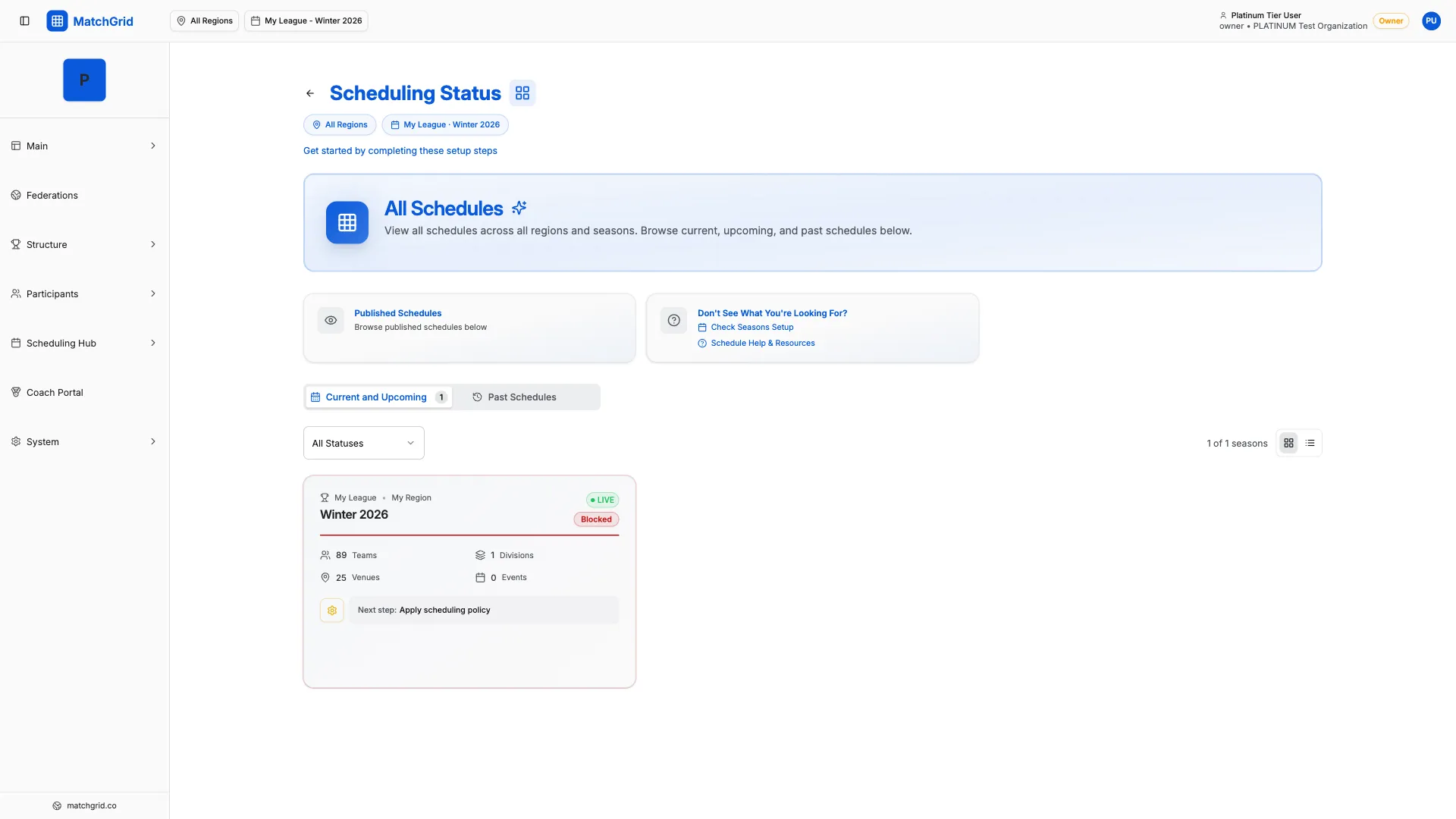
The Status page provides a high-level overview of your organization’s scheduling productivity, key metrics, and operational health across all your seasons and regions.
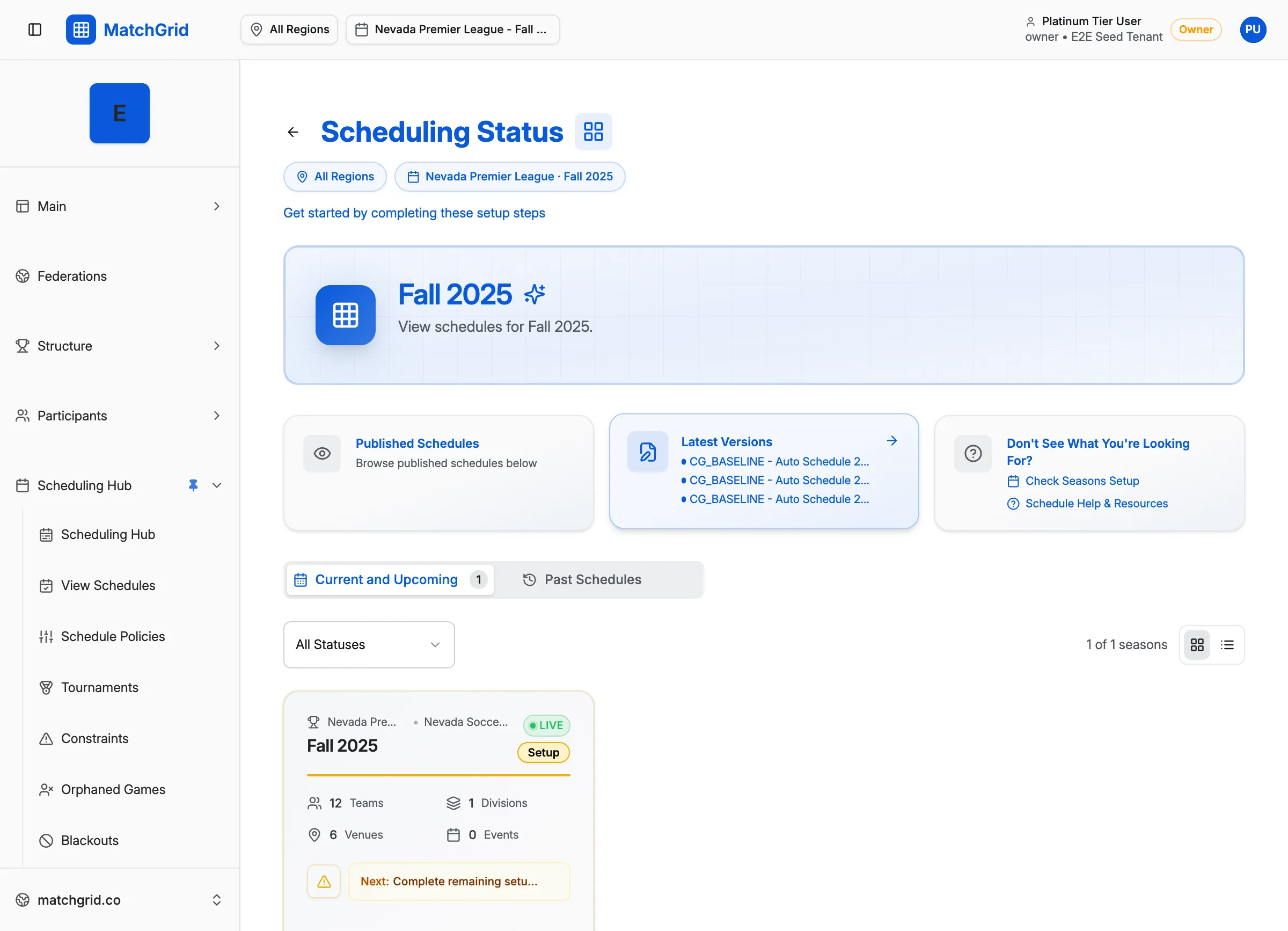
Important: Select All Regions & All Seasons
[!WARNING] Before viewing the Status page, you must select “All Regions” and “All Seasons” in the top navigation bar. Otherwise, you’ll only see metrics for the currently selected region/season, which won’t give you the full picture of your organization’s activity.
How to Select All Regions and All Seasons
- Look at the top navigation bar
- Click the Region selector dropdown
- Select All Regions (at the top of the list)
- Click the Season selector dropdown
- Select All Seasons (at the top of the list)
- Now navigate to Status in the sidebar
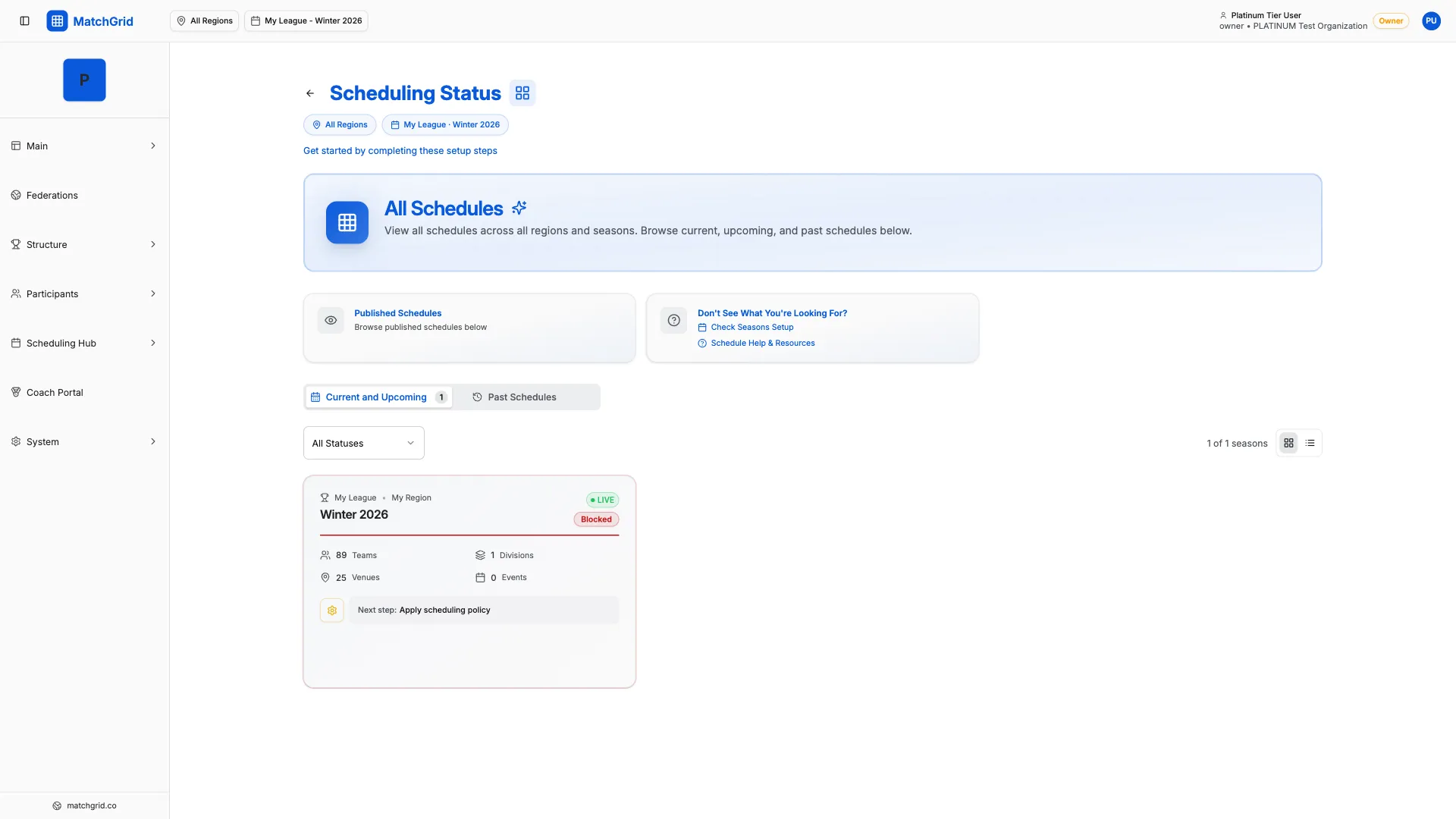
[!TIP] The Status page is most useful when viewing organization-wide data. Selecting specific regions or seasons filters the metrics, which may hide important cross-season trends.
Accessing the Status Page
- Ensure All Regions and All Seasons are selected (see above)
- Click Status in the sidebar navigation
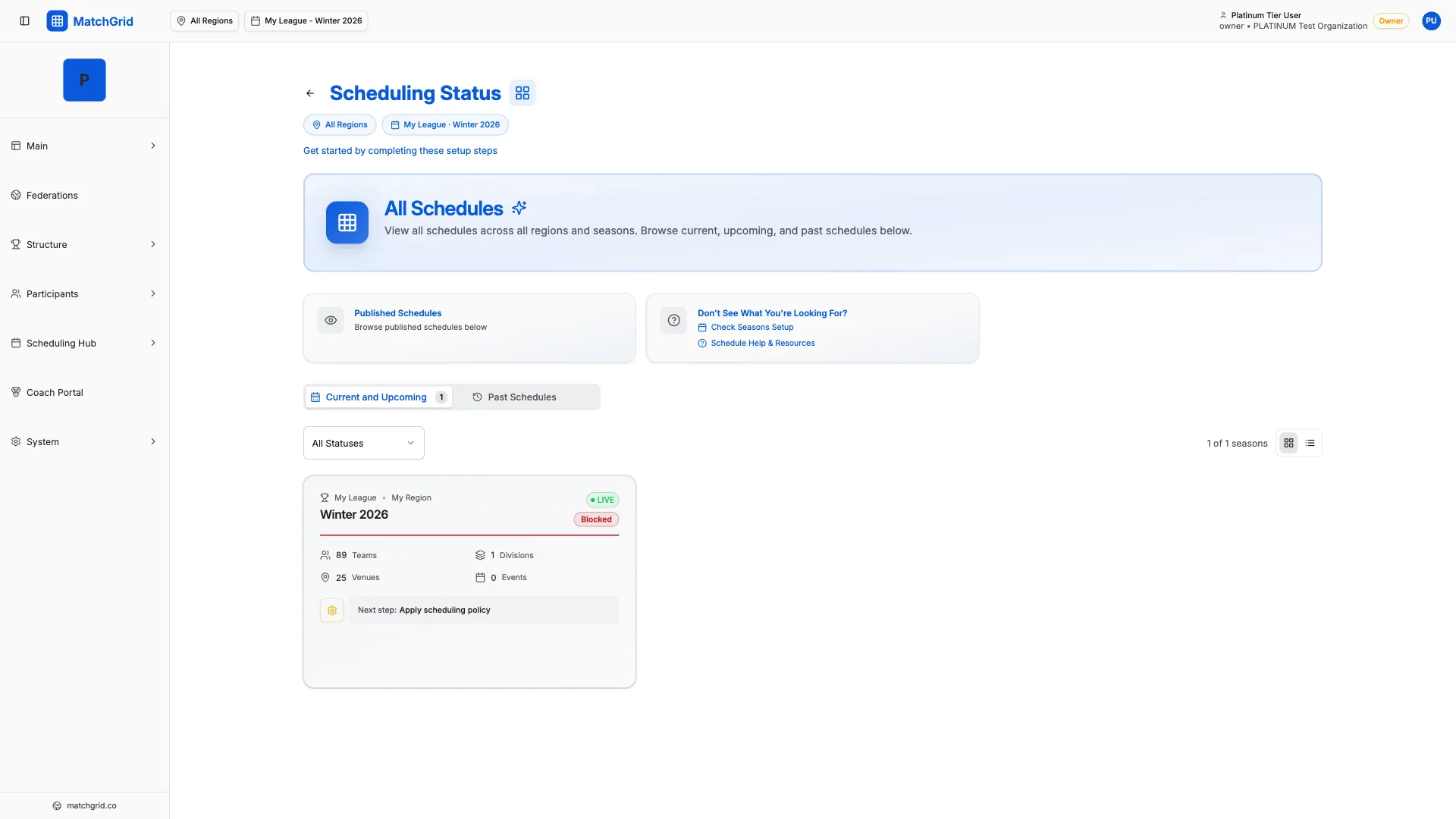
- The Status dashboard loads at
/status
Productivity Metrics
The Status page displays key productivity indicators that show the value MatchGrid is providing:
Time Saved
Estimated hours saved by using MatchGrid’s auto-scheduler vs. manual scheduling methods.
Events Scheduled
Total number of matches, games, and events created across all seasons.
Conflicts Resolved
Number of scheduling conflicts detected and resolved automatically or manually.
Teams Managed
Total teams across all regions and seasons in your organization.

Key Metrics Breakdown
| Metric | What It Measures |
|---|---|
| Total Events | All scheduled games/matches across seasons |
| Active Seasons | Seasons currently in progress |
| Teams Enrolled | Teams participating across all seasons |
| Locations Used | Venues with scheduled events |
| Conflicts Detected | Scheduling issues found |
| Conflicts Resolved | Issues successfully addressed |
| Auto-Scheduler Runs | Times the AI scheduler was used |
| Time Saved (est.) | Hours saved vs. manual scheduling |
Organizational Health
The Status page also shows operational health indicators:
Readiness Score
How prepared your organization is for upcoming scheduling:
- ✅ Green: Fully ready
- 🟡 Yellow: Minor issues to address
- 🔴 Red: Blockers preventing scheduling
Completeness Score
How complete your data setup is:
- Teams with home locations
- Blackouts configured
- Scheduler settings defined
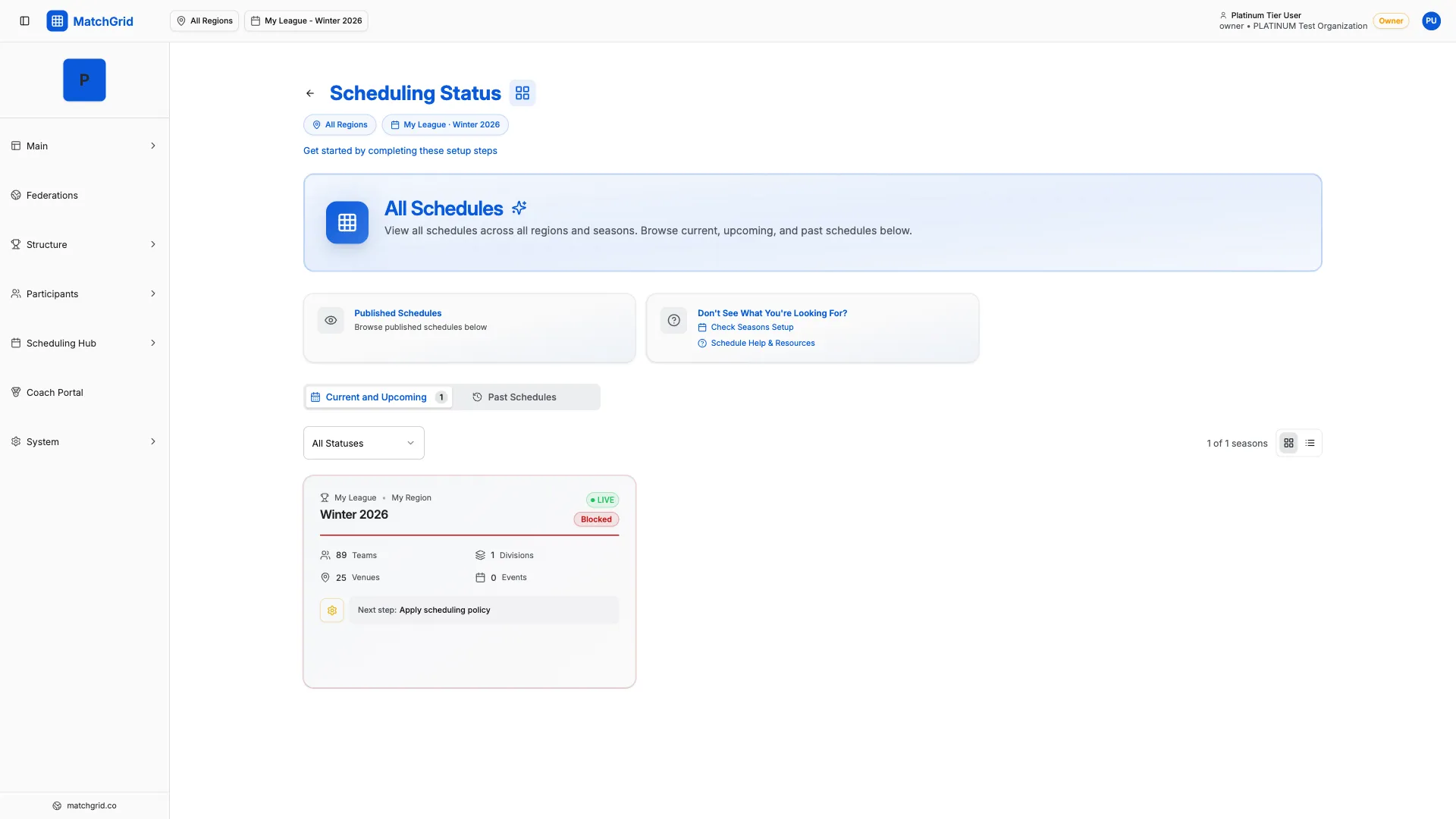
Filtering vs. All Data
| Selection | What You See |
|---|---|
| All Regions + All Seasons | Complete organizational metrics (recommended) |
| Specific Region + All Seasons | Metrics for one region across time |
| All Regions + Specific Season | Current season across all regions |
| Specific Region + Season | Narrowest view, one region/season only |
[!INFO] For executive reporting and board presentations, always use All Regions + All Seasons to show the full scope of MatchGrid’s impact.
Using Status for Reporting
The Status page is ideal for:
- Board reports: Show productivity gains and ROI
- Season reviews: Compare metrics across seasons
- Stakeholder updates: Demonstrate scheduling efficiency
- Planning: Identify trends and areas for improvement
Exporting Status Data
- Click Export on the Status page
- Choose format (PDF or Excel)
- Download the report
Common Questions
Why are my metrics showing zero?
Make sure you’ve selected All Regions and All Seasons in the top navigation. If a specific region or season is selected, you’ll only see data for that selection.
How is “Time Saved” calculated?
MatchGrid estimates time saved based on:
- Number of events scheduled via auto-scheduler
- Average manual scheduling time per event (industry benchmarks)
- Conflict resolution time avoided
How often do metrics update?
Metrics update in real-time as you make changes. Refresh the page to see the latest data.